

Your Exness Personal Area opens with your email address and Personal Area password. Each MT5 trading account opens with its own number, trading password and server.
Checked on 21 October 2026
Most sign-in problems at Exness come from a right password in the wrong place. This guide shows which details open what, where to find them and how to get back in.
Your Exness Personal Area opens from the Exness sign-in page, and if you are new to Exness, you can register on the same page.
Contents
- Which Exness Login Do You Need?
- How Do You Sign In to the Exness Personal Area?
- What Can You Do in the Exness Personal Area?
- Where Do You Find Your Exness MT5 Login and Server?
- Why Does Exness MT5 Say Invalid Account?
- What If You Cannot Sign In to the Exness Personal Area?
- Is the Exness Partner Login the Same as the Personal Area?
- Exness Login FAQ
- Which Page Do You Need Next?
Which Exness Login Do You Need?
At Exness, your email address and Personal Area password open the Personal Area, and each MT5 trading account opens with its own number, trading password and server.
The Personal Area is for your money and MT5 is for the trading. The third sign-in, the Partner Personal Area, is only for partners who refer traders.
Personal Area For traders
- Use it for
- Deposits, withdrawals, verification and opening trading accounts
- You enter
- Your email address and Personal Area password
MT5 trading account For traders
- Use it for
- Trading on that one trading account
- You enter
- The MT5 login number, the trading password and the server
Partner Personal Area Partners only
- Use it for
- Seeing referred clients and partner pay
- Who needs it
- Only partners who refer traders to Exness
The two passwords are the same only at the start. The MT5 trading accounts that Exness creates at registration use your Personal Area password. Every trading account that you open later has its own trading password.
We tested this with a trading account that we opened later on a phone. We typed our Personal Area password into MT5, and MT5 refused it with the error “Invalid account”.
So if you have one Personal Area and three trading accounts that you opened later, you use four different passwords. You need one for the Personal Area and one for each trading account.
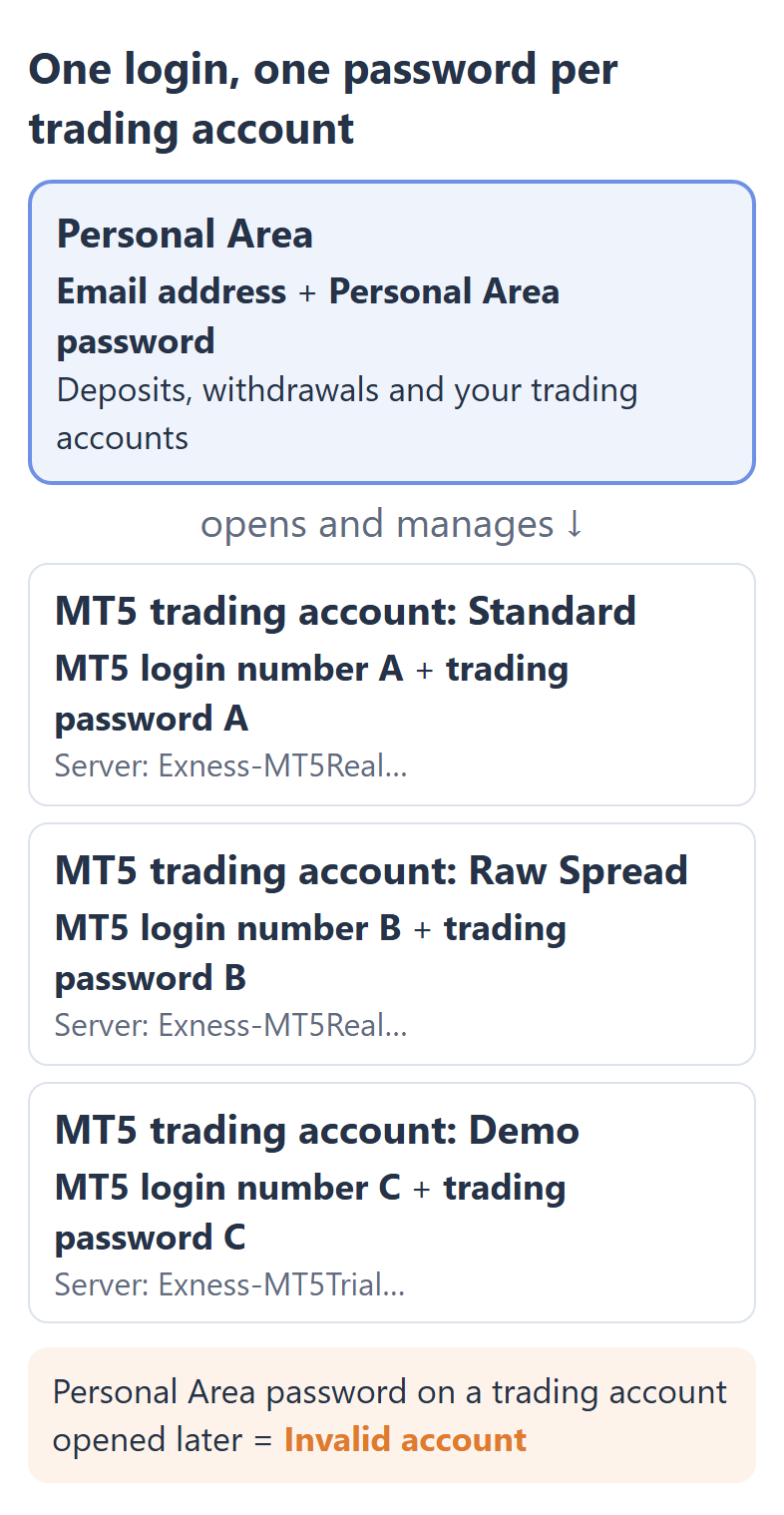
On your phone, the Exness Trade app is the exception. The app asks for your Personal Area email address and password, not for a trading password.
How Do You Sign In to the Exness Personal Area?
You sign in to the Exness Personal Area with the email address that you registered with, not with a trading account number. The sign-in page has two fields, Your email address and Password, and a Sign in button.
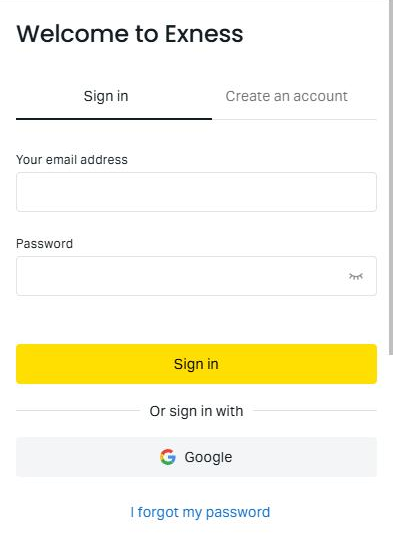
- Open the Exness sign-in page (opens in a new tab) and choose the Sign in tab.
- Type the email address that you registered with in Your email address.
- Type your Personal Area password in Password and tap Sign in.
Some actions ask for a second check after you sign in. A withdrawal, a password change and a partner change each need a code from your security type, which is email by default.
You can also get the code by SMS, an authentication app or a push notification in the Exness Trade app. Whichever you use, keep access to it, because you need the code on the day you withdraw.
What Can You Do in the Exness Personal Area?
In the Exness Personal Area, you deposit, withdraw, verify your profile and open trading accounts. Trading happens in MT5, Exness Terminal or the Exness Trade app, and the menu on the left groups the tasks into sections.
- Trading
Accounts lists your trading accounts and opens new ones, and History of orders shows your past trades. - Payments & wallet
Deposit, Withdrawal and Transfer move your money, and Transaction history shows where each payment is. - Exness benefits
Trading conditions shows whether your Personal Area is swap-free, which the Exness swap guide explains. - Support hub
The help articles and the chat with Exness support are here, 24 hours a day. - Profile
Verification takes your documents, and Security holds your password and your security type.
Verification comes first in a new Personal Area, because Exness limits deposits until it is done. The Exness minimum deposit guide then shows how much your first deposit needs to be.
To choose the trading account to open, the Exness account types guide compares the accounts side by side.
Where Do You Find Your Exness MT5 Login and Server?
Your MT5 login number and server are in the Exness Personal Area, under Trading and then Accounts. Tap the three-dot icon on a trading account card, and Settings shows the server and the MT5 login at the top.
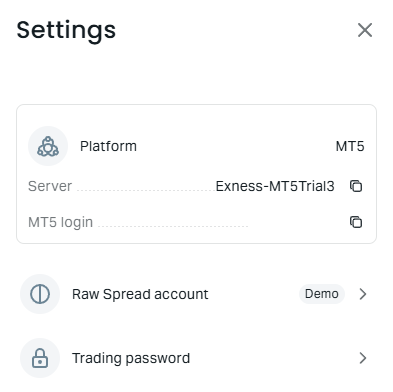
The server matters as much as the trading account number. MT5 looks for your trading account only on the server that you choose. So with the wrong server, MT5 cannot find your trading account, even with the right number.
A real trading account is on a server with a name like Exness-MT5Real43, and a demo trading account on one like Exness-MT5Trial3.
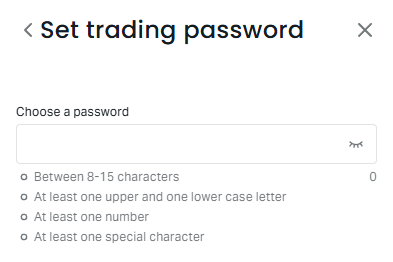
If you opened the trading account on your phone, it may have no trading password yet. On the phone screen that we used, the new MT5 trading account was created with one tap on Continue, and no trading password was set.
In that case, set one before you open MT5. Tap the three-dot icon on the trading account, choose Trading password and confirm the change with your security type. The second screen shows the password rules.
- In the Personal Area, open Trading and then Accounts.
- Tap the three-dot icon on your trading account, and note the MT5 login and the server at the top.
- In MT5 on a computer, choose Login to Trade Account in the File menu. Enter the number, the trading password and the server, and click Login.
Your server may be missing from the list in MT5, because MT5 only lists the servers that it already knows. In that case, search for Exness in MT5 and add the server first.
- In MT5 on a computer, choose Open an Account in the File menu.
- Search for Exness and choose Exness Technologies Ltd. from the list.
- Choose your server, click Finish, and then log in again.
- In the MT5 phone app, search the list of brokers for Exness Technologies Ltd and choose your server there.
Why Does Exness MT5 Say Invalid Account?
MT5 says “Invalid account” when the number, the password or the server does not match the trading account. The cause is usually one of four mix-ups.
- Wrong password
You typed the Personal Area password, but this trading account has its own trading password. - Wrong number
You typed the number of another trading account, for example your demo account. - Wrong server
You chose a server that is not the server of this trading account, for example a demo server for a real trading account. - Wrong platform
You tried to log in to an MT4 trading account from MT5. An MT4 trading account works only in MT4, and an MT5 trading account works only in MT5.
If you forgot the trading password, you set a new one, because Exness never shows an old password or sends one by email. You change it under the three-dot icon of that trading account, then use it in MT5 straight away.
“No connection” is a different message, about the connection and not the password. In MT5, click the connection status at the bottom right and choose Rescan servers, which often brings the connection back.
What If You Cannot Sign In to the Exness Personal Area?
If the Exness Personal Area rejects your password, use I forgot my password on the sign-in page and set a new one by email. Before you reset, check for a typing slip.
A typing slip is easy to miss. The email address goes in the first field, not a trading account number, and the password needs no extra spaces, Caps Lock off and an English keyboard.
- On the Exness sign-in page (opens in a new tab), tap I forgot my password.
- Enter your registered email address and tap Continue.
- Confirm with the code from your security type. Then set a new password of 8 to 15 characters, with upper and lower case letters, a number and a symbol.
On the reset page, type the captcha with care, because several wrong captchas lock the reset page for 24 hours.
If the password is right and the page still does not open, clear your browser’s cache and cookies, or try another browser or a private window. The Exness Trade app is a second way in, with the same email address and password.
Losing the phone that gets your codes is a bigger problem. If your email, phone number and identity are already verified, a face scan in the Personal Area resets your security type to email.
Exness then pauses withdrawals for 24 hours to protect your money, so plan a withdrawal for the next day.
Is the Exness Partner Login the Same as the Personal Area?
No, the Exness Partner Personal Area is a separate site for partners who refer traders, and a trader never needs it. Your trading accounts and your money are all in your own Personal Area.
If you came here for an IB login because you want a different partner, you make that change in your own Personal Area. The Exness partner change guide shows the chat message and the short form, step by step.
The partner matters to you because Exness pays your partner part of the spread on every lot that you trade. With ForexFanClub as your partner, most of that part comes back to you as our rebate.
Exness Login FAQ
- Can you have several Exness trading accounts under one login?
-
Yes. One Exness Personal Area can hold up to 100 real MT5 trading accounts on Standard alone. You still sign in only once, with your email address.
- Will Exness ask for your password?
-
No. Exness support never asks for any of your passwords. Support identifies you by your Support PIN, so a message asking for a password is not from Exness.
- Can you change your Exness MT5 login number or server?
-
No. Exness sets the number and server of each trading account, and neither can change. For a different server or account type, you open a new trading account.
You can then move your balance to it with an internal transfer, and the Exness account types guide helps you choose the new one.
Where the facts come from:
Sources and how we checked them
Our own Personal Area and MT5
We read the menu, the trading account settings and the security page in our own Exness Personal Area on 21 October 2026. The sign-in and reset pages are the public Exness pages on the same day. The “Invalid account” result comes from our test on 15 October 2026, when we typed the Personal Area password into MT5 for a trading account opened on a phone.
The Exness rules
The password types, the password rules, the reset steps, the security types and the login troubleshooting steps come from the Exness Help Centre, read on 21 October 2026. The Help Centre asks for a sign-in in some countries, so we link to the Exness pages that open without one.
Which Page Do You Need Next?
Once you are signed in, the next step is usually your first deposit or a new trading account. The pages show the minimum deposit, the account types, the partner change and the rebate on each account.
Once the new Exness trading account is open, add it to Forex FanClub. The member area lists every rebate payment day by day, across every broker you use. Registration is free and takes an email address.

Produced and operated by Forex FanClub
Person responsible: Hiroki Sakaida, founder of Forex FanClub
Hiroki Sakaida decides what our content and services cover and which features they offer. He also checks content and functionality and decides on revisions and publication. Our Content and Service Policy explains how we produce and check our content and services, including our use of AI.
Risk warning: Forex and CFD trading involve leverage, and you could lose all the money you invest. This article and tool provide information, not investment advice. The amounts shown are calculated from the collected data and do not guarantee the amounts that will apply to your own trades, or any future profit.
Affiliate disclosure: This article contains Exness referral links. Forex FanClub receives referral commission based on registrations and trading through these links.
- Which Exness Login Do You Need?
- How Do You Sign In to the Exness Personal Area?
- What Can You Do in the Exness Personal Area?
- Where Do You Find Your Exness MT5 Login and Server?
- Why Does Exness MT5 Say Invalid Account?
- What If You Cannot Sign In to the Exness Personal Area?
- Is the Exness Partner Login the Same as the Personal Area?
- Exness Login FAQ
- Which Page Do You Need Next?