
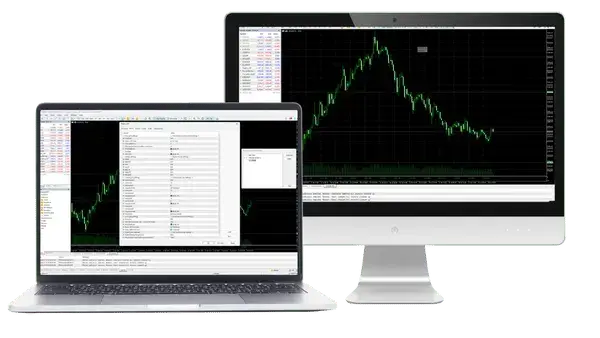
LocalTime 1.10 checked on 13 October 2026, MT5 server times on 12 October 2026
MT5 shows every candle in your broker’s server time, so the times on the chart are often hours away from your own clock. LocalTime puts your own time on the chart instead, and it is free for MT5 and MT4.
The source code is free to read and change: LocalTime.mq5 for MT5 and LocalTime.mq4 for MT4.
Contents
What Time Zone Does MT5 Use?
MT5 uses your broker’s server time, and MT5 has no setting to change the chart to your own time zone. The time scale at the bottom of the chart, the time of each candle and the clock in Market Watch all come from the broker’s server.
The server clock depends on the broker. In October 2026, XM, HFM and XS run their servers 3 hours ahead of UTC, and Exness runs its server on UTC. The table below shows what time it is in your country when the MT5 chart shows 12:00.
| XM, HFM, XS | Exness | |
|---|---|---|
| India | 14:30 | 17:30 |
| Pakistan | 14:00 | 17:00 |
| Nigeria | 10:00 | 13:00 |
| South Africa | 11:00 | 14:00 |
| Brazil | 06:00 | 09:00 |
| Japan | 18:00 | 21:00 |
So a trader in India who sees a candle at 12:00 on an XM chart is looking at 14:30 India time. On an Exness chart, the same 12:00 candle is 17:30 India time, because the two servers are 3 hours apart.
The gap also changes during the year. The market hours follow New York, and the US clocks go back on 1 November 2026, so a number you add in your head can be wrong by an hour from that day.
LocalTime reads the clock of your computer instead. So the chart keeps showing your own time after every clock change, and you have nothing to add in your head.
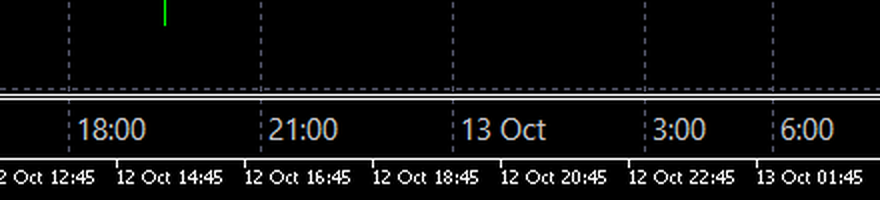
On the chart, LocalTime writes your time in a thin row directly on top of the MT5 time scale. In the example, the bottom row is the server time of XM, and the row on top of it is the time of the computer.
How Do You Install LocalTime in MT5?
Download the file for your platform, copy it into the Indicators folder of MT5 and drag it onto a chart. Install it on a computer, because the MT5 app on phones cannot run indicators that you download.
Download the file for your platform. LocalTime.ex5 is for MT5, and LocalTime.ex4 is for MT4.
In MT5, click File and then Open Data Folder. Open MQL5 and then Indicators, and copy LocalTime.ex5 into that folder. In MT4, the folder is MQL4 and then Indicators.
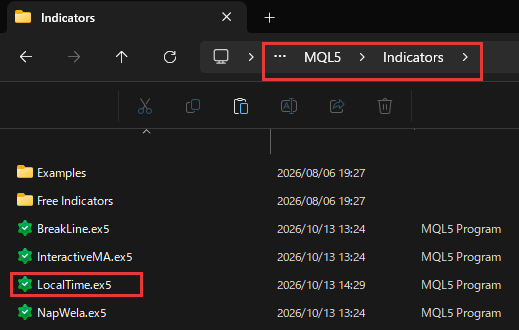
Restart MT5, or right-click Indicators in the Navigator and click Refresh. Then drag LocalTime from the Navigator onto your chart and click OK.
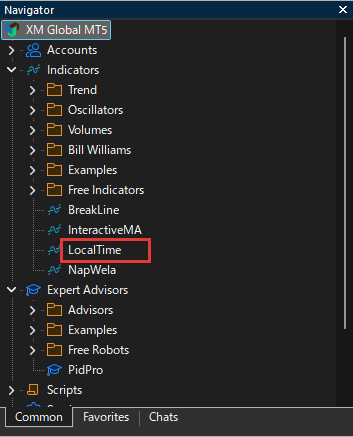
LocalTime is an indicator, not an Expert Advisor, so you do not need to turn on Algo Trading. It only draws on the chart and never places a trade.
Which LocalTime Settings Should You Change?
Most traders can keep the default settings, because LocalTime shows the clock of your computer and adjusts the labels to each timeframe.
On M15, for example, the labels show the hour, and the date appears once a day. On H4 they show one date a week, and on D1 they show the name of each month.
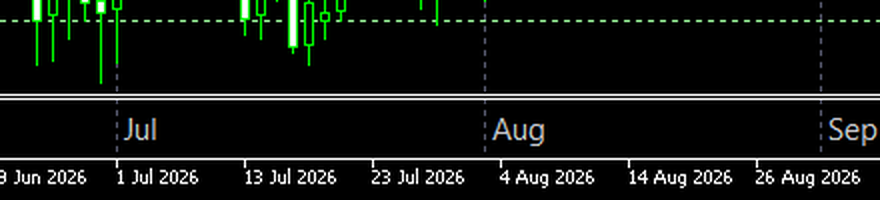
On D1, W1 and MN1, each label shows the date of the candle, which is the server’s date. To open the settings, right-click the chart, choose Indicators List, select LocalTime and click Properties.
The table below shows the settings that change what you see, with the default value in brackets.
| Setting | What it changes |
|---|---|
| Time to show | Your computer’s clock or the server time (your computer) |
| Label every N bars | Bars between two labels (0, picked for each timeframe) |
| Label format: auto by timeframe | Times, dates or months, by timeframe (On) |
| Clock style | 24-hour clock or AM and PM (24-hour) |
| Font size | Size of the time labels (11) |
| Text color: match the chart background | Light text on a dark chart, dark text on a light one (On) |
| Highlight lines at these times | Up to four coloured lines on M1 to H4 (On) |
| Grid space (points) | Points between price lines (100) |
If your computer clock is not set to the time zone you trade in, fix the time zone in Windows. LocalTime then follows it, and it also handles time zones such as India’s UTC+5:30. The list of all 35 settings, with their default values, is further down this page.
How Do the Session Lines and Price Grid Help?
The coloured lines mark the times of day that matter to you, and the price grid shows how far the price has moved. Both use your own time, so they stay in the same place on the chart every day.
You can set up to four coloured lines, Time 1 to Time 4, on M1 to H4 charts. For example, put one at the time gold stops trading each day, which is 02:30 India time in October 2026. The line then shows at a glance which candles came just before gold stopped.
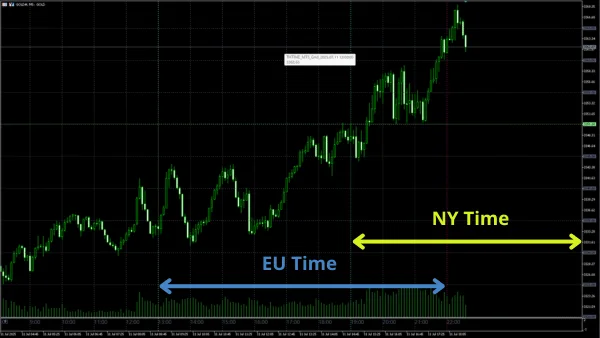
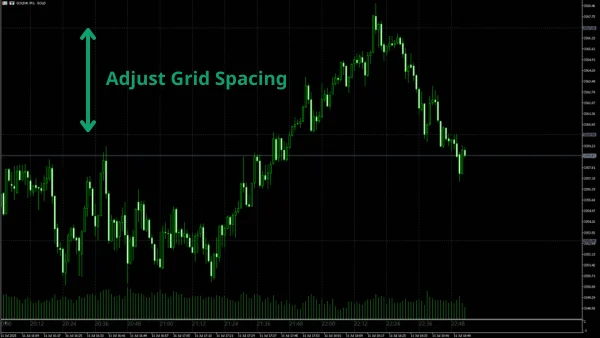
The price grid draws a line every 100 points by default. On EURUSD, 100 points is 10 pips. On a gold symbol with two decimals, such as GOLD at XM, 100 points is $1 of the gold price. When you zoom out, LocalTime draws fewer lines, so the chart stays readable.
For one lot, both distances are worth about $100. So on EURUSD and on gold, each line on the chart is about $100 of profit or loss for one lot. To see what your own lot size means in dollars, use our lot size calculator.
What If LocalTime Shows the Wrong Time or Nothing?
Most problems come from the computer clock, the size of the text or an old version on the chart. Check them in this order.
- The wrong time
LocalTime shows the clock of your computer. If that clock is in another time zone, change the time zone in Windows. - Small text
On a high-resolution screen, the time can look very small. Raise Font size, which is 11 by default, until you can read it. - An old version
Earlier versions were called THtime and stopped showing the time on H1 and longer charts. Remove THtime from the chart and install the new LocalTime, which clears the old lines.
Questions People Ask About LocalTime
- Is LocalTime free?
-
Yes. LocalTime is free, with no registration and no time limit. You download the file and use it on as many charts as you like.
- Can I change the time zone in MT5 itself?
-
No. MT5 always shows the broker’s server time. An indicator such as LocalTime is the way to see your own time on the chart.
- Does LocalTime work on the MT5 app on my phone?
-
No. The MT5 app on phones cannot run downloaded indicators. Install LocalTime in MT5 on a Windows computer.
- Can I read or change the code of LocalTime?
-
Yes. The source code is free to download, so you can check what LocalTime does and change it for your own trading. The terms are at the top of each file. If you share the file, keep the author name Forex FanClub and the link to our site in it, and do not sell it.
- Can I use LocalTime on several charts?
-
Yes. Each chart keeps its own LocalTime settings. For example, you can show minutes on an M5 chart and only the hour on an H1 chart.
- Does LocalTime show a 12-hour clock?
-
Yes. Set Clock style to the 12-hour format, and the time shows AM and PM. The default is the 24-hour clock.
Which Tool Do You Need Next?
Once your chart shows your own time, the next question is usually when the market you trade is open. Our forex market hours page shows whether each symbol is open now at each broker, and the gold market hours page shows when gold opens and closes in your time zone.
All LocalTime settings and how we checked them
All 35 settings, with the default value
- Time to show
- Your computer’s clock, or the MT5 server time. Default: Local time (your computer).
- Hours added to server time
- Hours added to the server time. Used only when Time to show is the server time. Default: 0.
- Label every N bars
- Bars between two labels. 0 picks the spacing for each timeframe and zoom. Default: 0.
- Label format: auto by timeframe
- Times on short timeframes, dates and months on long ones. Default: On.
- Clock style
- 24-hour clock or AM and PM. Default: 24-hour (14:00).
- Font size
- Size of the time labels. Default: 11.
- Text color: match the chart background
- Light text on a dark chart, dark text on a light chart. Default: On.
- Text color
- Colour of the time labels when the automatic colour is Off. Default: Silver.
- Vertical line at each label
- A vertical line at each label. Default: On.
- Vertical line color
- Colour of those lines. Default: Grey.
- Year, Month, Day, Hour, Minute, Second
- What each label shows when the automatic format is Off. Default: Hour and minute.
- Leading zero on the hour
- Shows 09:00 instead of 9:00 when the automatic format is Off. Default: Off.
- Highlight lines at these times
- Shows the four coloured lines on M1 to H4. Default: On.
- Time 1 to Time 4: hour
- Hour of each coloured line. Default: 13, 15, 18, 21.
- Time 1 to Time 4: minute
- Minute of each coloured line. Default: 0.
- Time 1 to Time 4: color
- Colour of each coloured line. Default: Pale green for Time 1, grey for the others.
- Horizontal price grid
- Shows the price grid. Default: On.
- Grid space (points)
- Points between two price lines. 100 points is 10 pips on a 5-digit pair. Fewer lines when you zoom out. Default: 100.
- Grid line color
- Colour of the price lines. Default: Grey.
- Every 10th line color
- Colour of every 10th price line. Default: Pale green.
- Every 100th line color
- Colour of every 100th price line. Default: Turquoise.
Some rows hold several settings, so the table has fewer rows than settings. The names are the ones in the settings window of the indicator.
How we checked
- Files
- LocalTime.ex5 (40,698 bytes) and LocalTime.ex4 (42,178 bytes), version 1.10, the files of the two download buttons, updated on 13 October 2026.
- Settings
- The settings window of version 1.10 in XM MT5, and its source code. The screenshots are from a test MT5 at XM on 13 October 2026.
- Server time
- Our data collectors read the server clock of each broker’s MT5 on Sunday 11 October 2026. XM, HFM and XS were 3 hours ahead of UTC, and Exness was on UTC.
- Time table
- The 12:00 on the chart minus the server’s offset from UTC, plus the offset of each country in October 2026: India UTC+5:30, Pakistan UTC+5, Nigeria UTC+1, South Africa UTC+2, Brazil UTC−3 and Japan UTC+9.
Checked on 13 October 2026.
Once your rebate account is open, link it to Forex FanClub. The member area lists every rebate payment day by day, across every broker you use. Registration is free and takes an email address.

Produced and operated by Forex FanClub
Person responsible: Hiroki Sakaida, founder of Forex FanClub
Hiroki Sakaida decides what our content and services cover and which features they offer. He also checks content and functionality and decides on revisions and publication. Our Content and Service Policy explains how we produce and check our content and services, including our use of AI.
Risk warning: Forex and CFD trading involve leverage, and you could lose all the money you invest. This article and tool provide information, not investment advice. The amounts shown are calculated from the collected data and do not guarantee the amounts that will apply to your own trades, or any future profit.
Affiliate disclosure: The broker pages linked from this page contain referral links. Forex FanClub receives referral commission based on registrations and trading through those links.