

Close one trading account in 3 steps, or email XM Support to delete your whole XM account.
Checked on 4 October 2026
Closing an XM account at a glance
- One trading account
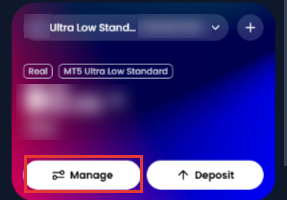
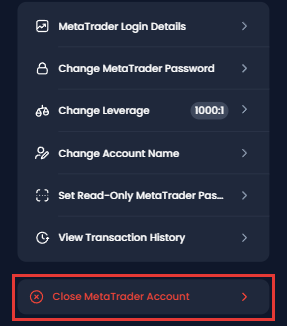
- Manage → Close MetaTrader Account in the Members Area. Free and immediate. The balance must be zero.
- Whole XM account
- Email support@xm.com. XM ends your Client Agreement after at least 7 days.
- If you leave it open
- XM charges USD 10 a month to a dormant trading account with money in it.
Before you close a trading account, log in to your XM Members Area (opens in a new tab) and check its balance.
Contents
- Close One Trading Account or Delete Your XM Account?
- How Do You Close an XM Trading Account?
- What Should You Check Before Closing a Trading Account?
- How Do You Delete Your XM Account Permanently?
- What Happens If You Leave an XM Account Open?
- Can You Open an XM Account Again Later?
- FAQ on Closing an XM Account
- Which XM Guide Do You Need Next?
Close One Trading Account or Delete Your XM Account?
Your choice decides how easily you can come back to XM.
- Not using one trading account
Close only that trading account. Your login and your other trading accounts stay open. To trade again later, add a new trading account in a few minutes. - Leaving XM for good
Email XM Support to delete the whole XM account. XM ends your Client Agreement after at least 7 days. To trade at XM again, you need to register and send your documents again. - Taking a break
Withdraw everything, and leave the trading accounts at a zero balance. A zero balance pays no fee. When you come back, add a new trading account in a few minutes.
Unless you want XM to delete your login, close only the trading accounts. Your profile stays verified, so you can add a new trading account in a few minutes.
XM keeps your ID documents and transaction records for 5 years either way. So deleting the whole XM account does not remove those records sooner.
How Do You Close an XM Trading Account?
Log in to the XM Members Area (opens in a new tab) on the website or in the XM app.
Choose the trading account at the top of Home, and tap Manage.
Tap Close MetaTrader Account at the bottom of the list. Check the account number, and confirm on the next screen.
Closing works only with a zero balance, no open trades and no pending withdrawal. The next section lists these checks. A closed trading account stays closed.
What Should You Check Before Closing a Trading Account?
- Balance
Withdraw the money, or move it to another XM trading account. - Open trades
Close every position in the trading account. - Pending withdrawals
Wait until every withdrawal request has been processed. - Trading history
Save it now. The history of a closed trading account disappears.
To check for a pending withdrawal, open Manage → View Transaction History. To take money out first, the XM withdrawal guide shows each step.
Save Your Trading History First
Keep a copy for your tax return or for reviewing your trading later.
- Open the Trading menu on the left, and tap History.
- Choose a date range, such as Last 30 Days or your own dates.
- Take screenshots or notes of the trades that you need to keep.
How Do You Delete Your XM Account Permanently?
Send a written request to XM Support. XM then deletes your Members Area login together with all your trading accounts.
Deleting your whole XM account
- Email to
- support@xm.com, from the email address that you registered with XM
- What to write
- Your full name, your trading account numbers, and a request to close all accounts and end your Client Agreement
- How long it takes
- At least 7 calendar days. Either side can end the Client Agreement with 7 days of written notice.
- Before you send it
- Withdraw every balance, and close every open trade.
- Questions
- Live chat and phone (+501 2236696) run every day and night on the XM support page (opens in a new tab). The XM contact guide lists every channel.
Copy the email below, fill in the two brackets, and send it from your registered address.
Subject: Request to close my XM account

Hello XM Support,

Please close all my trading accounts and end my Client Agreement.

Full name: [your name]
Trading account numbers: [your account numbers]

All balances have been withdrawn and no trades are open.

Thank you,
[your name]
XM keeps copies of your ID documents and transaction records for 5 years after the agreement ends, under anti-money-laundering rules.
To ask XM to erase the rest of your personal data, email dpo@xmglobal.com. The XM Privacy Policy (opens in a new tab) explains these rights.
What Happens If You Leave an XM Account Open?
A trading account with money in it starts to pay a fee after 90 days with no activity. A zero balance pays nothing.
- After 90 days
With no activity, the trading account becomes dormant. XM removes any bonus, and pending orders may be deleted. - Money left in it
XM charges a dormant trading account USD 10 a month. If the balance is under USD 10, the fee is the whole balance. The trading account is then archived. - Balance under $5
The trading account is archived at day 90. - Never funded
The trading account is archived after 60 days. - After 12 months
With no activity on any trading account for 12 months, XM ends your Client Agreement.
If you only want to stop trading, withdraw everything first. If you would rather leave money in a trading account for later, the XM inactivity fee guide shows what counts as activity and how to avoid the fee.
Can You Open an XM Account Again Later?
- If you kept your login
Add a trading account with the + on the account card. For a rebate, enter partner code GJQYM on the last screen. The XM additional account guide shows each step. - If you deleted everything
Register again through the button below. The new trading account earns the rebate from its first closed trade.
If trading costs were your reason for leaving, the XM rebate guide shows how much comes back per lot on each account type.
FAQ on Closing an XM Account
- Can I close one trading account and keep the others?
-
Yes. The three steps close only the trading account that you choose. Your other trading accounts and your Members Area login stay open.
- What happens to the money in the trading account?
-
Withdraw it, or move it to another XM trading account first. Closing works only with a zero balance. The XM withdrawal guide shows each step.
- How long does it take to close an XM trading account?
-
A trading account closes as soon as you confirm step 3. Deleting your whole XM account takes at least 7 calendar days from your email.
- Is there a fee to close an XM account?
-
No. Closing is free. A fee applies only to a trading account left open with money in it. That fee is USD 10 a month after 90 days with no activity.
- What if I simply stop using XM?
-
XM ends your agreement after 12 months with no activity on any trading account.
Until then, XM charges USD 10 a month to a dormant trading account with money in it. So withdraw the balance first.
Which XM Guide Do You Need Next?
Sources: where each fact on this page comes from
- XM Client Agreement (opens in a new tab)
- Clause 79: dormancy after 90 days, the fee of USD 10 a month, and archiving. Clause 102.2: either side can end the agreement with 7 days of written notice. Clause 102.4: XM ends the agreement after 12 months with no activity. The PDF of 28 August 2026, checked on 4 October 2026.
- XM Privacy Policy (opens in a new tab)
- ID documents and transaction records are kept for 5 years after the relationship ends. Requests about personal data go to dpo@xmglobal.com. Read on 4 October 2026.
- XM support page (opens in a new tab)
- Live chat and phone (+501 2236696) every day and night. Read on 4 October 2026. On 16 October 2026, the page gave the email support@xm.com.
- XM Members Area
- The Manage button and Close MetaTrader Account, on 26 September 2026. The pictures show a real trading account with its name and balance hidden.
If you open a new XM trading account later, link it to Forex FanClub. The member area lists every rebate payment day by day, across every broker you use. Registration is free and takes an email address.

Produced and operated by Forex FanClub
Person responsible: Hiroki Sakaida, founder of Forex FanClub
Hiroki Sakaida decides what our content and services cover and which features they offer. He also checks content and functionality and decides on revisions and publication. Our Content and Service Policy explains how we produce and check our content and services, including our use of AI.
Risk warning: Forex and CFD trading involve leverage, and you could lose all the money you invest. This article and tool provide information, not investment advice. The amounts shown are calculated from the collected data and do not guarantee the amounts that will apply to your own trades, or any future profit.
Affiliate disclosure: This article contains XM referral links. Forex FanClub receives referral commission based on registrations and trading through these links.
- Close One Trading Account or Delete Your XM Account?
- How Do You Close an XM Trading Account?
- What Should You Check Before Closing a Trading Account?
- Save Your Trading History First
- How Do You Delete Your XM Account Permanently?
- What Happens If You Leave an XM Account Open?
- Can You Open an XM Account Again Later?
- FAQ on Closing an XM Account
- Which XM Guide Do You Need Next?