NAVIGATION
  • HOME
  • NinjaBull
    • Macro Gravity
    • API for EA
  • Broker Rebates
    • XM Rebates
    • HFM Rebates
    • XS Rebates
    • Exness Rebates
    • Axi Rebates
  • Trading Tools
    • PidPro
    • BreakLine Indicator
    • NapWela Timer
    • LocalTime Indicator
    • Interactive MA
    • Currency Strength
    • Gold Analytica
    • MT4/MT5 Setup
  • Calculator
    • Rebate Calculator
    • Max Lot Calculator
    • Margin Calculator
  • About XM
    • Registration
      • Additional Account
      • Demo Account
      • Internal Transfer
      • Close Account
    • Bonus Promotions
      • Trading Bonus
      • Deposit Bonus
      • Traders Club
        • XMC Calculator
    • Account Types
      • Standard Account
      • Ultra Low Account
    • Trading Conditions
      • Spread Table
      • Swap Rates
      • Leverage & Margin
      • Trading Cost
    • Deposit Guide
    • Withdrawal Guide
    • Contact Support
  • Bounty Guild
  • Dashboard
Forex FanClub
  • HOME
  • NinjaBull
    • Macro Gravity
    • API for EA
  • Broker Rebates
    • XM Rebates
    • HFM Rebates
    • XS Rebates
    • Exness Rebates
    • Axi Rebates
  • Trading Tools
    • PidPro
    • BreakLine Indicator
    • NapWela Timer
    • LocalTime Indicator
    • Interactive MA
    • Currency Strength
    • Gold Analytica
    • MT4/MT5 Setup
  • Calculator
    • Rebate Calculator
    • Max Lot Calculator
    • Margin Calculator
  • About XM
    • Registration
      • Additional Account
      • Demo Account
      • Internal Transfer
      • Close Account
    • Bonus Promotions
      • Trading Bonus
      • Deposit Bonus
      • Traders Club
        • XMC Calculator
    • Account Types
      • Standard Account
      • Ultra Low Account
    • Trading Conditions
      • Spread Table
      • Swap Rates
      • Leverage & Margin
      • Trading Cost
    • Deposit Guide
    • Withdrawal Guide
    • Contact Support
  • Bounty Guild
  • Dashboard
Login
Forex FanClub
  • HOME
  • NinjaBull
    • Macro Gravity
    • API for EA
  • Broker Rebates
    • XM Rebates
    • HFM Rebates
    • XS Rebates
    • Exness Rebates
    • Axi Rebates
  • Trading Tools
    • PidPro
    • BreakLine Indicator
    • NapWela Timer
    • LocalTime Indicator
    • Interactive MA
    • Currency Strength
    • Gold Analytica
    • MT4/MT5 Setup
  • Calculator
    • Rebate Calculator
    • Max Lot Calculator
    • Margin Calculator
  • About XM
    • Registration
      • Additional Account
      • Demo Account
      • Internal Transfer
      • Close Account
    • Bonus Promotions
      • Trading Bonus
      • Deposit Bonus
      • Traders Club
        • XMC Calculator
    • Account Types
      • Standard Account
      • Ultra Low Account
    • Trading Conditions
      • Spread Table
      • Swap Rates
      • Leverage & Margin
      • Trading Cost
    • Deposit Guide
    • Withdrawal Guide
    • Contact Support
  • Bounty Guild
  • Dashboard
  1. Home
  2. What is XM Forex Broker? Features, Accounts & Conditions
  3. How to Register with XM: Complete Account Opening Guide

How to Register with XM: Complete Account Opening Guide

XM Logo - Forex Broker

Complete Guide to Registration & Account Opening with XM
Exclusive promotions available only for those who sign up through this website!

In this guide, we walk you through every step of using XM — from registration and identity verification to account opening and placing your first trade. Signing up with XM is quick and straightforward, taking as little as 5 minutes to register. You can be ready to trade for real within just 1 hour of completing your application. Simply fill in your name and address, then upload your identity documents online — no need to send anything by post or fax.

Once you’ve registered and logged in to the XM Members Area, a Standard account will be activated for you automatically. After uploading your identity documents via the Members Area or the official XM app, verification and approval typically takes between 1 hour and 1 business day. Full account activation gives you complete access to all XM services — including bonuses, deposits and withdrawals, and trading via the MT4 and MT5 platforms.

Register with XM
STEP 1
Registration
Registration is complete once you sign up and verify your email address.
You can register easily from your computer, smartphone, or the XM app. Simply enter your email address in the registration form and confirm via email.
Submit identity verification documents to XM
STEP 2
Identity Verification
Complete your profile and submit your identity documents online.
Submit your identity documents to complete the verification process. Once approved, your account will be fully activated.
Open a trading account in the XM Members Area
STEP 3
Open a Trading Account
Customize and open your preferred trading account in the XM Members Area.
Log in to the Members Area from your computer, smartphone, or the XM app and open a trading account that suits your trading style.
Set up MT4/MT5 and start trading with XM
STEP 4
Start Trading
Install MT4/MT5 and start trading.
Install the MT4/MT5 trading platform — available on desktop, smartphone, and app — and start trading today.

Sign up with XM today and receive a $30 Trading Bonus and all available bonus promotions, plus an exclusive 90% Auto Rebate available only through this website. Don’t miss this opportunity to start trading with XM — experience world-class trading with zero risk, right from the start.

Copy Profitable Pro Strategies Over 150,000 trades executed daily
More than 100,000 traders have already joined
XM Copy Trading

Copy the trades of experienced traders. Choose from over 9,000 strategies.

Start Copy Trading →
XM Copy Trading - Copy expert signals automatically
Open Your XM Account Now

Contents

  1. XM Registration & Account Opening Requirements
    1. Age Requirement — Applicants Under 18 Are Not Eligible
    2. Restricted Countries — Regions Where XM Services Are Not Available
    3. Applicants Unable to Submit Identity Documents Cannot Complete Registration
    4. Existing XM Members Cannot Register a Second Account
  2. How to Register with XM (Step-by-Step Guide)
    1. XM Registration Steps with Screenshots
  3. XM Identity Verification & Account Activation
    1. Documents Required for XM Identity Verification
    2. XM Identity Verification Steps with Screenshots
    3. How Long Does XM’s Document Review Take?
  4. How to Open an XM Account (Step-by-Step Guide)
    1. Detailed XM Account Opening Steps (with Illustrated Guide)
    2. Important Notes and Benefits of Holding Multiple XM Accounts
  5. How to Start Trading with XM’s MT4/MT5
    1. Overview and Key Differences of XM’s MT4/MT5 Platforms
    2. MT4/MT5 Features and How to Choose the Right Platform
    3. Download XM’s MT4/MT5
    4. Trading Platforms and Educational Video Courses
  6. Frequently Asked Questions About XM Registration & Account Opening (Q&A)
Contents

XM Registration & Account Opening Requirements

To be eligible to register and open an account with XM, you must meet the following requirements. Once you’ve successfully signed up, you’ll receive a Trading Bonus of $30 (Welcome Bonus) and can begin trading immediately — giving you a risk-free start. If you do not meet the eligibility criteria, you will not be able to open an account with XM. Please review the requirements below carefully before proceeding.

Age Requirement — Applicants Under 18 Are Not Eligible

Only individuals aged 18 or older are eligible to register and open an account with XM. Applicants who are under 18 at the time of registration will not be accepted, even with parental or legal guardian consent. Registering on behalf of a family member or another person is also strictly prohibited. Please be mindful of this requirement.

Restricted Countries — Regions Where XM Services Are Not Available

XM serves clients from many countries around the world. However, please note that residents of certain regions — such as Myanmar — are not eligible to register with XM. The following is a list of restricted regions where XM services are not available:

Countries Where XM Services Are Not Available

Guam, North Korea, Bouvet Island, Isle of Man, United States Minor Outlying Islands, Heard Island, Guernsey, Cuba, Canada, Kosovo, Jersey, Sint Maarten, Syria, Sudan, South Sudan, Saint Barthélemy, Saint Martin, New Zealand, Bonaire, Sint Eustatius and Saba, Palau, Puerto Rico, French Southern and Antarctic Lands, Myanmar, Liberia, United States of America, Northern Mariana Islands, United States Virgin Islands, Åland Islands, American Samoa, Israel, Iran

Applicants Unable to Submit Identity Documents Cannot Complete Registration

After registering, if you do not submit your identity documents, your User Account will not be activated, and you will be unable to access core services such as deposits and withdrawals. The verification process confirms that the name and address you registered with match your official identity documents, proving you are a real individual in accordance with security standards. Please note that until document submission and identity verification are complete, you will not be able to claim your $30 Free Trading Bonus or begin any trading transactions.

Please note that the XM $30 Trading Bonus must be claimed within 30 days of registration. After this period, the bonus will no longer be available. We strongly recommend submitting your identity documents as soon as possible.

Existing XM Members Cannot Register a Second Account

Members who already have an active XM User Account cannot register a second one. However, a single User Account can hold multiple trading accounts. XM allows up to 10 trading accounts and 1 Shares Account per User Account.

You can open additional trading accounts directly from the Members Area or via the XM mobile app. No additional documents are required, and the process takes approximately 1 minute to complete.

▼ Benefits & How to Open Additional Accounts with XM

Forex FanClub
How to Open an Additional XM Account | Step-by-Step Guide Open an additional XM trading account in minutes. Learn the benefits, key rules, and step-by-step process for managing multiple accounts effectively.
Register and Open an Account Easily with the XM App

The entire process — from XM registration and identity verification to opening a trading account — can be completed seamlessly through XM’s official mobile application, the XM App. The XM App is a comprehensive, all-in-one tool that lets you access all Members Area functions, including opening trading accounts, depositing and withdrawing funds, and managing your settings — as well as execute trades efficiently. From registration to verification, account activation, and account opening, every step can be completed smoothly through the XM App.

Download the XM App

How to Register with XM (Step-by-Step Guide)

To start trading with XM, you first need to create an account. Fill in the required details — such as your country of residence, email address, and password — in the registration form, then verify your email. You’ll then be able to log in to the XM Members Area, and an MT5 Standard account in USD will be created for you automatically. This section walks you through the entire XM registration process with step-by-step screenshots.

XM Registration Steps with Screenshots

Step 1How to Fill in the XM Registration Form

Registering with XM takes just a few minutes. Click the button below to access the XM registration form. By signing up through this page, you’ll automatically receive the exclusive Auto Rebate benefit available only through this website.

Open the XM Registration Form

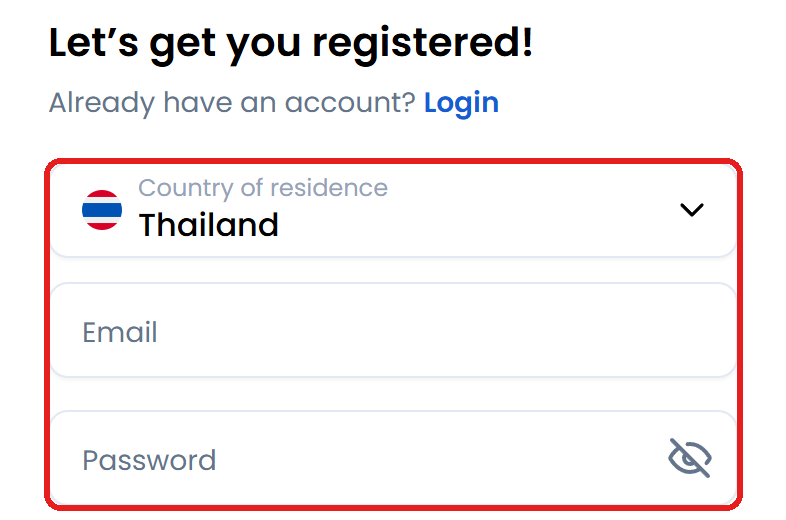
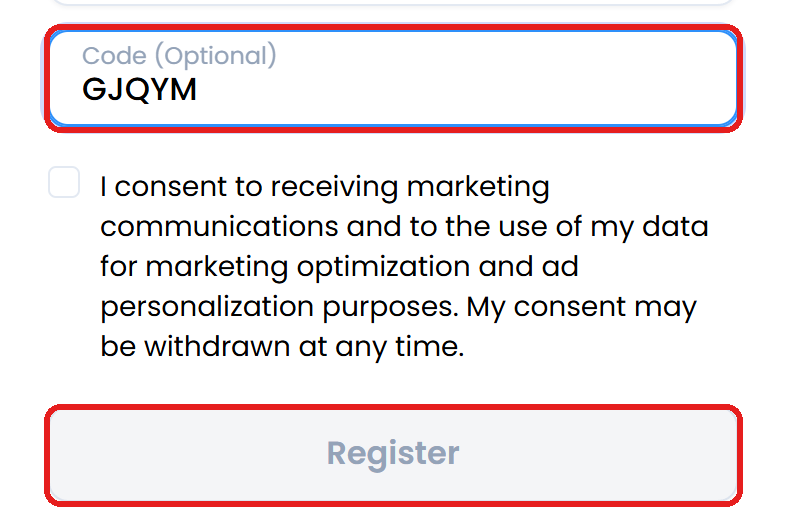
Once the XM registration form is open, enter your country of residence, email address, and login password. If you’d like to receive newsletters from XM, check the subscription box. Otherwise, skip it and click the “Register” button to continue.

XM Password Requirements
  • Password must be 10–15 characters long, using English letters and numbers.
  • Must include at least one uppercase letter, one lowercase letter, one number, and one special character.
  • Accepted special characters: “# [ ] ( ) @ $ * ! ? | , . ^ / \ * _ -“

We recommend writing down or securely storing your password, as it cannot be retrieved later.

XM registration form with fields for country, email, password, and a submit button

Step 2Email Verification

After submitting the registration form, a verification email will be sent to the address you registered with. Please check your inbox and click the “Verify Your Email” button to complete the email confirmation. Below is an example of the email you’ll receive from XM.

XM registration confirmation email with a Verify Your Email button
What to Check If You Haven’t Received an Email from XM
  • Has the XM email been filtered into your spam or junk folder?
  • Is there a restriction on receiving emails from external sources on your device?
  • Is your mailbox full?
  • Did you enter the correct email address during registration?
  • Do you have an email filter or block that rejects XM’s domain (@xm.com)?

Step 3Check Your Automatically Created Trading Account

Once you click the verification link in the email, you’ll be automatically directed to the XM Members Area. At this stage, your default account — an MT5 Standard account in USD — will have been created automatically for your convenience. After completing the identity verification process described in the next section, you’ll be able to open additional account types, such as accounts denominated in your preferred currency.

Account Type Automatically Created Upon Registration
  • Account Type: Standard Account
  • Platform: MT5 (MetaTrader 5)
  • Leverage: 1,000x
  • Base Currency: US Dollar (USD)
Location of the automatically created MT5 Standard account after XM registration, shown in the top right and right side of the screen

Step 4Check Your Trading Account Login Details

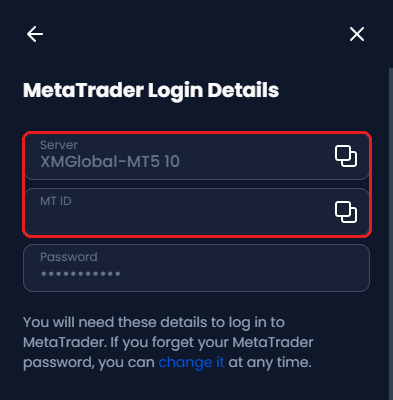
Please check your email for your MT5 account login credentials. The password should match the one you set during registration. Keep this trading account login information — along with your Members Area login details — stored securely.

XM registration completion email showing account opening details
Additional Notes on Trading Account Settings
  • Your trading account login details can be found on the “Account Overview” page in the Members Area.
  • Your trading account leverage can be adjusted from the “Account Overview” page in the Members Area.
  • The password for the automatically created MT5 account can be changed from the “Account Overview” page in the Members Area.

Your XM registration is now complete. However, at this stage you will not yet be able to access XM’s core services, such as claiming bonuses, making deposits or withdrawals, or trading. To unlock full access, you’ll need to activate your User Account through the identity verification process, which is explained in the next section. Important: You have only 30 days from the date of registration to complete verification and claim your $30 Free Trading Bonus. We strongly recommend completing this step right away so you don’t miss out.

XM Identity Verification & Account Activation

The XM identity verification process goes smoothly when you have the required documents — such as your national ID card or passport — ready in advance. To begin, log in to the XM Members Area and click the “Verify Now” button. Fill in your profile information and investor questionnaire, then submit the required documents. Approval typically takes between 5 minutes and 1 business day, after which your User Account will be fully activated.

Documents Required for XM Identity Verification

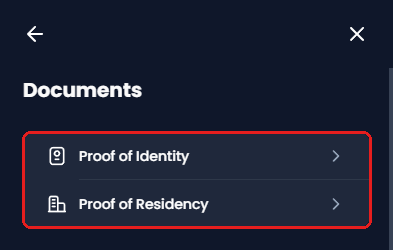
For XM identity verification, you’ll need two valid (unexpired) documents: a photo ID document and a proof of address document. If you have a national ID card, it can serve as both your identity document and proof of address simultaneously, which simplifies the verification process.

If your national ID card is not available, please prepare one document from each of the following categories:

Identity Documents
  • National ID Card (both front and back)
  • Passport (photo page)
  • Driver’s License — car or motorcycle (front side)
Proof of Address Documents
  • National ID Card
  • Bank Statement (showing name, address, and issued within the last 3 months)
  • Utility Bill (e.g. electricity, gas, water, telephone, internet, etc.)

XM Identity Verification Steps with Screenshots

Step 1Log In to the XM Members Area

In this section, we’ll walk you through the XM identity verification process step by step with screenshots. First, access the XM Members Area login page by clicking the button below.

Log In to the XM Members Area

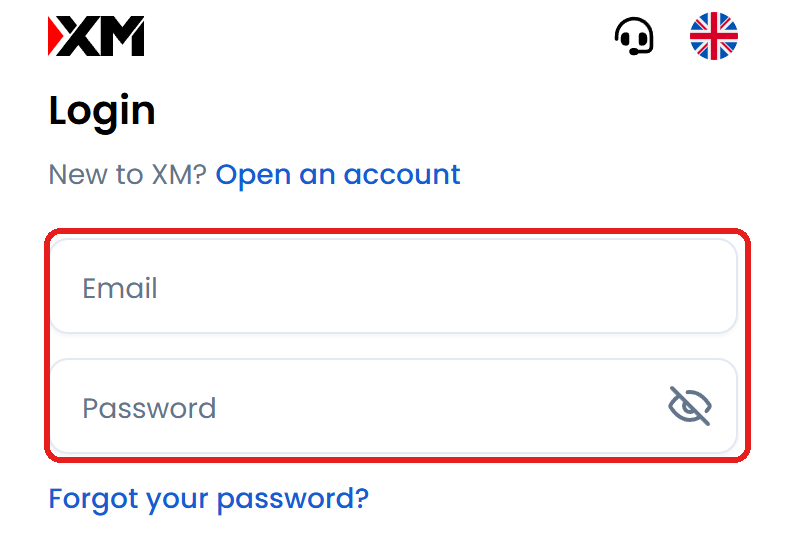
When the XM login page appears, enter the email address and password you registered with to log in to the XM Members Area.

XM Members Area login form for identity verification, with email and password fields

After clicking the “Log In” button, XM will ask you to enter a 6-digit OTP code sent to your email for verification. If you’re using a personal device, you can select “Trust this device” to skip this step for the next 7 days. Then click “Verify Code” to proceed.

XM OTP verification screen - enter the 6-digit code received by email

Step 2Begin Profile Verification

After logging in to the XM Members Area, a notification banner will appear at the top of the screen. Click the blue “Complete” button in the upper right corner to begin the identity verification process.

XM trading screen showing the location of the Complete button for identity verification in the top right corner

After clicking “Complete”, the XM system will take you to the phone number verification page. Enter your phone number and click “Get Code”.

XM phone number verification page for receiving an OTP code

After clicking “Get Code”, XM will send a 6-digit OTP to your phone number. Enter the code and click “Confirm” to proceed.

Screen for entering the 6-digit OTP to verify your phone number with XM

Step 3Enter Your Profile Information

Next, you’ll fill in your profile details. Enter your first name, last name, and date of birth in English in the respective fields as shown below. Once complete, click “Continue”.

If you’re unsure how your name is spelled in English, please refer to the English version on your national ID card.

XM identity verification profile form - name and date of birth fields

Profile Entry Example

First NameEnter your first name in English as it appears on your identity document. (e.g. JOHN)
Middle Name(Can be left blank)
Last NameEnter your last name in English as it appears on your identity document. (e.g. SMITH)
Date of Birth1975-12-15 (Year-Month-Day)
Phone Number912345678 (do not include the leading “0”; landline or mobile numbers are both accepted)

Step 4Enter Your Address

Next, enter your current address in English. If your address is not in English, you can use Google Translate or a similar tool to convert it. If you don’t know your postcode, please look it up via your country’s official postal service website. Once all fields are filled in, click “Continue” to proceed to the next step.

Please enter your address in English exactly as it appears on the identity document you will be submitting.

How to enter address details for XM identity verification - postcode and address fields

Address Entry Example

Country of ResidenceYour country
Address123 Main Street, Springfield
City / ProvinceSpringfield
House Number123
Postcode10001

Step 5Complete the Investor Information Form

Next, you’ll answer questions about your investment experience in the investor information form. This is a survey and does not affect the identity verification outcome. Once you’ve selected the relevant options, click “Continue” to proceed.

The information provided in this section does not impact your identity verification result, so feel free to select the options that best describe you.

XM identity verification investor survey and investment experience form

Step 6Start the Document Submission Process

The next step is to upload your identity documents to XM. If you have your national ID card ready, click “Continue”. If you don’t have the documents listed above, you can also use an alternative accepted identity document for verification.

Location and usage of the Start Identity Verification button for submitting XM identity documents

When this screen appears, please start to proceed to the next step.

jumio is an online identity verification (KYC) service provider used by financial service companies such as XM to comply with regulatory requirements.

XM identity verification consent screen (Shufti Pro) with confirmation checkbox

In the next step, select the country of document issuance and the document type you wish to use for verification.

XM identity document selection screen - National ID Card, Passport, Driver's License

The next step involves photographing your identity document. If your device doesn’t have a camera, don’t worry — simply wait for a QR code to appear on screen, then scan it with your smartphone to continue the process instantly.

XM identity verification QR Code screen via Shufti Pro with a URL to connect via smartphone for document submission

Step 7Photograph Your Identity Document

You’ll now proceed to document verification. Please photograph your document following the on-screen instructions. Make sure to observe the following guidelines to ensure fast approval.

Key Tips for Taking Document Photos
  • Ensure all text on the document is clearly visible and legible.
  • If the back of your document contains an address or other information, please photograph and upload it as well.

Image quality is critical. If the photo is blurry, has glare, or contains shadows that obscure the information, XM may consider the document incomplete, which could delay approval. When taking the photo, ensure that all four corners of the document are clearly visible and properly within the designated frame.

Guide to photographing identity documents for XM - examples of correct photo technique

Step 8Take a Selfie (Facial Photo)

The next step is to take a selfie. Once you’re ready, click the “×” icon in the upper right corner of the verification screen to start. Important: To pass verification in one attempt, please remove any glasses or face masks and ensure your face is clearly positioned within the designated frame.

Guide to taking a selfie for XM identity verification - correct facial photo technique

Step 9Confirm Successful Document Upload

Once the photo is taken, the system will automatically transition to a confirmation screen displaying the message ‘Your documents have been uploaded successfully!’, confirming that your information has been received.
From here, simply wait for an email notification within 24 hours to begin your trading journey.

Once your documents are submitted, you can proceed immediately:
  • To check the status, click ‘Check Status’ to return to the XM Members Area and view your current account status.
  • If you’re ready to start trading, click ‘Deposit’ to proceed with funding your account and start generating profits in the market.
XM identity verification success screen after document upload, with a checkmark icon and Check Status button

Step 10Identity Verification Complete

XM’s document review process typically takes between 5 minutes and 1 business day. If your submitted documents are clear and meet all requirements, you’ll receive a confirmation email stating that your ‘Identity Verification is Complete’ — meaning your account is fully ready for trading.

XM identity verification completion email content and next step instructions

Once the process is complete, you can easily check your status by logging in to the Members Area. If you see the ‘Validated’ badge next to your profile name, it means your XM registration and identity verification are 100% complete — and you’re ready to start trading immediately.

How to check account verification status in the XM Members Area showing the Validated badge

Once identity verification and account activation with XM are complete, you’ll have full access to all platform features — including fast deposits and profit withdrawals. Most importantly, you’ll be eligible to claim your $30 Free Trading Bonus, letting you start trading and generating profits right away without using your own capital.

After your verification is approved, an XM customer service representative may reach out to welcome you and provide initial guidance. If you have any questions or need more information about XM’s services, feel free to speak with them directly — it’s a great opportunity to get expert advice from the start.

How Long Does XM’s Document Review Take?

In most cases, XM’s identity verification takes between 5 minutes and 1 business day. However, if documents are submitted outside of business hours, processing may be pushed to the next business day. If you have not received a verification completion email from XM after 1 business day, please check your account status in the Members Area or contact XM support for assistance.

XM Identity Verification Is Typically Completed Within 1 Business Day

The standard processing time for XM identity verification is approximately 5 minutes to 1 business day. However, if documents are submitted outside business hours or during periods of high application volume, approval may be delayed to the next business day. If you have not received a confirmation email stating ‘Identity Verification Complete’ within 1 business day, we recommend checking your account status in the Members Area or contacting XM’s customer support team for further information.

What to Do If XM Identity Verification Is Delayed

If XM’s identity verification is taking longer than expected, first log in to the XM Members Area or XM App to check your account status. In some cases, your account may already have been approved, but the notification email may have been delayed due to network issues. If verification was unsuccessful, XM’s support team will typically send you an email explaining the “reason the document could not be accepted” (e.g. blurry image or expired document). We recommend checking your inbox as well as your Junk Mail folder.

If none of the above applies, please contact XM’s customer support team to enquire about the delay. You can access the XM contact page using the button below.

Contact XM

See how to contact XM here

How to Open an XM Account (Step-by-Step Guide)

In addition to the trading account automatically created when you register, XM allows you to hold up to 10 trading accounts and 1 dedicated Shares Account (11 accounts in total). Unused accounts can be easily closed from the Members Area, and you can freely open new additional accounts at any time.

For additional accounts, you can freely mix and match account types, trading platforms (MT4/MT5), and maximum leverage settings. You can also choose your preferred local currency as the base currency — helping you avoid unnecessary conversion fees when depositing and withdrawing funds. ▶ Benefits of Opening Additional Accounts with XM

Detailed XM Account Opening Steps (with Illustrated Guide)

Step 1Log In to the XM Members Area

In this section, we’ll guide you through the XM account opening process in detail, including key differences between account types and trading platforms — so you can choose the option that best fits your investment strategy. Opening an additional account with XM is simple and takes just a few minutes. To get started, log in to the XM Members Area by clicking the button below. When you sign up or open an account through a button on this website, the Auto Rebate benefit (automatic cashback) will be activated on your account automatically — an exclusive perk available only to users who register through our site.

Log In to the XM Members Area

When the Members Area login screen appears, enter your email address and password, then click “Log In”.

XM login screen for opening an additional trading account

Important Note: Each time you log in, you will be required to enter a 6-digit One-Time Password (OTP) sent to your email address.

Step 2Begin Opening an Additional Trading Account

Once logged in, follow these simple steps to set up a new account.
Select Account Type: In the “Account Overview” section, click the “Real” tab to view all your live accounts.
Open a New Account: Then look for and click the “Open Additional Account” button that appears in that section.

Steps to open an additional XM trading account

Step 3Choose Your Trading Platform (MT4/MT5)

Once you’re on the account setup page, the first step is to choose between MT4 and MT5 as your trading platform. If you’re unsure which one suits you better, refer to the comparison table below to help you make an informed decision.

MT4/MT5 platform selection screen when opening an XM account

Key Differences Between MT4 and MT5

MT5 is the next-generation platform with more advanced functionality, yet MT4 remains enormously popular. The reason is that MT4 has accumulated a vast ecosystem of EAs (automated trading systems) and custom tools over many years, offering exceptional flexibility and customisation for traders. If you rely on MT4-specific tools, MT4 is the right choice. If you want more advanced features and future-proof capabilities, go with MT5 — choose the one that fits your trading style.

Advantages of MT4
  • Beginner-friendly: Simple, intuitive interface.
  • EA Support: Wide selection of automated trading programs available.
  • Learning Resources: Extensive tutorials and guides available.
  • Stability: Proven, reliable performance built on years of experience.
Advantages of MT5
  • Advanced Analysis: More granular market analysis capabilities.
  • Diverse Assets: Trade a wider range of instruments, including stock CFDs.
  • Faster Processing: Faster than MT4 and runs smoothly even with multiple charts open.
  • More Timeframes: Greater flexibility in chart timeframe settings.

Step 4Select Your Account Type

After selecting your trading platform, the next step is to choose your account type. We’ve prepared a comparison table below the image highlighting the key features of each XM account type — use it to make the best choice for your needs.

The Shares Account is only available on MT5.

XM account type selection screen - Standard, Ultra Low, and Shares account options

XM Account Type Comparison Table

The table below compares the trading conditions of XM’s Standard, Ultra Low, and Shares accounts. The Micro account type has no significant differences from Standard or Ultra Low — except for a lot size 100 times smaller and a different maximum trade volume — and has therefore been excluded from this comparison.

▼ Toggle Account Type

XM Standard Account
The Standard account offers up to 1,000x leverage and full bonus access. Recommended for traders of all experience levels.
Standard Account Details ›
Order Execution
Market Execution
Bonuses
Available
View XM Bonus Details
Spread Type
Floating
Average Spread
EURUSD: 2.0 pips
GBPUSD: 2.6 pips
GOLD: 3.6 pips
BTCUSD: 600 pips
US30Cash: 48 pips
View XM Average Spread List
Trading Commission
None
Swap-Free*
Not available
View XM Swap Points
Micro Account
Available
Base Currency
USD・EUR・GBP・AUD・CHF・JPY・SGD・PLN・HUF・ZAR・THB
Maximum Leverage
Up to 1,000x
View Leverage for All XM Instruments
Minimum Deposit
$5 USD
Stop Out Level*
20%
Zero Cut*
Enforced
1 Lot Size
[Standard]: 100,000 units
[Micro]: 1,000 units
Minimum Trade Size
[Standard]: 0.01 lot (1,000 units)
[Micro]: 0.1 lot (100 units)
Maximum Trade Size
[Standard]: 50 lots per trade
[Micro]: 100 lots per trade
Trading Instruments
[Forex]: 55 pairs
[Precious Metals]: 6 instruments
[Stock CFDs]: 1,300+
[Stock Indices]: 34
[Commodities]: 8
[Energies]: 8
[Cryptocurrencies]: 58
[Thematic Indices]: 9
[Turbo Stocks]: 12
Trading Hours
Mon 00:05 – Fri 23:50
(UTC+3 / Summer Time, Mar–Nov)
(UTC+2 / Winter Time, Nov–Mar)
Account Maintenance Fee
Free by default
$10 USD/month after 90 days of inactivity
Multiple Accounts
Up to 10 accounts
Hedging
Allowed within the same account
MT4/MT5 Server Time
UTC+3 (Summer) / UTC+2 (Winter)
Server Location
London
XM Ultra Low Account
The Ultra Low account features tight spreads, zero commissions, and swap-free trading. Recommended for traders focused on minimizing overall costs.
Ultra Low Account Details ›
Order Execution
Market Execution
Bonuses
Not available
View XM Bonus Details
Spread Type
Floating
Average Spread
EURUSD: 1.0 pips
GBPUSD: 1.3 pips
GOLD: 1.6 pips
BTCUSD: 450 pips
US30Cash: 48 pips
View XM Average Spread List
Trading Commission
None
Swap-Free*
Major currency pairs, Gold & Silver
View XM Swap Points
Micro Account
Available
Base Currency
USD・EUR・GBP・AUD・CHF・JPY・SGD・PLN・HUF・ZAR・THB
Maximum Leverage
Up to 1,000x
View Leverage for All XM Instruments
Minimum Deposit
$5 USD
Stop Out Level*
20%
Zero Cut*
Enforced
1 Lot Size
[Standard]: 100,000 units
[Micro]: 1,000 units
Minimum Trade Size
[Standard]: 0.01 lot (1,000 units)
[Micro]: 0.1 lot (100 units)
Maximum Trade Size
[Standard]: 50 lots per trade
[Micro]: 100 lots per trade
Trading Instruments
[Forex]: 51 pairs
[Precious Metals]: 6 instruments
[Stock CFDs]: 1,300+
[Stock Indices]: 34
[Commodities]: 8
[Energies]: 8
[Cryptocurrencies]: 58
[Thematic Indices]: 9
Trading Hours
Mon 00:05 – Fri 23:50
(UTC+3 / Summer Time, Mar–Nov)
(UTC+2 / Winter Time, Nov–Mar)
Account Maintenance Fee
Free by default
$10 USD/month after 90 days of inactivity
Multiple Accounts
Up to 10 accounts
Hedging
Allowed within the same account
MT4/MT5 Server Time
UTC+3 (Summer) / UTC+2 (Winter)
Server Location
London
XM Shares Account
The Shares account is a dedicated account for direct stock trading. Recommended for traders who want to invest directly in international equities.
Shares Account Details
Order Execution
Market Execution
Bonuses
Not available
View XM Bonus Details
Spread Type
Floating
Average Spread
Amazon: $0.01 USD
Apple: $0.01 USD
Tesla: $0.05 USD
Facebook: $0.02 USD
Google: $0.01 USD
View XM Average Spread List
Trading Commission
Applicable: View Commission Details
Swap-Free*
Available for select instruments
View XM Swap Points
Micro Account
Not available
Base Currency
USD
Maximum Leverage
1x
Minimum Deposit
$10,000 USD
Stop Out Level*
0%
Zero Cut*
Enforced
1 Lot Size
1 share
Minimum Trade Size
1 lot
Maximum Trade Size
Subject to request
Trading Instruments
[Direct Stocks]: 100+ instruments
Trading Hours
Mon 00:05 – Fri 23:50
(UTC+3 / Summer Time, Mar–Nov)
(UTC+2 / Winter Time, Nov–Mar)
Account Maintenance Fee
Free by default
$10 USD/month after 90 days of inactivity
Multiple Accounts
Limited to 1 account
Hedging
Allowed
MT4/MT5 Server Time
UTC+3 (Summer) / UTC+2 (Winter)
Server Location
London
  • Stop Out Level: When the margin maintenance rate falls below this level, the system will automatically close positions to prevent further losses.
  • Zero Cut: A protection mechanism that prevents your account balance from going negative. Even during extreme market volatility, your maximum loss is limited to the amount you have deposited.
  • Free Swap: A special benefit that eliminates swap point charges (interest rate differential adjustments) when holding positions overnight. This helps reduce trading costs for longer-term strategies.
Recommended XM Account Type

For traders who want to maximise bonuses, we recommend the “Standard Account”, which offers a Deposit Bonus of up to $10,500 USD. For traders who prioritise competitive conditions such as tight spreads and Free Swap, the “Ultra Low Account” is the ideal choice. For those who want to test EAs (automated trading systems) or practise trading strategies, the “Standard Micro” or “Ultra Low Micro” account is highly recommended.

▼ Compare XM Account Type Details

Forex FanClub
XM Account Types Compared: Standard vs Ultra Low vs Shares | Forex FanClub Compare XM account types side-by-side. Discover which account suits your trading style—Standard, Ultra Low, or Shares—with detailed features and recommendations…

Step 5Select Leverage, Base Currency, and Enter Your Partner Code

After selecting your account type, choose the maximum leverage and base currency for your trading account. If you deposit and withdraw in your local currency, selecting that currency as your account base currency can help you avoid conversion fees. Choose the currency that best suits your funding method.

To receive your Auto Rebate, you must enter a partner code. Please click “If you have a partner code, enter it here”.

XM trading account leverage and base currency selection screen, with guide to opening the partner code entry field

When the ‘Partner Code’ field appears, enter the code “sigma90”. Then tick the checkbox below to accept the terms and conditions, and click “Continue” to proceed to the next step.
Important: Entering this code ensures you receive additional privileges and dedicated support from our team.

Guide for entering XM partner code "sigma90"
Why Enter a Partner Code?

While signing up through a link on this website automatically qualifies you for the Auto Rebate, entering the partner code “sigma90” provides an extra layer of confirmation — ensuring your eligibility is locked in regardless of any technical issues with cookies or browser tracking on your device.

If you’d like to compare trading conditions such as spreads, swap rates, margin requirements, and leverage across different XM account types, please refer to the articles below. All trading condition data for XM’s financial instruments is updated daily and is a valuable resource for anyone deciding which account type to open.

XM Average Spread Table

XM Swap Point Table

XM Margin & Leverage Table

XM Bonus Guide

▼ Complete Guide to XM Trading Conditions

Forex FanClub
XM Trading Conditions: Spreads, Leverage & Account Types | Forex FanClub Explore XM’s competitive trading conditions. Detailed breakdown of spreads, swap rates, leverage, margin, and account types for all trader levels.

Step 6Set Your Trading Account Password

Next, set a password for your new trading account. The password must be 10–15 characters long and include all four character types: lowercase letters, uppercase letters, numbers, and special characters (e.g. “# [ ] ( ) @ $ * ! ? | , . ^ / \ * _ -“).

XM Password Requirements
  • Password must be 10–15 characters long, using English letters and numbers.
  • Must include at least one uppercase letter, one lowercase letter, one number, and one special character.
  • Accepted special characters: “# [ ] ( ) @ $ * ! ? | , . ^ / \ * _ -“

We recommend writing down or securely storing your password, as it cannot be retrieved later.

XM trading account password setting screen - security requirements and input form

Step 7Trading Account Opening Complete

Once your trading account has been successfully opened, the new account will appear in the “My Accounts” list on the right side of the screen, showing your account number, account type, and server. You can click to select the account you wish to use and begin depositing funds to start trading immediately.

XM platform showing the newly created additional trading account in the My Accounts section on the right

When you return to the XM main page, your trading account will be displayed under “My Accounts” on the right side of the screen. Click the “Manage” button to access key features such as viewing account details, adjusting leverage, changing your password, and reviewing your full transaction history.

How to verify trading account information in the XM Members Area

Important Notes and Benefits of Holding Multiple XM Accounts

$30 Trading Bonus Eligibility for Additional XM Accounts

XM offers a “$30 Trading Bonus” and a “Deposit Bonus” of up to $10,500 USD. What makes this even more valuable is that these benefits also extend to your second and subsequent trading accounts. In particular, the $30 bonus can be claimed within 30 days of your initial registration. If you’re planning your trading strategy or testing new approaches, leveraging these bonus programmes can help you manage your capital more efficiently.

The “$30 Trading Bonus” can only be claimed once per member — it is not available each time you open a new account. If you have previously claimed the “$30 Trading Bonus” on another trading account, you will not be able to claim it again. For full details on XM’s bonus promotions — including the “$30 Trading Bonus”, “Deposit Bonus”, and “XM Traders Club” — please visit the page below.

▼ Latest XM Bonus Promotions

Forex FanClub
XM Bonus Guide: $30 Free, Deposit Bonus & Traders Club | Forex FanClub Unlock XM’s full bonus suite: $30 no-deposit bonus, up to $10,500 deposit bonus, and XM Traders Club rewards. Maximise your trading capital today.

Leverage Restrictions Are Based on Combined Account Equity

XM uses a “floating leverage system” that adjusts based on your actual available margin or equity. The system does not evaluate each account individually — it considers the “combined total equity across all your accounts” (including unrealised profits). If your cumulative equity reaches a specified threshold, your maximum leverage will be automatically reduced in accordance with the table below. If you hold multiple accounts, be sure to factor in your total combined equity when planning your leverage usage.

Leverage Restrictions Based on Available Margin

Available MarginMaximum Leverage
$5 – $40,0001 : 1000
$40,001 – $80,0001 : 500
$80,001 – $200,0001 : 200
$200,000 and above1 : 100

One key point to understand is that these leverage thresholds are calculated at the ‘User Account level’, not on a per-trading-account basis. This means the system aggregates the available margin across all trading accounts held under your name. If the combined total exceeds the thresholds shown in the table above, leverage will be automatically reduced across all accounts. Make sure to factor in your total overall equity to plan your trading strategy accordingly.

XM Leverage & Margin Summary for All Instruments

Inactive Accounts and XM’s Account Maintenance Fee Policy

XM has an important account maintenance policy. Accounts with no trading activity for 90 days will be classified as “inactive”, and a monthly maintenance fee of $10 USD will apply. This fee is automatically deducted from your account balance each month until trading activity resumes.

An additional point to be aware of: if your account balance falls below $10 USD and remains inactive for a further 90 days, your account will be “suspended” and will no longer be accessible.

Critically, once an account becomes inactive or is suspended, all accumulated bonuses (credits) will be permanently forfeited. Therefore, if you have any unused trading accounts, we strongly recommend transferring your funds to another account and closing those you no longer need.

▼How to Transfer Funds Between XM Accounts

How to Close an XM Account

How to Start Trading with XM’s MT4/MT5

To start trading with XM’s MT4/MT5, simply choose the platform that best suits your trading style, then download and install the software for your device. XM provides comprehensive video tutorials, allowing even first-time traders to get started with confidence. This section covers the essential steps from platform selection to initial setup.

Overview and Key Differences of XM’s MT4/MT5 Platforms

MetaTrader 4 (MT4) and MetaTrader 5 (MT5) are the two popular trading platforms available through XM. MT4 is primarily designed for Forex trading and is known for its simplicity and stability. MT5, on the other hand, supports a broader range of markets (such as stocks and futures) and comes equipped with more advanced analytical tools. Both platforms are available free of charge through XM, and traders can choose whichever suits them best.

The key differences lie in MT5’s wider range of timeframes and order types, as well as its enhanced backtesting capabilities. That said, MT4 remains hugely popular among traders and offers an extensive library of custom EAs (Expert Advisors) and indicators.

MT4/MT5 Features and How to Choose the Right Platform

Key Features of MT4/MT5 on XM
  • Multi-device support (PC, Mac, smartphone)
  • Stable connectivity via XM’s dedicated servers
  • Multi-language support, including English

MT5 was developed as the next-generation successor to MT4, bringing more modern and powerful functionality. That said, MT4 remains enormously popular among traders worldwide thanks to its long track record. Its greatest strength lies in its vast developer ecosystem — offering a wide variety of EAs (automated trading systems) and custom tools that provide exceptional flexibility. For traders who value customisation or have specific tools in mind, MT4 remains an outstanding choice.

In short, if you rely on EAs or trading tools specifically built for MT4, choose MT4. If you don’t need those specific tools, MT5 — with its superior functionality and greater long-term potential — is the better option.

Download XM’s MT4/MT5

XM’s trading platforms come with advanced charting and analysis tools, automated trading system support, and access to global markets. Download the version that best suits your device and start experiencing professional-grade trading today.

Download XM MetaTrader for Windows
MetaTrader for Windows
XM trading platform supporting Windows Windows
App for Windows
Download MT4
Download MT5
Download XM MetaTrader for Mac OS
MetaTrader for Mac OS
XM trading platform supporting Mac OS macOS
App for Mac OS
Download MT4
Download MT5
Download XM MetaTrader for iPhone/iPad (iOS)
MetaTrader for iPhone/iPad
XM trading platform supporting iOS - iPhone | iPad iPhone | iPad
App for iOS devices
Download MT4
Download MT5
Download XM MetaTrader for Android
MetaTrader for Android
XM trading platform supporting Android Android
App for Android devices
Download MT4
Download MT5
Official XM App for iOS - with account management and trading features
XM App
Official XM App for iOS - with account management and trading features iPhone | iPad
Trade & manage accounts on iOS
Download App
Official XM App for Android - with account management and trading features
XM App
Official XM App for Android - with account management and trading features Android
Trade & manage accounts on Android
Download App

Download will begin upon clicking the icon

Watch MT4/MT5 Tutorial Videos

Trading Platforms and Educational Video Courses

XM currently offers a diverse range of trading platforms. Alongside the industry-standard MT4 and MT5, you can also access the XM WebTrader, which allows you to trade instantly via your web browser without the need to download any software. Simply log in to the Members Area to begin analysing charts and executing orders immediately.

For traders looking to build a strong foundation, XM provides a comprehensive educational video course within the Members Area. This extensive curriculum consists of 46 lessons across 8 categories, covering everything from the essentials of financial markets and technical/fundamental analysis to money management, trading psychology, and advanced trading strategies. Suitable for all experience levels, the content is delivered in clear, accessible language, and the market knowledge you gain can be applied across all platforms, including XM WebTrader, MT4, and MT5.

To access the full suite of educational videos, log in to the XM Members Area using the button below. Once logged in, simply navigate to “More” → “Education” → “Video Tutorials” to begin your learning journey.

Access the Trading Video Course

Once inside the XM Members Area, head over to “More” → “Education” → “Video Tutorials”. There, you will find the complete 46-lesson video course detailing technical analysis, money management, and robust trading strategies—essential skills that remain highly applicable whether you choose to trade on XM WebTrader, MT4, or MT5.

How to access XM's video education course via the Education menu in the Members Area

You’re now ready to start trading. First, try using your $30 Trading Bonus to experience live trading with XM. When you’re ready to trade with your own funds, simply make a deposit into your trading account. Our website provides a detailed guide covering all the deposit methods available with XM. Whether you prefer bank transfer, Skrill, cryptocurrency, or credit/debit card — XM supports a wide range of options to get you started smoothly. Check out the full deposit guide using the link below.

XM Deposit Guide

Guide to Claiming the 100% Deposit Bonus

Frequently Asked Questions About XM Registration & Account Opening (Q&A)

Below is a collection of common questions and answers from those considering registering and opening an account with XM. This FAQ covers key topics to help ensure a smooth account opening experience — including age requirements, required documents, fees, processing times, and how to update your registration details. Use this as a reference to start trading with XM with confidence.

Does XM have an age requirement for registration?

To register with XM, you must be at least 18 years of age, reside in a supported region, and be able to verify your identity with the required documents. Applicants under 18 are not eligible — even with parental consent — and registering in the name of a family member or another person is strictly prohibited.

What identity documents are required to register with XM?

To register with XM, you’ll need two valid (unexpired) documents: a proof of identity (e.g. national ID card or passport) and a proof of address (e.g. national ID card or a utility bill issued within the last 3 months). A national ID card can serve as both documents simultaneously, where accepted.

Is there a way to get in touch with XM regarding registration?

You can contact XM via live chat and Telegram. XM’s multilingual support team is available 24 hours on weekdays.

Are there any fees for registering or opening an account with XM?

Registration and account opening with XM are completely free — including deposits, withdrawals, demo accounts, and opening additional accounts. However, if there is no trading or deposit/withdrawal activity for 90 consecutive days, a monthly account maintenance fee of $10 USD (or equivalent) will be charged.

How long does XM registration and account opening take?

The XM registration process takes approximately 5 minutes. Identity verification typically takes between 30 minutes and 1 business day. Once verified, additional accounts can be opened in just a few minutes. If there are issues with your identity documents, the process may take longer.

Will XM send any documents by post after I register?

No, XM does not send documents by post. All important notifications and trading history are delivered by email only. Promotional newsletters are only sent to users who have opted in to receive them.

Does XM charge a monthly fee?

There is no monthly fee. However, if there is no trading or deposit/withdrawal activity for more than 90 days, a monthly maintenance fee of $10 USD will be charged on inactive accounts. Accounts with no balance will not be charged, but will be suspended after 90 days.

Do I need to notify XM if my registration details change?

Yes, any changes to your XM registration details must be submitted via the Members Area or the XM App. In particular, if your email address changes, we recommend updating it as soon as possible to ensure you continue receiving important notifications from XM.

How do I update my XM registration details?

You can submit a change request by clicking the person icon in the top right corner of the XM Members Area → “My Profile” → “Help”. Once the change is complete, you will receive a confirmation email from the customer support team.

Where can I view my XM registration details?

After logging in to the XM Members Area, click the person icon in the top right corner → “My Profile”. This page displays your name, email, address, phone number, date of birth, country of residence, and financial profile information.

How do I change the email address I registered with XM?

Please contact XM’s customer support team from your current registered email address to request the change, or submit a change request via the person icon in the top right corner of the XM Members Area → “My Profile” → “Help”.

Registering and opening an account with XM is remarkably straightforward. The registration process takes just 5 minutes, and you can be ready to trade in as little as 2 hours. All identity verification is handled entirely online — no paperwork needs to be posted. Once your User Account is activated, you’ll receive your $30 Trading Bonus immediately.

XM’s diverse range of account options is designed to meet the needs of every type of trader. For beginners, the easy-to-use Standard Account is the perfect starting point. For cost-conscious traders, the Ultra Low Account offers tight spreads. And for those who want to trade equities directly, the Shares Account is the ideal choice. You can also select between MT4 — simple and stable — or MT5 — feature-rich and powerful. With leverage of up to 1,000x, even traders with smaller capital can trade effectively.

XM also provides round-the-clock customer support and a wealth of educational resources, creating a safe and supportive environment for traders of all levels — from complete beginners to experienced professionals. Trusted by traders across the globe, XM is your gateway to the world’s financial markets. Sign up today and discover what exceptional trading feels like.

XM Official Website

Complete Guide to Forex Broker XM — See It Here

Financial Licences & Legal Information

XM is operated by XM Global Limited, registered with the Financial Services Commission (FSC) of Belize under the Securities Industry Act 2021 (Licence No. 000261/27).

Risk Warning

Trading Forex and CFDs carries a high risk of loss. Please read and fully understand XM’s Risk Disclosure before trading.

Legal Documents of XM Global Limited

Terms and Conditions

Anti-Money Laundering Policy

Order Execution Policy

Risk Disclosures for Financial Instruments

Conflicts of Interest Policy

Complaint Handling Procedures

VPS Service Terms and Conditions

XM Logo - Forex Broker

Company Name: XM Global Limited
Address: XM Global Limited, 63 Eve St, Belize City, Belize
Financial Instrument Trading Licence: Belize Financial Services Commission (FSC) Licence No. 000261/27

This website is operated by CHIHEWANLE Ltd. under a partnership agreement with XM (XM Global Limited) at the domain https://www.fxfan.club/. All personal data collected is held by XM (XM Global Limited).

Information Provider: CHIHEWANLE Ltd.
Registration No.: 24917404
Address: No.50 12F-3, Chenggong Rd, North District, Tainan City, Taiwan

Contents
×
  • XM Registration & Account Opening Requirements
  • Age Requirement — Applicants Under 18 Are Not Eligible
  • Restricted Countries — Regions Where XM Services Are Not Available
  • Applicants Unable to Submit Identity Documents Cannot Complete Registration
  • Existing XM Members Cannot Register a Second Account
  • How to Register with XM (Step-by-Step Guide)
  • XM Registration Steps with Screenshots
  • XM Identity Verification & Account Activation
  • Documents Required for XM Identity Verification
  • XM Identity Verification Steps with Screenshots
  • How Long Does XM’s Document Review Take?
  • How to Open an XM Account (Step-by-Step Guide)
  • Detailed XM Account Opening Steps (with Illustrated Guide)
  • Important Notes and Benefits of Holding Multiple XM Accounts
  • How to Start Trading with XM’s MT4/MT5
  • Overview and Key Differences of XM’s MT4/MT5 Platforms
  • MT4/MT5 Features and How to Choose the Right Platform
  • Download XM’s MT4/MT5
  • Trading Platforms and Educational Video Courses
  • Frequently Asked Questions About XM Registration & Account Opening (Q&A)
Contents