
NapWela 1.10 checked on 13 October 2026, and the XM price data on 14 October 2026
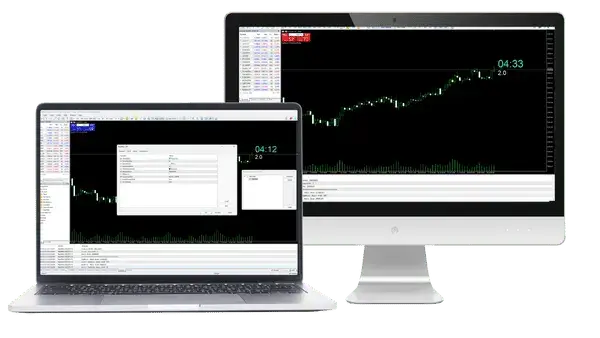
MT5 has no built-in timer for the current candle, so you cannot see how many seconds are left before it closes. NapWela adds that countdown next to the latest candle, with the current spread under it, free for MT5 and MT4.
The source code is free to read and change: NapWela.mq5 for MT5 and NapWela.mq4 for MT4.
Contents
How Do You See the Time Left on a Candle in MT5?
To see the time left on a candle in MT5, add a candle timer indicator such as NapWela, because MT5 itself shows no countdown. NapWela counts down to the close of the current candle on every timeframe, from M1 to MN1, and shows the spread under the timer.
How a candle timer counts matters more than it looks. A timer can count from the time of the last price that came in, or from the clock of the trade server. The first kind only moves when a new price arrives, and new prices do not arrive every second.
We counted this in one week of XM prices, from 7 to 14 October 2026. The table below shows in what share of the seconds the price moved while the market was open, and the longest wait for a new price.
| 1 week at XM | Price moved | Longest wait |
|---|---|---|
| EURUSD | 41% | 89 seconds |
| USDJPY | 58% | 86 seconds |
| Gold | 89% | 28 seconds |
| US30 index | 65% | 76 seconds |
On EURUSD, the price moved in only 41% of the seconds. The price stood still for 10 seconds or longer 5,117 times that week, and the longest pause came just after midnight, server time.
So a timer that waits for a new price can freeze on EURUSD for over a minute at quiet times, and then skip ahead several seconds at once. NapWela counts from the trade server’s clock instead, so it moves every second whether the price moves or not, and it ends exactly when MT5 starts the next candle.
That matters when you act on a candle close. For example, if you wait for a candle to close before you decide, or you use the Candle close alert of BreakLine, NapWela tells you how many seconds are left.
What Does NapWela Show on the Chart?
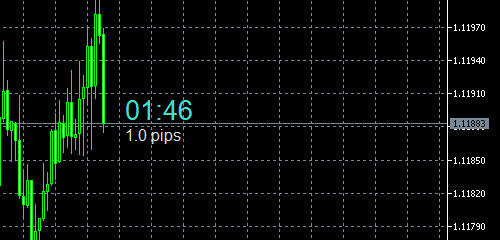
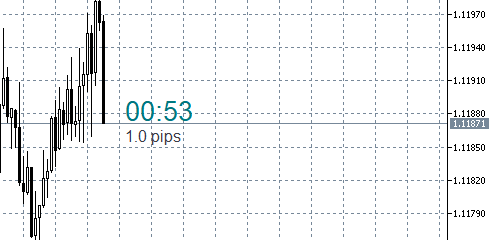
NapWela shows two things next to the latest candle: the time left until the candle closes, and the current spread. The way the time is written depends on how much time is left.
With under an hour left, NapWela shows minutes and seconds, such as 14:05. With under a day left, it adds the hours, such as 3:29:43. On W1 and MN1 charts, it adds the days.
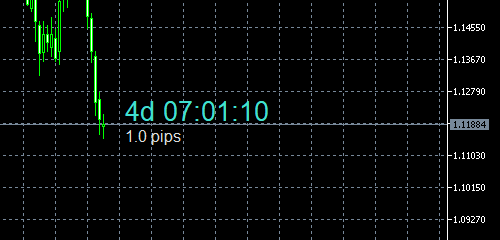
A W1 candle ends at 00:00 on Sunday, server time, and an MN1 candle ends at 00:00 on the first day of the next month.
On a Friday, the D1 and W1 timers count to the end of the candle, which comes after the market closes for the weekend. When the market closes, NapWela shows Closed instead of a time.
The spread under the timer is the spread right now, and it changes with every new price. Currency pairs show it in pips, so 1.0 pips on EURUSD costs $10 on one lot. You can see what a pip is worth in dollars for other pairs and lot sizes.
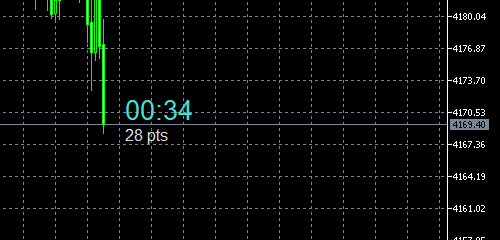
Gold, indices and crypto show the spread in points, the same unit as the spread in the MT5 Market Watch. On a gold symbol with two decimals, such as GOLD# at XM, one point is one cent of the gold price. So 28 pts means you pay $0.28 per ounce, which is $28 on one lot of 100 ounces.
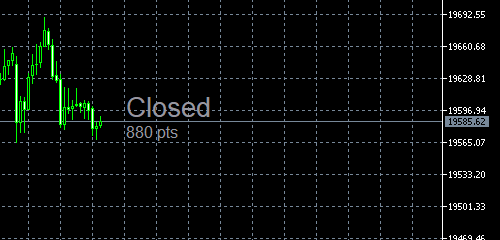
When the market for the symbol is closed, the timer turns grey and shows Closed. NapWela decides this from the trading hours that the server publishes for the symbol.
NapWela also shows Closed when trading on the symbol is switched off, or when no new price has come in for 20 minutes. If MT5 loses its connection to the server, the timer shows No connection in red.
How Do You Install NapWela in MT5?
Download the file for your platform, copy it into the Indicators folder of MT5 and drag it onto a chart. Install it on a computer, because the MT5 app on phones cannot run indicators that you download.
Download the file for your platform. NapWela.ex5 is for MT5, and NapWela.ex4 is for MT4.
In MT5, click File and then Open Data Folder. Open MQL5 and then Indicators, and copy NapWela.ex5 into that folder. In MT4, the folder is MQL4 and then Indicators.
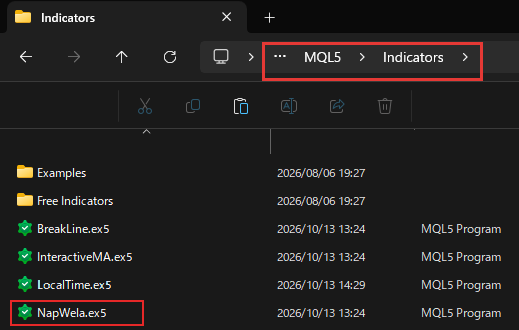
Restart MT5, or right-click Indicators in the Navigator and click Refresh. Then drag NapWela from the Navigator onto your chart and click OK.
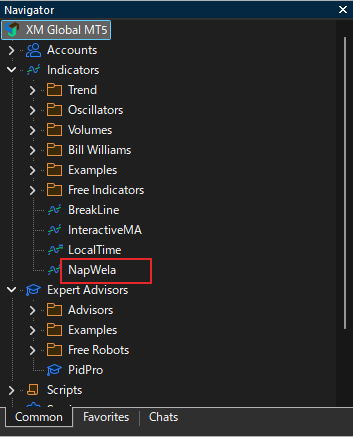
NapWela is an indicator, not an Expert Advisor, so you do not need to turn on Algo Trading. It only shows the timer and the spread, and it never places a trade.
Where Does the NapWela Timer Appear?
The NapWela timer sits just to the right of the latest candle, at the level of the current price. It follows the price up and down, so you see the countdown where you are already looking.
When there is no room next to the latest candle, NapWela moves the timer to the top-right corner. That happens when you scroll the chart back, or when Chart shift is off. Scroll back to the latest candle, and the timer returns next to it.
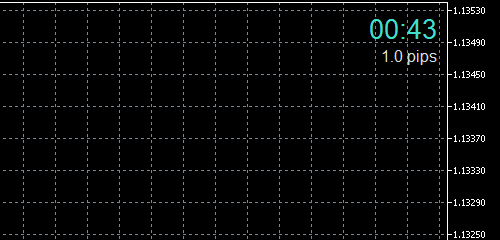
If you prefer the timer in one fixed place, set Where to show the timer to Fixed in a corner of the chart, and then choose the Corner. The default corner is the bottom right, and the text never runs off the edge of the chart.
Which NapWela Settings Should You Change?
You can use NapWela with its default settings, because it picks its colours from the chart background and finds a place for the timer by itself. To open the settings, right-click the chart, choose Indicators List, select NapWela and click Properties.
If the text looks too small or too large on your screen, change Timer font size and Spread font size. The defaults are 20 and 12, and the list of all 9 settings further down this page shows the other defaults.
With Automatic colours on, the timer is light blue on a dark chart and dark teal on a white chart, so it stays readable on both. To use your own colours, turn Automatic colours off, and then choose Timer colour, Spread colour and “Closed” colour.
What If the NapWela Timer Looks Wrong?
Most problems come from the position of the chart, the trading hours of the symbol or the clock of your computer. Check the one that matches what you see.
- Timer in the corner
The chart has no room next to the latest candle. Scroll to the latest candle or turn on Chart shift, and the timer moves back next to it. - Closed on a holiday
The symbol has had no new price for 20 minutes, for example on a holiday. The timer starts again with the next price. - No connection
MT5 has not connected to the server yet, which takes a few seconds after MT5 starts. If the message stays, check the connection status in the bottom-right corner of MT5. - A few seconds off
NapWela counts with the clock of your computer, so a wrong clock makes the timer wrong too. If the timer is several seconds off, turn on Set time automatically in the date and time settings of Windows. - Nothing on the chart
The indicator is not on this chart. Right-click the chart, choose Indicators List, and check that NapWela is there, or install it again.
A small difference between the computer clock and the server clock is normal. On our test computer, the clock was about 0.6 seconds behind the XM server, so the NapWela timer was less than one second late.
Questions People Ask About NapWela
- Is NapWela free?
-
Yes. NapWela is free, with no registration and no time limit. You download the file and use it on as many charts as you like.
- Does NapWela work on the MT5 app on my phone?
-
No. The MT5 app on phones cannot run downloaded indicators. Run NapWela in MT5 on a computer.
- Why does NapWela show pts instead of pips on gold?
-
NapWela shows pips only for currency pairs, and points for gold, indices and crypto. Points are the unit that the MT5 Market Watch uses for the spread, so the two numbers match. On GOLD# at XM, 28 pts is $0.28 per ounce.
- How do I update from an older version of NapWela?
-
Download the new file, replace the old file in the Indicators folder and restart MT5. The charts and templates where you used NapWela keep the colours and sizes you set before.
- Can I read or change the code of NapWela?
-
Yes. The source code is free to download, so you can check what NapWela does and change it for your own trading. The terms are at the top of each file. If you share the file, keep the author name Forex FanClub and the link to our site in it, and do not sell it.
- Does NapWela place trades?
-
No. NapWela only shows the time left and the spread. You decide what to do when the candle closes.
Which Tool Do You Need Next?
Once you can see when each candle closes, the next step is usually to see the market in your own time zone, so add LocalTime to the same chart.
All NapWela settings and how we checked them
All 9 settings, with the default value
- Where to show the timer
- Next to the latest candle, or Fixed in a corner of the chart. Default: Next to the latest candle.
- Gap from the latest candle
- Distance between the latest candle and the timer, 1 is about 25 pixels. Default: 1.
- Corner
- Top left, Top right, Bottom left or Bottom right, when the timer is fixed in a corner. Default: Bottom right.
- Automatic colours
- Colours that follow the chart background. Default: On.
- Timer colour
- Colour of the timer when Automatic colours is off. Default: Turquoise.
- Spread colour
- Colour of the spread when Automatic colours is off. Default: White.
- “Closed” colour
- Colour of Closed when Automatic colours is off. Default: Grey (150,150,160).
- Timer font size
- Size of the timer. Default: 20.
- Spread font size
- Size of the spread. Default: 12.
The names are the ones in the settings window of the indicator. MT4 shows the same settings with the same defaults.
How we checked
- Files
- NapWela.ex5 (20,800 bytes) and NapWela.ex4 (28,398 bytes), version 1.10, the files of the two download buttons, updated on 14 October 2026.
- Timer
- The source code takes the trade server time in MT5, checks it four times a second and redraws the timer when the second changes. In a test MT5 at XM on 13 October 2026, the timer matched the time left from the server clock every second, on every timeframe from M1 to MN1.
- Spread in pips and points
- The spread is the ask price minus the bid price, in points. For currency pairs with 3 or 5 decimals, NapWela divides it by 10 and shows pips.
- Closed
- NapWela shows Closed outside the trading sessions that the server publishes for the symbol, when trading on the symbol is switched off, or when no new price has come in for 20 minutes.
- Computer clock
- For 4 minutes on 14 October 2026, a test MT5 at XM recorded the server time stamp of 3,884 EURUSD# and GOLD# prices and the clock of our test computer when each price arrived. A price takes about 0.1 seconds to reach the computer, because the connection takes about 0.2 seconds there and back. Even so, the computer clock still showed a time before the server time stamp of each price, by about 0.55 seconds. So the computer clock was about 0.6 seconds behind the XM server. The Windows time server gave the same result, about 0.7 seconds.
- Price count
- All XM price changes (bid or ask) of EURUSD#, USDJPY#, GOLD# and US30Cash# from 2026-10-07 to 2026-10-14, server time, read in a test MT5. We counted the seconds with at least one new price and the longest gap between two prices. Gaps of 30 minutes or more, such as the weekend and the daily break, are left out. Counted on 14 October 2026.
Checked on 14 October 2026.
Once your rebate account is open, link it to Forex FanClub. The member area lists every rebate payment day by day, across every broker you use. Registration is free and takes an email address.

Produced and operated by Forex FanClub
Person responsible: Hiroki Sakaida, founder of Forex FanClub
Hiroki Sakaida decides what our content and services cover and which features they offer. He also checks content and functionality and decides on revisions and publication. Our Content and Service Policy explains how we produce and check our content and services, including our use of AI.
Risk warning: Forex and CFD trading involve leverage, and you could lose all the money you invest. This article and tool provide information, not investment advice. The amounts shown are calculated from the collected data and do not guarantee the amounts that will apply to your own trades, or any future profit.
Affiliate disclosure: The broker pages linked from this page contain referral links. Forex FanClub receives referral commission based on registrations and trading through those links.