

Which platform to use on XM, how to install it, and the first settings.
Checked on 2 October 2026
XM opens an MT5 trading account when you register. This guide shows which platform to use, how to install it and connect your trading account, and which settings to change first.
To log in to MT5, you need the MT ID of your trading account, and the XM Members Area shows it.
Contents
MT5 or MT4: Which Is Better?
Use MT5. Add MT4 only for a program made for MT4.
- Most traders
MT5 is the platform to use. XM opens an MT5 trading account when you register, and only MT5 has stocks and shares. - MT4 programs
MT4 is needed only for EAs, indicators and scripts made for MT4. These programs run only on MT4. The XM additional account guide shows how to add MT4. - The XM app
In the XM app (opens in a new tab), you can also trade on TradingView charts, deposit and withdraw. The app uses the same trading accounts as MT5 and MT4, so a trade in the app also appears in MT5 or MT4.
The table below shows what each platform offers on XM.
| Details | MT5 | MT4 |
|---|---|---|
| Trading account at registration | Yes | No, add it later |
| Forex, gold, indices and oil | Yes | Yes |
| Stocks and shares | Yes | No |
| EAs and indicators | Made for MT5 | Made for MT4 |
Start with MT5. When you open a trading account, XM suggests MT5 first and says that you can try MT4 later. You can add an MT4 trading account at any time, so you lose nothing by starting with MT5.
The weak point of MT5 is that some older EAs and indicators exist only for MT4. If you use one, keep it on an MT4 trading account until an MT5 version appears.
How Do You Download XM MT5?
Download MT5 from XM’s MT5 page, or use MT5 in your browser without installing it.
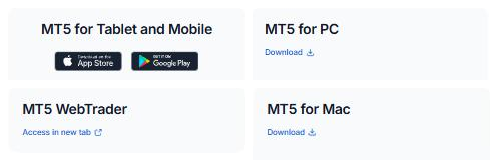
- Windows PC
XM’s MT5 page (opens in a new tab) has the file under MT5 for PC. Run the file after you download it. This version is called XM Global MT5, and XM’s servers are already in it. - Mac
The same page has the file under MT5 for Mac. - Android and iPhone
The MT5 app is MetaTrader 5 by MetaQuotes, on Google Play and the App Store. The XM app (opens in a new tab) is a different app, with TradingView charts and your deposits and withdrawals in one place. The XM app guide shows which XM app your store lists. - Web browser
XM’s MT5 page also has MT5 WebTrader. WebTrader runs in the browser, so you install nothing.
If you need MT4, open Platforms > MT4 Platform in the Members Area. That page has the MT4 downloads.
How Can I Connect XM to MT5?
Log in with the MT ID, the password and the server of your trading account. The XM login guide shows where to find them and which password to use.
No XM trading account yet? Open one first. XM opens an MT5 trading account and a demo account when you register.
On a PC (XM Global MT5)
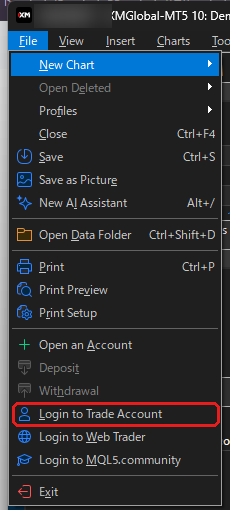
Open XM Global MT5. In the menu, click File > Login to Trade Account.
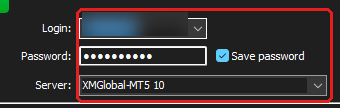
Type the MT ID in Login, and type the password. Choose the server of your trading account, such as XMGlobal-MT5 10, and click OK.
In the MT5 app
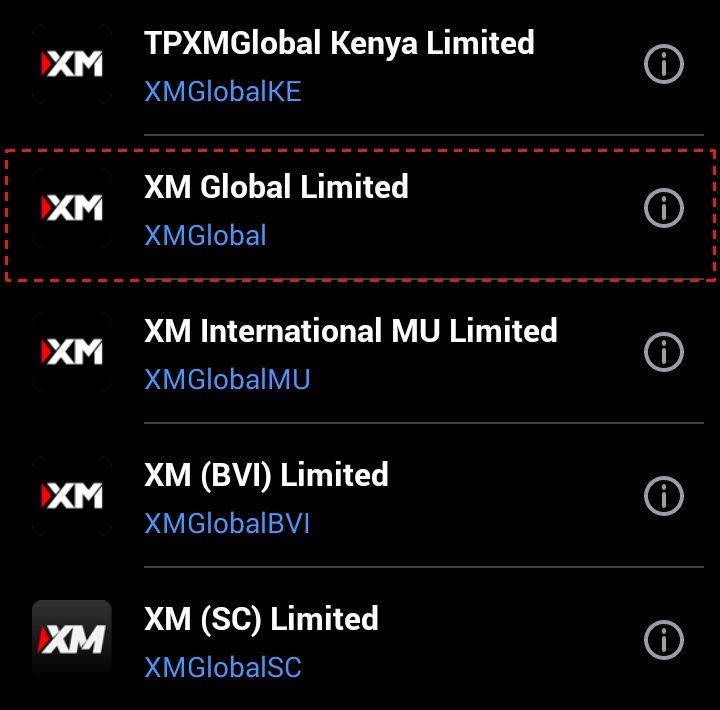
Open the MT5 app, open the screen to add an account, and search for XMGlobal.

Several XM companies appear. Choose XM Global Limited, the company of the XMGlobal-MT5 servers.
Under Login to an existing account, choose the server, type the MT ID as Login, and type the password. Then tap LOGIN.
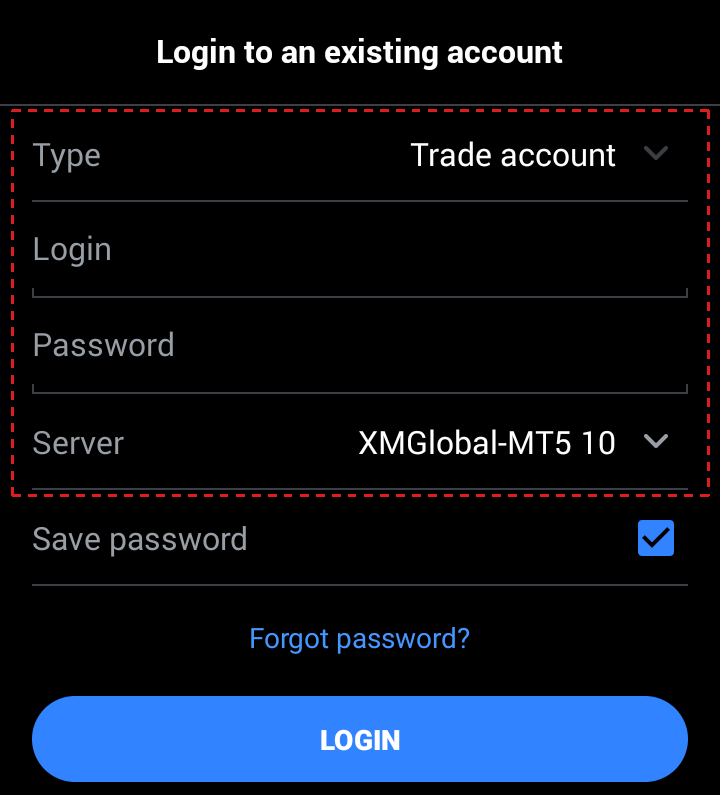
A demo account connects in the same way. If MT5 does not accept your details, the login guide lists what to check.
What Should You Set Up First?
First, find the symbols of your account type. The symbol names change with the account type.
- All symbols
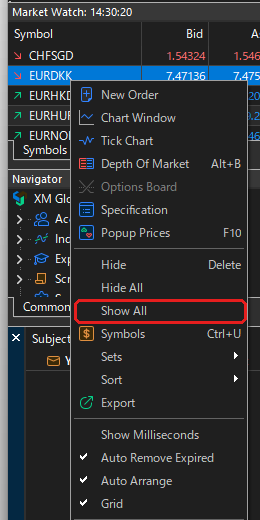
Market Watch can list every symbol. Right-click in Market Watch, and click Show All. MT5 then lists all of XM’s symbols, including symbols of other account types. - Standard account
On a Standard account, you trade the names without # or micro, such as EURUSD and GOLD. - Ultra Low account
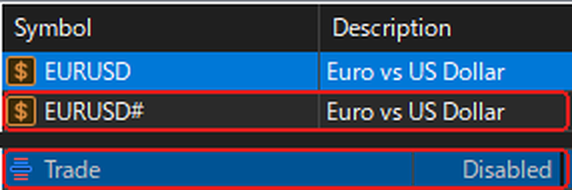
On an Ultra Low account, you trade the names that end in #, such as EURUSD#. MT5 first opens charts without #, so open a EURUSD# chart before you trade. - Micro account
On a Micro account, you trade the names that end in micro, such as EURUSDmicro. To hide a symbol that you do not need, right-click it and click Hide. - Chart time
MT5 shows XM’s server time, which is 2 hours ahead of UTC in winter and 3 hours ahead in summer. To see your own time on the chart, add LocalTime, our free indicator.
Next, add our free tools. They work on MT4 and MT5, and you can download them without registration.
All our tools are on the free trading tools page.
Why Can’t You Place an Order?
Check these three points.
- Unfinished verification
XM must verify your identity before you trade. The XM verification guide shows the documents and steps. - Not enough margin
The trading account needs enough money for the margin of the trade. The XM margin calculator shows how much margin a trade needs. - The wrong symbol
The New Order button stays grey on a symbol that your account type cannot trade. On an Ultra Low account, trade the names that end in #. On a Micro account, trade the names that end in micro.
Do EAs Run With MT5 Closed?
No. When MT5 is closed or offline, your EAs and trailing stops stop working. Your open positions and orders stay on XM’s server, including stop loss, take profit and pending orders.
To keep an EA running, choose one of these two ways.
- A computer that stays on
Keep MT5 open on a computer that stays on and online. This way costs nothing extra, but the computer must run day and night. - A VPS
A VPS is a computer in a data centre that runs MT5 for you all day. MetaQuotes rents one inside MT5, called Virtual Hosting (opens in a new tab), on a paid plan.
XM supports EAs on both MT4 and MT5. To install and test an EA, use the MetaQuotes guides in the next section.
Where Can You Learn MT5?
MetaQuotes, the company that makes MT5, explains every feature in its official help.
- Charts, timeframes and indicators (opens in a new tab)
- Orders, stop loss and take profit (opens in a new tab)
- EAs, scripts and strategy testing (opens in a new tab)
- Copying other traders (Signals) (opens in a new tab)
- The MT5 app on Android (opens in a new tab)
- The MT5 app on iPhone (opens in a new tab)
XM MT4 and MT5 FAQ
- Can I use my MT4 MT ID in MT5?
-
No. An MT4 trading account works only in MT4. To use MT5, use the MT5 trading account from your registration, or add one in the Members Area.
- Can I change the time on XM MT5?
-
No. MT5 shows XM’s server time, which is 2 hours ahead of UTC in winter and 3 hours ahead in summer. LocalTime, our free indicator, shows your own time on the chart.
- Can I use the XM app and MT5 at the same time?
-
Yes. They use the same trading accounts. A trade that you open in one appears in the other.
- Does XM have a WebTrader?
-
Yes. MT5 WebTrader runs in your browser. Open it from XM’s MT5 page, or click File > Login to Web Trader in XM Global MT5 on a PC.
- Can I trade shares on XM MT4?
-
No. Stocks and shares are on MT5 only. On MT4, you can trade forex, stock indices, precious metals and energies.
- Is there XM MT5 for Mac?
-
Yes. Download MT5 for Mac on XM’s MT5 page.
- How do I connect my XM demo account to MT5?
-
A demo account connects in the same way as a real trading account. The XM demo account guide shows the steps.
Which XM Guide Do You Need Next?
Sources: where each fact on this page comes from
XM’s pages and screens
- XM Help Centre (opens in a new tab)
- The markets on MT4 and MT5, the MT5 trading account at registration, the server time, the Micro symbols, the New Order button, EAs and trailing stops when MT5 is offline, and the XM app.
- XM’s MT5 page (opens in a new tab)
- The download links for PC, Mac, tablets and phones, and MT5 WebTrader, checked on 2 October 2026.
- XM Global MT5 on a PC
- Demo trading accounts (Standard and Ultra Low) on 2 October 2026: the File menu, the login window, Market Watch, the symbol names and their trade settings, and the server time.
MetaQuotes, the maker of MT4 and MT5
- MQL4 (opens in a new tab)
- The programming language of MT4 for EAs, indicators and scripts.
- MQL5 (opens in a new tab)
- The programming language of MT5.
- Virtual Hosting (opens in a new tab)
- MetaQuotes rents a server inside MT5 on a paid plan.
Once your XM trading account is open, link it to Forex FanClub. The member area lists every rebate payment day by day, across every broker you use. Registration is free and takes an email address.

Produced and operated by Forex FanClub
Person responsible: Hiroki Sakaida, founder of Forex FanClub
Hiroki Sakaida decides what our content and services cover and which features they offer. He also checks content and functionality and decides on revisions and publication. Our Content and Service Policy explains how we produce and check our content and services, including our use of AI.
Risk warning: Forex and CFD trading involve leverage, and you could lose all the money you invest. This article and tool provide information, not investment advice. The amounts shown are calculated from the collected data and do not guarantee the amounts that will apply to your own trades, or any future profit.
Affiliate disclosure: This article contains XM referral links. Forex FanClub receives referral commission based on registrations and trading through these links.