NAVIGATION
  • HOME
  • NinjaBull
    • Macro Gravity
    • API for EA
  • Broker Rebates
    • XM Rebates
    • HFM Rebates
    • XS Rebates
    • Exness Rebates
    • Axi Rebates
  • Trading Tools
    • PidPro
    • BreakLine Indicator
    • NapWela Timer
    • LocalTime Indicator
    • Interactive MA
    • Currency Strength
    • Gold Analytica
    • MT4/MT5 Setup
  • Calculator
    • Rebate Calculator
    • Max Lot Calculator
    • Margin Calculator
  • About XM
    • Registration
      • Additional Account
      • Demo Account
      • Internal Transfer
      • Close Account
    • Bonus Promotions
      • Trading Bonus
      • Deposit Bonus
      • Traders Club
        • XMC Calculator
    • Account Types
      • Standard Account
      • Ultra Low Account
    • Trading Conditions
      • Spread Table
      • Swap Rates
      • Leverage & Margin
      • Trading Cost
    • Deposit Guide
    • Withdrawal Guide
    • Contact Support
  • Bounty Guild
  • Dashboard
Forex FanClub
  • HOME
  • NinjaBull
    • Macro Gravity
    • API for EA
  • Broker Rebates
    • XM Rebates
    • HFM Rebates
    • XS Rebates
    • Exness Rebates
    • Axi Rebates
  • Trading Tools
    • PidPro
    • BreakLine Indicator
    • NapWela Timer
    • LocalTime Indicator
    • Interactive MA
    • Currency Strength
    • Gold Analytica
    • MT4/MT5 Setup
  • Calculator
    • Rebate Calculator
    • Max Lot Calculator
    • Margin Calculator
  • About XM
    • Registration
      • Additional Account
      • Demo Account
      • Internal Transfer
      • Close Account
    • Bonus Promotions
      • Trading Bonus
      • Deposit Bonus
      • Traders Club
        • XMC Calculator
    • Account Types
      • Standard Account
      • Ultra Low Account
    • Trading Conditions
      • Spread Table
      • Swap Rates
      • Leverage & Margin
      • Trading Cost
    • Deposit Guide
    • Withdrawal Guide
    • Contact Support
  • Bounty Guild
  • Dashboard
Login
Forex FanClub
  • HOME
  • NinjaBull
    • Macro Gravity
    • API for EA
  • Broker Rebates
    • XM Rebates
    • HFM Rebates
    • XS Rebates
    • Exness Rebates
    • Axi Rebates
  • Trading Tools
    • PidPro
    • BreakLine Indicator
    • NapWela Timer
    • LocalTime Indicator
    • Interactive MA
    • Currency Strength
    • Gold Analytica
    • MT4/MT5 Setup
  • Calculator
    • Rebate Calculator
    • Max Lot Calculator
    • Margin Calculator
  • About XM
    • Registration
      • Additional Account
      • Demo Account
      • Internal Transfer
      • Close Account
    • Bonus Promotions
      • Trading Bonus
      • Deposit Bonus
      • Traders Club
        • XMC Calculator
    • Account Types
      • Standard Account
      • Ultra Low Account
    • Trading Conditions
      • Spread Table
      • Swap Rates
      • Leverage & Margin
      • Trading Cost
    • Deposit Guide
    • Withdrawal Guide
    • Contact Support
  • Bounty Guild
  • Dashboard
  1. Home
  2. What is XM Forex Broker? Features, Accounts & Conditions
  3. How to Contact XM Support: Live Chat, Email & Phone

How to Contact XM Support: Live Chat, Email & Phone

XM Logo - Forex Broker

How to Contact XM Support
A Complete Guide to Reaching XM Customer Service Effectively

Whether you have questions about trading, encounter technical issues, or need to update your account details, XM offers multiple contact channels to assist you. Choosing the right method for your specific enquiry will help you resolve issues quickly and efficiently.

This guide covers the four main contact methods XM provides — Live Chat, messaging apps such as LINE, email, and phone — including their key features, suitable use cases, operating hours, and step-by-step instructions.

If you need a fast resolution, Live Chat or a messaging app that supports screenshot sharing will get you the quickest results. For enquiries involving personal data, however, email is strongly recommended for its higher level of security. XM’s support team is fully available in English, so you can communicate and resolve issues with complete confidence.

XM live chat interface showing contact options
XM Live Chat
Mon–Fri: 24 hours / Sat, Sun & Public Holidays: 08:00–19:45
The fastest way to resolve issues. Supports file attachments. Ideal for questions about how to use XM’s platform.
XM messaging app contact options including LINE
Messaging Apps
Mon–Fri: 24 hours / Sat, Sun & Public Holidays: 08:00–19:45
Supports file attachments and chat history. Ideal for questions about how to use XM’s platform.
XM email support contact form
Email Support
Accepts emails 24/7. Replies within 1 business day.
Best suited for enquiries involving personal or account information. Use this channel for matters requiring a higher level of security.
XM phone support contact details
Phone Support
Mon–Fri: 24 hours / Sat, Sun & Public Holidays: 08:00–19:45
Best for urgent enquiries that require an immediate answer. Suitable for brief questions that can be explained verbally.
Contact XM Support in English

Contents

  1. What to Check Before Contacting XM Support
    1. Choose the Right Contact Method for Your Enquiry
    2. Before You Contact Support — Explore XM’s Video Learning Courses
    3. Before Asking About Market Conditions
    4. Check the FAQs in XM’s Help Centre First
  2. How to Contact XM via Live Chat
    1. Step 1Visit the Official XM Website
    2. Step 2Enter Your Contact Details
    3. Step 3Start Chatting
    4. Step 4How to Send Files
    5. Step 5How to End Your XM Live Chat Session
  3. How to Contact XM via Messaging Apps
    1. Step 1Visit the Official XM Website
    2. Step 2Add XM’s Official Account
    3. Step 3Add XM as a Contact
  4. How to Contact XM by Email
    1. Step 1Visit the Official XM Website
    2. Step 2Complete the Email Form
    3. Step 3Email Submission Complete
  5. How to Contact XM by Phone
    1. Features of Phone Support & Suitable Enquiry Types
    2. Phone Support Hours & Languages
    3. How to Use XM Phone Support
    4. Tips for Getting the Most from Phone Support
  6. Frequently Asked Questions (Q&A) About Contacting XM
Contents

What to Check Before Contacting XM Support

To make the most of XM’s customer service, it pays to be well-prepared before reaching out. Understanding what to check in advance — such as selecting the most appropriate contact method for your enquiry, reviewing basic MT4/MT5 usage guides, utilising XM’s market education resources, and searching the Help Centre’s FAQ — will help you resolve issues faster and more effectively.

Choose the Right Contact Method for Your Enquiry

For efficient problem resolution, it’s important to select the contact channel that best matches your type of enquiry. The list below outlines the most suitable use cases for each contact method. Even if you haven’t yet registered with XM, you can reach XM customer support through any of these channels.

Live Chat

Best suited for questions about how to use XM’s trading platform and Member Area — such as deposit and withdrawal procedures, account opening, trading conditions, and terms of service. Support agents can assist quickly using screen sharing or screenshots. Live Chat is also effective for resolving technical issues and answering general trading queries.

Email Support

The most appropriate channel for enquiries involving personal or account information. Please use email support — which is encrypted and highly secure — for sensitive matters such as requests to update registration details, identity verification document submissions, registered address or email changes, and deposit/withdrawal confirmation. It also serves as a written record, making it particularly useful as evidence for important procedures.

Phone Support

Ideal for straightforward questions that require a quick answer. Limited to brief matters that can be explained verbally, though speaking directly with an agent allows for greater clarity and understanding. Please use this channel for enquiries that don’t require visual explanation — such as checking trading status or basic usage questions.

Before You Contact Support — Explore XM’s Video Learning Courses

XM’s customer support team receives a high volume of questions about market analysis, trading strategies, indicator usage, and financial fundamentals. While agents do their best to assist, explaining these complex topics through text or brief conversations alone may not be sufficient for a thorough understanding.

Inside the XM Member Area, you’ll find a comprehensive video learning course covering everything from financial fundamentals and technical analysis through to advanced trading strategies. The course is free for all XM members and is organised into 7 main categories with over 40 lessons, all available to study at your own pace.

To access the course, navigate to “More” in the left-hand menu of the XM Member Area, then select “Education” → “Knowledge Videos”. You’ll find the full library of structured video content with over 40 lessons ready to watch.

XM Member Area screen showing how to access the English video learning course
XM Member Area screen showing how to access the English video learning course on mobile
Log In to the XM Member Area

XM Registration & Account Opening Guide

Before Asking About Market Conditions

The support team also receives a significant number of questions about market conditions. However, in line with the principle that “all investment decisions should be made independently,” agents are unable to respond to this type of enquiry.

For this reason, XM regularly hosts exclusive online Forex webinars for traders and publishes up-to-date market news, helping even beginner investors build knowledge and confidence. XM’s Forex webinars are completely free for all XM members. Instructors teach in English throughout, and you can interact with them directly and ask questions about Forex during the session.

To join a webinar, go to the main menu in the XM Member Area and select “More” → “Education” → “English Advanced Room”.

XM Member Area screen showing the English Advanced Room webinar access
XM Member Area screen showing the English Advanced Room webinar access on mobile
Log In to the XM Member Area

XM Registration & Account Opening Guide

Check the FAQs in XM’s Help Centre First

Before contacting XM customer support, we recommend visiting the XM Help Centre. It contains a well-organised library of frequently asked questions and answers covering platform usage, deposit and withdrawal queries, account settings, and much more.

In many cases, the answer to your question is already available in the Help Centre, which is accessible 24 hours a day. Checking there first can save you time and help you resolve issues even faster when you do reach out to support. You can also use the search function to quickly find information related to specific keywords.

XM Help Centre FAQ screen showing frequently asked questions
XM Help Centre FAQ screen on mobile
XM Help Centre

XM Deposit Guide / XM Withdrawal Guide

How to Contact XM via Live Chat

The fastest and most effective way to resolve issues. Supports file and screenshot attachments. Ideal for questions about how to use XM’s platform.

The fastest and most effective way to resolve issues. Supports file and screenshot attachments. Ideal for questions about how to use XM’s platform.

Mon–Fri: 24 hours / Sat, Sun & Public Holidays: 08:00–19:45

Mon–Fri: 24 hours / Sat, Sun & Public Holidays: 08:00–19:45

XM Live Chat contact illustration

XM’s Live Chat service is the ideal contact channel for issues that need rapid resolution — such as how to use the trading platform or how to deposit and withdraw funds. With built-in file and screenshot sharing, it’s easy to troubleshoot complex operational issues visually. English-speaking agents are available directly 24 hours a day on weekdays, and between 08:00 and 19:45 on weekends and public holidays. Outside these hours, the chat is handled by an automated system that can provide basic information and resolve simple queries. Live Chat is also available to non-account holders. Below, we walk you through how to access and use the Live Chat service step by step.

Step 1Visit the Official XM Website

Live Chat is accessible from anywhere on the official XM website or within the Member Area. Simply click the button below to go to the XM official website.

Visit XM Official Website

To start a Live Chat with XM, click the blue chat bubble in the bottom-right corner of the official XM website.

XM official website showing the blue chat bubble in the bottom-right corner
XM official website showing the blue chat bubble on mobile

When the contact method selection window appears, choose “Live Chat” from the menu.

XM contact method selection screen highlighting the Live Chat option
XM contact method selection screen highlighting the Live Chat option on mobile

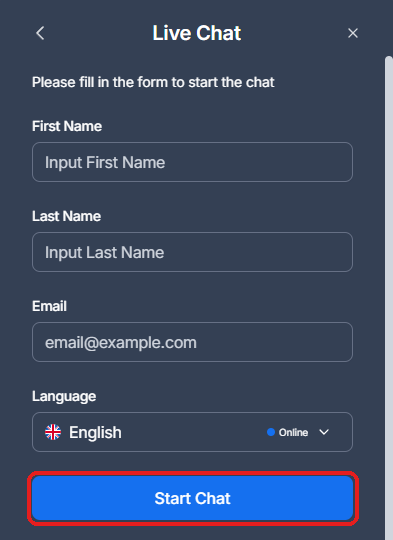
Step 2Enter Your Contact Details

Next, enter your name and email address. Once complete, click “Start Chat” to enter the chat room.

How to enter your name and email to start XM Live Chat
How to enter your name and email to start XM Live Chat on mobile

Step 3Start Chatting

Once connected, the chat window will appear. Type your question in the field at the bottom and click the “ ” icon to send. During Live Chat hours, the system may initially respond via an AI bot. To connect with a live agent, select a category from the bot’s suggestions, then navigate to “Other” → “Talk to an Agent”.

How to chat with an XM Live Chat support agent
How to chat with an XM Live Chat support agent on mobile

Step 4How to Send Files

In XM’s Live Chat, you can send screenshots or file attachments. Click the “ ” icon at the bottom of the chat window, select the file you wish to attach, and send it along with your message.

How to send files, images, or documents in XM Live Chat
How to send files, images, or documents in XM Live Chat on mobile

Step 5How to End Your XM Live Chat Session

To end the conversation, click the “×” button in the top-right corner of the chat window. When the confirmation message “Do you want to end this conversation?” appears, click “Close”.

How to end and exit an XM Live Chat session
How to end and exit an XM Live Chat session on mobile

Once the Live Chat session ends, a customer satisfaction survey will appear. Please rate the agent’s service and click “SEND” when done.

XM Live Chat post-session customer satisfaction survey screen
XM Live Chat post-session customer satisfaction survey screen on mobile

Once the Live Chat session ends, the window will close automatically. You can start a new chat at any time using the same process.

That concludes the guide to contacting XM customer support via Live Chat. Next, we’ll walk you through how to reach XM support via messaging apps such as LINE.

How to Contact XM via Messaging Apps

Supports file attachments and chat history. Ideal for questions about how to use XM’s platform.

Supports file attachments and chat history. Ideal for questions about how to use XM’s platform.

Mon–Fri: 24 hours / Sat, Sun & Public Holidays: 08:00–19:45

Mon–Fri: 24 hours / Sat, Sun & Public Holidays: 08:00–19:45

XM messaging app contact method illustration

XM offers support through popular messaging apps you already use — including LINE, WhatsApp, and Telegram — making it even more convenient for members to get in touch. Simply add XM’s official account and you can start chatting with a support agent straight away.

Just like XM’s Live Chat, you can share screenshots or URLs to clearly illustrate any issues on your trading screen or queries about platform usage. Your chat history is also saved, so you can easily refer back to previous conversations whenever needed.

English-speaking agents are available directly 24 hours a day on weekdays, and between 08:00 and 19:45 on weekends and public holidays. You can access the service conveniently from your smartphone. Below, we explain how to add XM’s official account on each messaging app.

Step 1Visit the Official XM Website

You can add XM as a contact in your messaging app from anywhere on the official XM website or within the Member Area. Click the button below to visit the official XM website first.

Visit XM Official Website

To add XM’s official account to your messaging app, click the blue chat bubble in the bottom-right corner of the official XM website.

Blue chat bubble button on XM official website to start adding a messaging app contact
Blue chat bubble button on XM official website mobile view to start adding a messaging app contact

When the contact method selection window appears, choose your preferred messaging app. We’ll use LINE as an example here, but the process is identical for all supported messaging apps.

XM contact method selection window with LINE messaging app option highlighted
XM contact method selection window with LINE messaging app option on mobile

Step 2Add XM’s Official Account

On a computer, scan the QR code with your smartphone to add XM’s account. On a smartphone, simply tap the “Start Chat” button.

QR code to add XM as a LINE contact on desktop
Chat Now button to add XM as a LINE contact on mobile

Step 3Add XM as a Contact

Once you’ve added XM’s official account through the messaging app, you can start sending messages to XM immediately.

Adding XM as a friend on LINE to begin chatting with support

That concludes the guide to contacting XM customer support via messaging apps. Next, we’ll walk you through how to reach XM support by email.

How to Contact XM by Email

Best suited for enquiries involving personal or account information. Use this channel for matters requiring a higher level of security.

Best suited for enquiries involving personal or account information. Use this channel for matters requiring a higher level of security.

Accepts emails 24/7. Replies within 1 business day.

Accepts emails 24/7. Replies within 1 business day.

XM email support contact method illustration

Contacting XM by email is the most appropriate method for sensitive matters involving personal information or account details. You can securely raise issues such as registration detail changes, identity verification document submissions, deposit/withdrawal verification, and other privacy-related matters through XM’s highly secure communication environment.

Email enquiries allow you to organise the details of your question clearly and attach relevant files or screenshots. An important added benefit is that all correspondence is kept on record, giving you a written trail you can refer back to at any time.

XM’s email support accepts enquiries 24 hours a day, and you’ll receive a response from a specialist agent within 1 business day. If you submit an email over the weekend, your case will be picked up from Monday morning — the next working day. Below, we explain how to use XM’s email support service step by step.

Step 1Visit the Official XM Website

The email form can be accessed from anywhere on the official XM website or within the Member Area. Click the button below to visit the official XM website.

Visit XM Official Website

To contact us by email, go to the XM official website menu and navigate to “Company” → “Contact us”. Once the enquiry page opens, please select “Email”.

XM customer support contact page for email enquiries
XM customer support contact page for email enquiries on mobile

Step 2Complete the Email Form

Once the email form opens, first select which department you’d like to contact — Customer Relations or the Verification Department. Choose Customer Relations for general enquiries about account details or deposits and withdrawals. Choose the Verification Department for matters involving personal information such as email address, residential address, or phone number changes.

After selecting the relevant department, fill in your name, email address, and message. Attach any files if applicable. If you already have an XM account, including your trading account number in the message will help speed up the resolution process.

Once you’ve completed all fields, click “SEND” to submit your message to XM.

XM email form showing department selection and message fields
XM email send button
XM email form showing department selection and message fields on mobile

Step 3Email Submission Complete

After submitting the email form, an automatic “Support Request Notification” will be sent to your email address. XM will then review your enquiry, and you’ll receive a reply from the relevant department within 1 business day.

Please Note

Reply emails from XM customer support may occasionally be filtered into your spam or junk mail folder. If you haven’t received a response from XM after 1 business day, please check your spam folder.

XM support request confirmation email reply
XM support request confirmation email reply on mobile

That concludes the guide to contacting XM customer support by email. Next, we’ll walk you through how to reach XM support by phone.

How to Contact XM by Phone

Ideal for urgent enquiries requiring an immediate answer. Suitable for brief questions that can be explained verbally.

Ideal for urgent enquiries requiring an immediate answer. Suitable for brief questions that can be explained verbally.

Mon–Fri: 24 hours / Sat, Sun & Public Holidays: 08:00–19:45

Mon–Fri: 24 hours / Sat, Sun & Public Holidays: 08:00–19:45

XM phone support contact method illustration

XM offers telephone support to ensure members can get the help they need quickly. Speaking directly with an agent means you’ll receive immediate answers. In this section, we cover the features of XM’s phone support service and explain how to use it.

Features of Phone Support & Suitable Enquiry Types

Phone support is best suited for situations where explaining something in writing is cumbersome, or when you simply need a quick answer. Speaking directly with an agent allows for clear, real-time communication and a deeper understanding of the issue at hand.

That said, phone support does have limitations — visual information such as screenshots or URLs cannot be shared. For this reason, it works best for relatively straightforward enquiries such as those listed below.

  • Basic usage of the trading platform
  • Account status checks
  • General questions about trading conditions or terms of service
  • Basic deposit and withdrawal procedures

For complex technical issues, enquiries that require screen sharing, or matters involving personal information, please consider using one of XM’s other contact channels.

Phone Support Hours & Languages

XM’s phone support service is available during the following hours:

  • Monday to Friday: 24 hours a day
  • Saturday, Sunday & Public Holidays: 08:00–19:45 (local time)

Service on Mondays begins at 08:00. XM’s support agents are able to communicate in English, so you can get help with confidence and without any language barrier.

How to Use XM Phone Support

Finding the Correct Phone Number

You can reach XM’s dedicated English-language support line on the following numbers:

  • +501 223 6696 (Belize)
  • +501 227 9421 (Belize)
Please Note

XM’s global support line (Belize) provides English-language support.

How to Request a Callback

In addition to calling directly, you can also request a callback from XM through the Live Chat service. This allows you to specify your preferred time and phone number so that an agent can call you back at your convenience.

Callback Request Process

  1. Access XM’s Live Chat
  2. Inform the agent that you’d like phone support
  3. Provide your phone number and preferred callback time
  4. An XM support agent will call you at the agreed time

Tips for Getting the Most from Phone Support

To make your phone support experience as efficient as possible, please keep the following tips in mind:

  • Prepare and summarise your question before calling
  • If you have an XM account, have your trading account number ready
  • Call from a location with a strong phone signal
  • For complex or technical issues, consider using Live Chat or email instead

Phone support is best suited for straightforward questions that require an immediate answer and is not ideal for complex enquiries. Please also be aware that XM support agents are unable to provide investment advice or market forecasts.

Frequently Asked Questions (Q&A) About Contacting XM

Below we’ve compiled the most common questions and answers about XM’s support services submitted by members. You’ll find detailed explanations for everyday queries — including operating hours, contact methods, phone numbers, email issues, and more — to help you resolve any issues as swiftly as possible.

What is the XM phone number for English-language support?

The XM English-language phone support numbers are +501 223 6696 and +501 227 9421. These are XM Global’s global support lines based in Belize and are available in English.

What are the operating hours for XM’s English support?

XM’s Live Chat, messaging apps (LINE, WhatsApp, Telegram), and phone support are available 24 hours on weekdays, and from 08:00–19:45 (local time) on weekends and public holidays. Email enquiries can be submitted at any time, with replies sent on the next business day.

Can I contact XM support on weekends?

Yes, support is available on weekends and public holidays. XM’s Live Chat, messaging apps (LINE, WhatsApp, Telegram), and phone support operate from 08:00–19:45 (local time). Email enquiries can be submitted at any time, but replies will be sent on the next business day.

Which contact method gets issues resolved fastest at XM?

For the fastest resolution, Live Chat or a messaging app (LINE, WhatsApp, Telegram) that supports screenshot sharing is strongly recommended. Being able to share a visual representation of the issue leads to more efficient and accurate support.

There’s no live agent responding in XM’s Live Chat…

If the system is being handled by an AI bot, select “Other” → “Talk to an Agent” to connect with a live support agent. Outside operating hours, only the AI bot is available, so we recommend contacting XM again during business hours — or using an alternative channel such as email.

I haven’t received an email reply from XM

If you haven’t received a reply, please check your spam or junk mail folder first. If the email isn’t there, we recommend resubmitting your enquiry using a different email address, or trying an alternative contact method such as XM’s Live Chat or phone support.

XM supports its members across four dedicated contact channels — Live Chat, messaging apps, email, and phone. Selecting the channel most appropriate for your enquiry and preparing in advance will ensure you receive fast, effective assistance from XM’s specialist support team.

Open an XM Account Now

XM Registration & Account Opening Guide

Regulatory Licences & Legal Information

XM is operated by XM Global Limited, registered with the Financial Services Commission (FSC) of Belize under the Securities Industry Act 2021 (Licence No. 000261/27).

Risk Warning

Trading Forex and CFDs carries a high risk of loss. Please read and ensure you fully understand XM’s Risk Disclosure before trading.

Legal Documents — XM Global Limited

Terms & Conditions

Anti-Money Laundering Policy

Order Execution Policy

Risk Disclosure for Financial Instruments

Conflicts of Interest Policy

Complaint Handling Procedures

VPS Service Terms & Conditions

XM Logo - Forex Broker

Company Name: XM Global Limited
Address: XM Global Limited, 63 Eve St, Belize City, Belize
Financial Instrument Trading Licence: Belize Financial Services Commission (FSC) Licence No. 000261/27

This website is operated by CHIHEWANLE Ltd. under a partnership agreement with XM (XM Global Limited) at the domain https://www.fxfan.club/. All personal data collected is held by XM (XM Global Limited).

Information Provider: CHIHEWANLE Ltd.
Registration No.: 24917404
Address: No.50 12F-3, Chenggong Rd, North District, Tainan City, Taiwan

Contents
×
  • What to Check Before Contacting XM Support
  • Choose the Right Contact Method for Your Enquiry
  • Before You Contact Support — Explore XM’s Video Learning Courses
  • Before Asking About Market Conditions
  • Check the FAQs in XM’s Help Centre First
  • How to Contact XM via Live Chat
  • Step 1Visit the Official XM Website
  • Step 2Enter Your Contact Details
  • Step 3Start Chatting
  • Step 4How to Send Files
  • Step 5How to End Your XM Live Chat Session
  • How to Contact XM via Messaging Apps
  • Step 1Visit the Official XM Website
  • Step 2Add XM’s Official Account
  • Step 3Add XM as a Contact
  • How to Contact XM by Email
  • Step 1Visit the Official XM Website
  • Step 2Complete the Email Form
  • Step 3Email Submission Complete
  • How to Contact XM by Phone
  • Features of Phone Support & Suitable Enquiry Types
  • Phone Support Hours & Languages
  • How to Use XM Phone Support
  • Tips for Getting the Most from Phone Support
  • Frequently Asked Questions (Q&A) About Contacting XM
Contents