

An XM demo account has the same spreads, swaps and trading rules as a real trading account.
All details checked on 30 September 2026
An XM demo account is free, and you open it in the XM Members Area (opens in a new tab) in a few minutes. You use the MT5 app only to log in after that.
Contents
- Is an XM Demo Account the Same as a Real Account?
- How Do You Open an XM Demo Account?
- How Do You Log In to MT5 With an XM Demo Account?
- How Long Does an XM Demo Account Last?
- What Can You Change After Opening a Demo Account?
- When Should You Move to a Real Trading Account?
- Questions People Ask About the XM Demo Account
- Which XM Guide Do You Need Next?
Is an XM Demo Account the Same as a Real Account?
For trading costs and trading rules, yes. We compared every instrument on XM demo accounts and real trading accounts, and every setting matched.
Spreads and swaps
A demo account shows the same spread and the same swap that a real trading account pays. So the result of a demo trade already includes the real trading cost.
The table below shows the average spread on a Standard account, read on both accounts at the same moments.
| Demo account | Real trading account | |
|---|---|---|
| EURUSD | 1.95 pips | 1.95 pips |
| USDJPY | 2.43 pips | 2.43 pips |
| Gold, per ounce | $0.54 | $0.54 |
| US100 index | 2.9 points | 2.9 points |
The Ultra Low Standard account gave the same result. The swap, the lot sizes, the margin and the stop-out level were also the same on every instrument.
Rebates and bonus
A real trading account can cost you less than the demo account shows. When you open a real trading account with the Forex FanClub partner code, part of every spread comes back to you as a rebate.
1 trade on EURUSD, Standard account
| Demo account | Real trading account | |
|---|---|---|
| Spread | 2.1 pips | 2.1 pips |
| Rebate paid back | none | −0.8 pips |
| Your cost | 2.1 pips | 1.3 pips |
Trades closed within three minutes earn no rebate. The XM rebate guide explains the other conditions.
A real Standard trading account can also get XM’s deposit bonus, which adds to your margin. A demo account gets no bonus.
Demo balance
Set the demo balance to the amount that you will really deposit. Then each gain and loss on the demo account has the same weight as on your real trading account.
A new demo account starts with $10,000, so the same loss looks much smaller than on a small deposit.
| Account balance | A $20 loss is |
|---|---|
| $10,000 | 0.2% of the balance |
| $100 | 20% of the balance |
On XM, you can change the demo balance at any time. See what you can change further down.
Slippage
The one cost that we cannot compare is slippage. The price you get can differ from the price you asked for, and this gap changes with every order. So a fair comparison of slippage would need a very large number of real trades with real money.
A demo account gets no rebate and no bonus, so its conditions are worse than those of a real trading account.
Start with an Ultra Low Standard demo account. Ultra Low has the lower trading cost, so if your trades lose money on Ultra Low, they will also lose money on Standard.
We recommend practising on the demo account until your trades make a profit.
How Do You Open an XM Demo Account?
- New to XM
Register, and XM opens your first demo account automatically. The XM registration guide shows each step. - Already with XM
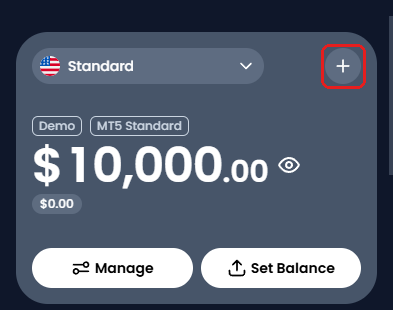
Log in to the XM Members Area (opens in a new tab), and follow the 6 steps below.
On Home, tap + in the top right of the account card.
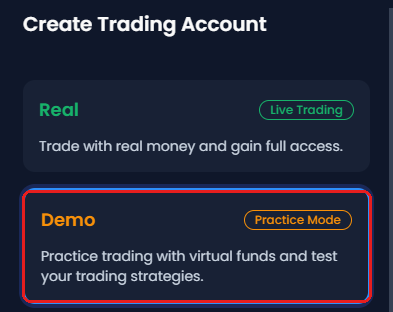
On Create Trading Account, choose Demo and tap Continue.
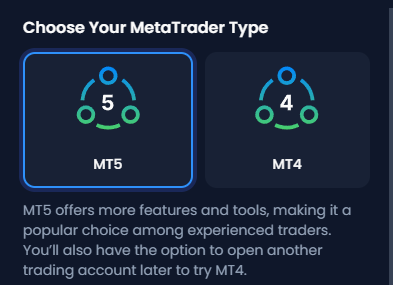
Choose the platform, MT5 or MT4.
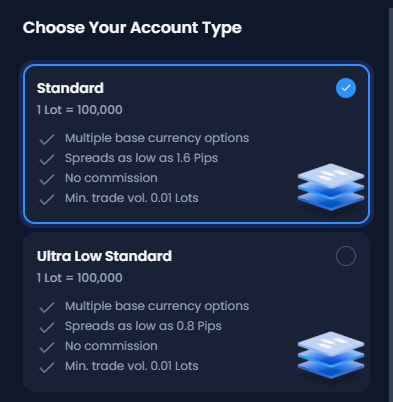
Choose the type of trading account, Standard or Ultra Low Standard.
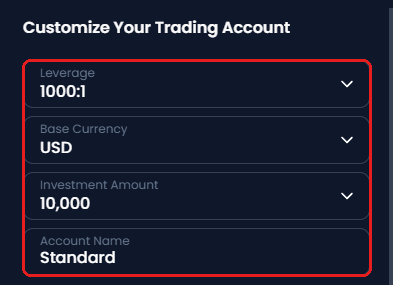
On the next screen, choose the leverage, the base currency and the starting balance, which XM calls Investment Amount.
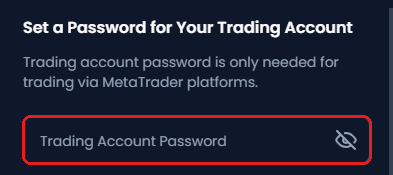
On the password screen, choose the password for MT5 or MT4, and tap Complete.
The lowest starting balance is $1,000. To practise with less, change the balance after opening, as shown in what you can change further down.
How Do You Log In to MT5 With an XM Demo Account?
Log in with the MT ID, the server and the password of the demo account. The password depends on how the demo account was opened.
- Opened when you register
The demo account that XM opens at registration uses your XM profile password. - Added from + on Home
The demo account uses the password that you chose for it in the last step of opening it.
The steps below are for a phone. On a PC, the XM MT5 setup guide shows the login steps.
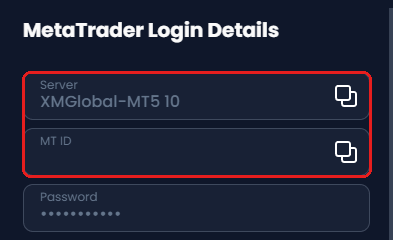
On Home in the Members Area, choose the demo account on the account card. Then tap Manage, and tap MetaTrader Login Details. Note the server and the MT ID.
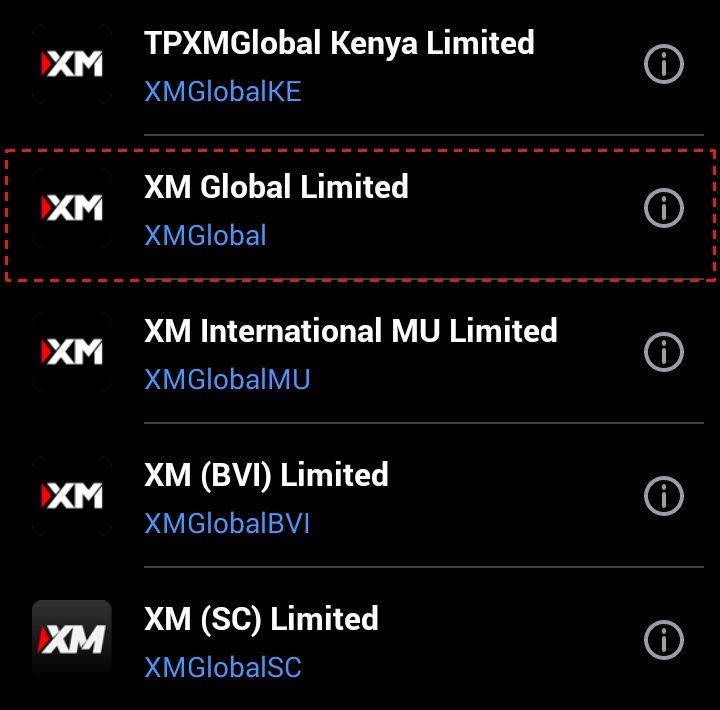
In the MT5 app, open the screen to add an account, and search for XMGlobal.

Choose XM Global Limited. Several XM companies appear, and the XMGlobal-MT5 servers belong to XM Global Limited.
Under Login to an existing account, choose the server, type the MT ID as Login, and type the password of the demo account.
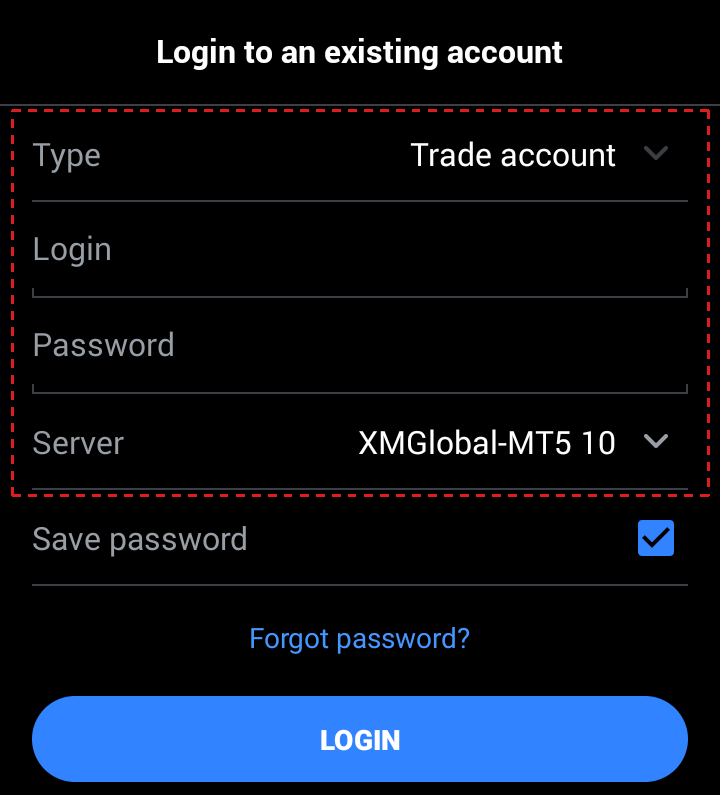
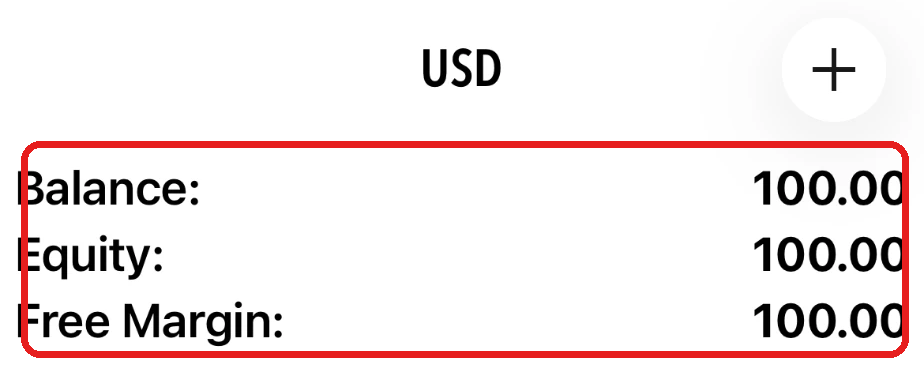
Tap LOGIN. The balance of the demo account appears on the Trade tab.
Forgot the password of a demo account that you added? On the demo account card, tap Manage, then Change MetaTrader Password.
How Long Does an XM Demo Account Last?
An XM demo account stays open for as long as you use it. XM closes it automatically after 60 days without use.
You can open a new demo account at any time, and you can hold up to 5 demo accounts at a time.
Other brokers set their own limits, and some close an unused demo account in under a month. Our comparison of forex demo accounts across brokers shows how long each one lasts.
What Can You Change After Opening a Demo Account?
- Balance
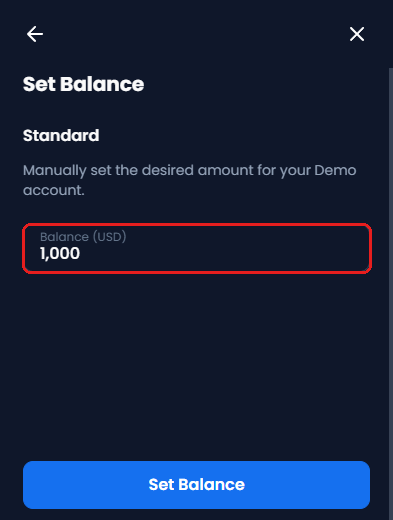
On the demo account card, tap Set Balance and type the amount, for example $100. - Leverage
Under Manage, tap Change Leverage and choose from 1:1 to 1000:1. - Account type or MT4
A demo account keeps its account type and its MetaTrader type. For Ultra Low Standard or MT4, open a second demo account.
When Should You Move to a Real Trading Account?
Once your demo trades make a profit, open a real trading account. Practise with the balance that you plan to deposit until then.
A demo account cannot become a real trading account, so you open a new one.
- New to XM
Open your first real trading account with the button below. The trading account then earns the Forex FanClub rebate on every lot you trade. - Already with XM
In the Members Area, add a real trading account and type GJQYM in the Partner Code box. The XM partner code guide shows each step.
Questions People Ask About the XM Demo Account
- Is the XM demo account free?
-
Yes. A demo account needs no deposit, and the money in it is virtual.
- Can I withdraw the profit from a demo account?
-
No. The profit on a demo account is virtual money. To trade with real money, open a real trading account.
- Is there an XM Micro demo account?
-
No. XM demo accounts come in Standard and Ultra Low Standard. For small trades, use 0.01 lot on a Standard demo account.
- How many XM demo accounts can I have?
-
Up to 5 at a time. XM closes a demo account after 60 days without use, and you can then open a new one.
- Which password do I use for MT5?
-
It depends on how the demo account was opened. The demo account that XM opens at registration uses your XM profile password.
A demo account that you add later uses the password that you chose for it. The server and the MT ID are under Manage, then MetaTrader Login Details.
The XM login guide shows which password to use for the Members Area and for each trading account.
- Is the XM demo competition the same as a demo account?
-
No. XM’s demo competitions run on XM’s own competition page, not in MT4 or MT5, and you need a verified real trading account to enter.
The XM demo competition guide shows how to join for free and what you can win.
Which XM Guide Do You Need Next?
Sources: where each fact on this page comes from
Our comparison of demo and real trading accounts
- Settings
- On 30 September 2026, we read the settings of every instrument on XM demo accounts and on real trading accounts through MT5, with the same leverage of 1:1000: the swap, the lot size, the smallest and largest trade, the margin settings, the stop level and the stop-out level. All 1,639 instruments of the Standard account and all 1,645 instruments of the Ultra Low Standard account matched.
- Spreads
- We read the spread of 16 instruments on both accounts at the same moments, every 30 seconds from 10:51 to 11:51 UTC, 120 times. The averages matched on both account types.
- Not compared
- Slippage. The gap differs on every order, so measuring it would need a very large number of real trades.
XM’s pages and screens
- XM Help Centre (opens in a new tab)
- Up to 5 demo accounts at a time, closed after 60 days without use, up to 10 real trading accounts, the trading accounts that XM opens at registration and their password, and how the demo competitions work.
- XM Members Area
- The steps to open a demo account, the Investment Amount list, Set Balance, Change Leverage and MetaTrader Login Details.
- MT5 app
- The broker search and the login screen.
- XM partner terms (opens in a new tab)
- Trades closed within three minutes earn no rebate.
Forex FanClub
- XM rebate guide
- Rebate amounts per lot: XM’s VIP rate, of which 90% is passed back.
- XM spread tool
- The 24-hour average spread in the rebate table.
Once your XM trading account is open, link it to Forex FanClub. The member area lists every rebate payment day by day, across every broker you use. Registration is free and takes an email address.

Produced and operated by Forex FanClub
Person responsible: Hiroki Sakaida, founder of Forex FanClub
Hiroki Sakaida decides what our content and services cover and which features they offer. He also checks content and functionality and decides on revisions and publication. Our Content and Service Policy explains how we produce and check our content and services, including our use of AI.
Risk warning: Forex and CFD trading involve leverage, and you could lose all the money you invest. This article and tool provide information, not investment advice. The amounts shown are calculated from the collected data and do not guarantee the amounts that will apply to your own trades, or any future profit.
Affiliate disclosure: This article contains XM referral links. Forex FanClub receives referral commission based on registrations and trading through these links.
- Is an XM Demo Account the Same as a Real Account?
- Spreads and swaps
- Rebates and bonus
- Demo balance
- Slippage
- How Do You Open an XM Demo Account?
- How Do You Log In to MT5 With an XM Demo Account?
- How Long Does an XM Demo Account Last?
- What Can You Change After Opening a Demo Account?
- When Should You Move to a Real Trading Account?
- Questions People Ask About the XM Demo Account
- Which XM Guide Do You Need Next?