
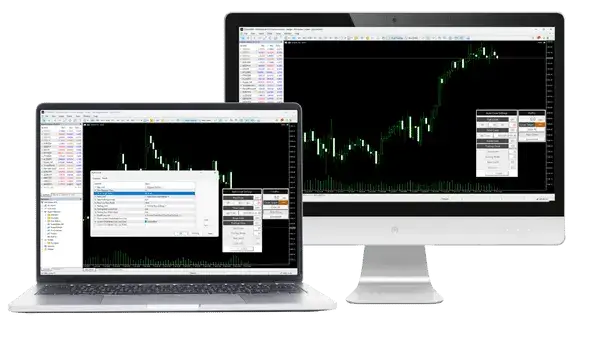
PidPro 2.30 tested in MT5 at XM on 13 October 2026
PidPro is a free EA for MT5 and MT4 that closes all your positions in one click, or by itself at a pip target, a set time, break even or a trailing stop.
Contents
- How Do You Close All Positions at Once in MT5?
- Which Positions Does PidPro Close?
- How Do You Install PidPro in MT5?
- How Does PidPro Close Positions Automatically?
- How Does PidPro Count Pips?
- What Happens If PidPro Cannot Close a Position?
- Does PidPro Keep Its Settings After MT5 Restarts?
- Which PidPro Settings Should You Change?
- Questions People Ask About PidPro
- Which Tool Do You Need Next?
How Do You Close All Positions at Once in MT5?
In MT5 on a computer, right-click the Trade tab, choose Bulk Operations and then Close All Positions. The same menu can also close only one symbol, or only your winning or losing positions.
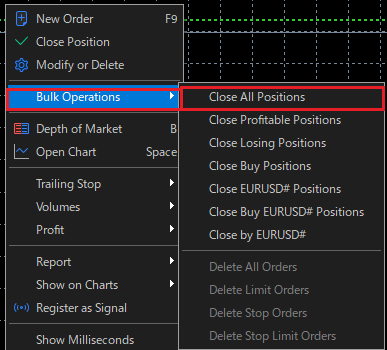
MT4 has no such menu, so in MT4 you close your positions one by one. PidPro adds a button to the MT4 chart that closes all your positions in one click.
What MT5 cannot do is close all your positions together automatically. With three gold buys, for example, MT5 cannot close all three when together they are 30 pips up, or at a set time before a news release.
PidPro closes all your positions from a panel on your chart, when they reach your pip target or at the time you set. So your positions close even while you are away from the screen.
Which Positions Does PidPro Close?
With PidPro on a GOLD chart, the Close Current Chart button closes all your GOLD positions and leaves the positions of other symbols open. That is the Current mode, which PidPro uses when you first add it.
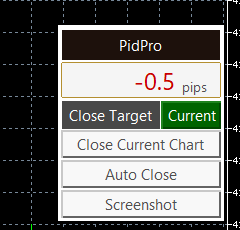
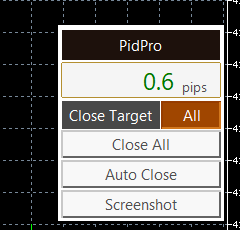
If you have PidPro on a GOLD H1 chart and also trade on a GOLD M5 chart, Close Current Chart closes the GOLD trades from both charts. A GOLD trade that another EA opened closes too, because PidPro looks only at the symbol. It closes them in one click and does not ask you to confirm.
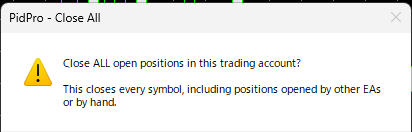
To close every symbol, click the Close Target button so that it shows All. The big button then reads Close All, and it closes every position in the trading account, including the ones that other EAs opened.
Close All can close every trade you have, so PidPro asks you before it closes anything. No is already selected, so pressing Enter by mistake closes nothing.
Pending orders stay as they are in both modes. If you no longer want a buy limit or a sell stop, delete it yourself in the Trade tab.
How Do You Install PidPro in MT5?
Download the file for your platform, copy it into the Experts folder of MT5, drag it onto a chart and allow Algo Trading. Install it on a computer, because the MT5 app on phones cannot run an EA.
Download the file for your platform. PidPro.ex5 is for MT5, and PidPro.ex4 is for MT4.
In MT5, click File and then Open Data Folder. Open MQL5 and then Experts, and copy PidPro.ex5 into that folder. In MT4, the folder is MQL4 and then Experts.
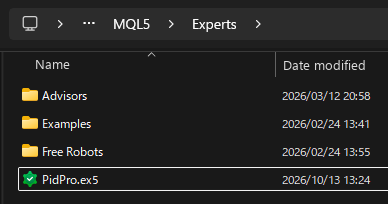
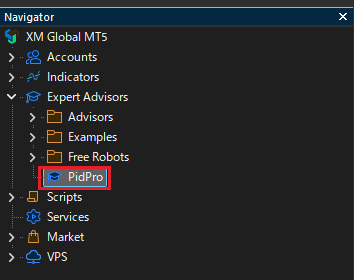
Restart MT5, or right-click Expert Advisors in the Navigator and click Refresh. Then drag PidPro from the Navigator onto your chart.
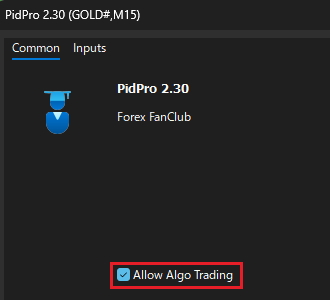
In the window that opens, tick Allow Algo Trading on the Common tab and click OK.
Click Algo Trading on the toolbar, so that it shows a green triangle. The PidPro panel then appears in the top-right corner of the chart.

PidPro closes your positions for real, so spend ten minutes on a demo account first. Click each button there with a 0.01 lot trade, and you will know what each one closes before you use it with your own money.
PidPro works only while MT5 is running on your computer. If you close MT5 or your computer sleeps, PidPro cannot close any position until MT5 runs again.
How Does PidPro Close Positions Automatically?
Click Auto Close on the panel and switch on one of four modes, and PidPro closes your positions when that mode’s condition is met. Each mode has its own OFF button, which turns ON when you click it.
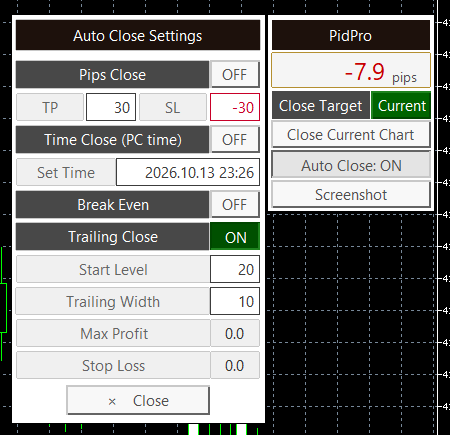
- Pips Close
Pips Close closes the positions when their pips reach TP or SL. The default TP is 30 and the default SL is -30. - Time Close
Time Close closes the positions at the time in Set Time, for example before a news release or before the weekend. PidPro reads the clock of your computer, not the server time that the chart shows. - Break Even
Break Even closes the positions when their profit, after swap and commission, comes back to zero. Use it on a trade that is already in profit, to close at zero rather than at a loss. - Trailing Close
Trailing Close closes all the positions together when their pips fall back from the highest point by Trailing Width. It starts only when the pips rise above Start Level.
Trailing Close works differently from the trailing stop in MT5, which moves the SL of one position. PidPro sets no SL. It watches the average pips of all the positions, and the panel shows the highest pips so far in the Max Profit box and the closing level in the Stop Loss box.
With the default values, nothing happens until the pips pass 20. After that, PidPro keeps the closing level 10 pips below the highest pips so far, so at 35 pips the closing level is 25. The level never moves down, so if the pips then fall back to 25, PidPro closes all the positions.
After one mode closes the positions, PidPro turns all four modes OFF, so you switch on the ones you want again for your next trade. While any mode is ON, the main button reads Auto Close: ON, so you can see that PidPro is still watching.
How Does PidPro Count Pips?
On currency pairs, one pip in PidPro is the pip you already know, and on gold it is a $0.10 move in the price. So a TP of 30 pips on gold means a $3 move in the gold price.
| Symbol | Price | 1 pip in PidPro |
|---|---|---|
| EURUSD | 1.11949 | 0.0001 |
| USDJPY | 158.318 | 0.01 |
| GOLD | 4157.96 | 0.10 ($0.10 per ounce) |
For an index or Bitcoin, look at the decimals of the price before you set TP and SL. If the price has two decimals, one pip is 0.1. If it has one decimal, one pip is 1.0.
With several positions, PidPro shows one figure, the average pips weighted by lot size. The table below shows two gold trades from our test.
| Gold position | Lot size | Pips |
|---|---|---|
| Trade 1 | 0.01 | +1.6 |
| Trade 2 | 0.03 | -3.2 |
| PidPro panel | 0.04 in total | -2.0 |
PidPro shows -2.0 pips, closer to the larger trade, because the 0.03 lot trade has three times the weight of the 0.01 lot trade. Your profit works the same way, because a larger trade makes or loses more money.
On All, PidPro averages the pips of different symbols, such as gold and EURUSD, which move by very different amounts in a day. So Pips Close and Trailing Close are easier to set on Current, where all the positions are on one symbol.
What Happens If PidPro Cannot Close a Position?
If an auto close fails, PidPro keeps the mode ON, tries again every 5 seconds and shows an alert. A close can fail when the market is closed, the connection drops or Algo Trading is off.
After five tries, PidPro turns the modes OFF, and the alert asks you to close the positions by hand. If a click on Close All or Close Current Chart fails, PidPro keeps your auto close settings and shows an alert, so you can fix the cause and click again.
Does PidPro Keep Its Settings After MT5 Restarts?
Yes. If Trailing Close is ON when you close MT5, it is still ON when MT5 opens again, with the same values. PidPro saves the modes, TP, SL, Set Time and Close Target for each trading account and each chart.
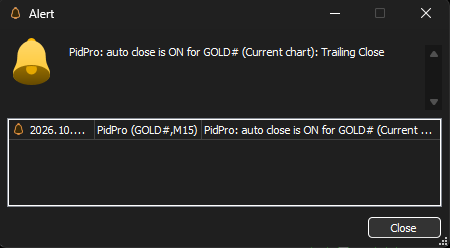
When MT5 opens, an alert lists the modes that are still ON, so you know that PidPro is watching again. If you remove PidPro from the chart or close the chart, PidPro deletes these saved settings.
Two cases turn the modes OFF on purpose. If Set Time passed while MT5 was closed, Time Close goes OFF and an alert tells you, so PidPro never closes late.
If you log in to a different trading account, every mode goes OFF, because the saved settings belong to the first trading account.
Which PidPro Settings Should You Change?
You change TP, SL and the trailing values on the panel, so you rarely need the settings window. The settings window only sets the values that PidPro starts with on a new chart.
To open it, right-click the chart, choose Expert Advisors and then Properties, and click the Inputs tab.
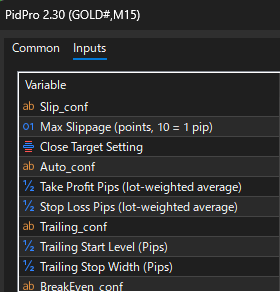
In that window, Take Profit Pips, Stop Loss Pips and the two Trailing settings are the first values in the boxes of the panel. Close Target Setting chooses which Close Target mode PidPro uses on a new chart, Current or All.
If your trading account charges a commission, look at the Commission/Lot setting, because Break Even and the break even line include the commission. PidPro learns it from your trade history, or you can type your commission per lot there.
On a trading account without commission, such as the XM Ultra Low account we tested, PidPro writes “Commission not detected. Manual setting recommended.” at the top left of the chart. You can leave Commission/Lot at 0.
If the panel text looks too big or gets cut off on a high-resolution screen, lower UI Font Size and Pips Display Font Size. You can see all 12 settings with their default values in the last section of this page.
Questions People Ask About PidPro
- Is PidPro free?
-
Yes. PidPro is free, with no registration and no time limit. You download the file and use it on as many charts as you like.
- Does PidPro work on the MT5 app on my phone?
-
No. The MT5 app on phones cannot run an EA. Run PidPro in MT5 on a computer, and keep that computer on while you want PidPro to watch your positions.
- Does PidPro open trades?
-
No. PidPro only closes positions. It places no new orders, so you open your trades yourself or with another EA.
- Can I use PidPro with another EA?
-
Yes, but PidPro closes the other EA’s positions too. On Current it closes every position on the chart symbol, and on All every position in the trading account, whoever opened it.
- Does PidPro close pending orders?
-
No. PidPro closes open positions only. Delete pending orders yourself in the Trade tab of MT5.
- Is the source code of PidPro available?
-
No. PidPro is free to use, but we share it as the compiled file only. You can use it on any number of charts and trading accounts.
Which Tool Do You Need Next?
If you have not chosen your lot size yet, start with the lot size calculator, because the lot size decides how much each pip of your trade is worth.
All PidPro settings and how we checked them
All 12 settings in MT5, with the default value
- Max Slippage (points, 10 = 1 pip)
- How far the price may move while a position closes. Default: 10.
- Close Target Setting
- Current Chart (the chart symbol) or All Charts (the whole trading account). Default: Current Chart.
- Take Profit Pips (lot-weighted average)
- TP of Pips Close. Default: 30.0.
- Stop Loss Pips (lot-weighted average)
- SL of Pips Close. Default: -30.0.
- Trailing Start Level (Pips)
- Pips at which Trailing Close starts to follow. Default: 20.0.
- Trailing Stop Width (Pips)
- Fall from the highest pips that closes the positions. Default: 10.0.
- Show Current Chart Break Even Line
- Shows the break even line of the chart symbol. Default: true.
- Current Chart Break Even Line Color
- Colour of that line. Default: DodgerBlue.
- Current Chart Break Even Line Width
- Width of that line. Default: 1.
- Commission/Lot (0=Auto Learning, >0=Manual Setting)
- Commission per lot used for Break Even and the line. Default: 0.0.
- UI Font Size
- Size of the panel text. Default: 11.
- Pips Display Font Size
- Size of the pips figure. Default: 18.
The names are the ones in the settings window of PidPro 2.30. MT4 shows the same settings with the same defaults, and six more for the trade history lines that PidPro draws on MT4 charts: Show/Hide History Lines, Number of History Lines to Display, History Line Width, Profit Line Color, Loss Line Color, Show Current Position Lines.
How we checked
- Files
- PidPro.ex5 (96,314 bytes) and PidPro.ex4 (115,100 bytes), version 2.30, the files of the two download buttons, updated on 13 October 2026.
- Demo account
- We ran PidPro 2.30 on an XM MT5 demo account on 13 October 2026 and clicked every button: Close Current Chart, Close All with its question, the four Auto Close modes, a failed close, and a restart of MT5 with auto close ON. The screenshots on this page come from that test.
- Pips
- The source code counts one pip as ten of the smallest price steps of the symbol, and averages the pips of the positions by lot size.
- Closing
- PidPro closes open positions only, and never opens a trade. A failed auto close is tried again every 5 seconds, 5 tries in all.
Checked on 13 October 2026.
Once your rebate account is open, link it to Forex FanClub. The member area lists every rebate payment day by day, across every broker you use. Registration is free and takes an email address.

Produced and operated by Forex FanClub
Person responsible: Hiroki Sakaida, founder of Forex FanClub
Hiroki Sakaida decides what our content and services cover and which features they offer. He also checks content and functionality and decides on revisions and publication. Our Content and Service Policy explains how we produce and check our content and services, including our use of AI.
Risk warning: Forex and CFD trading involve leverage, and you could lose all the money you invest. This article and tool provide information, not investment advice. The amounts shown are calculated from the collected data and do not guarantee the amounts that will apply to your own trades, or any future profit.
Affiliate disclosure: The broker pages linked from this page contain referral links. Forex FanClub receives referral commission based on registrations and trading through those links.
- How Do You Close All Positions at Once in MT5?
- Which Positions Does PidPro Close?
- How Do You Install PidPro in MT5?
- How Does PidPro Close Positions Automatically?
- How Does PidPro Count Pips?
- What Happens If PidPro Cannot Close a Position?
- Does PidPro Keep Its Settings After MT5 Restarts?
- Which PidPro Settings Should You Change?
- Questions People Ask About PidPro
- Which Tool Do You Need Next?