
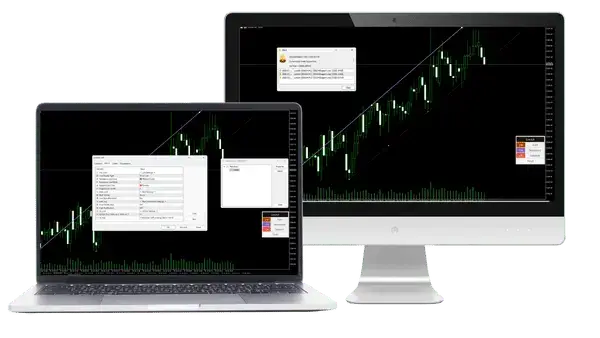
BreakLine 1.11 and the XM candle data checked on 13 October 2026
MT5 can only alert you at one fixed price, so a breakout of a support or resistance line can happen while you look away. BreakLine draws the two lines for you and alerts you when the price breaks one of them, free for MT5 and MT4.
The source code is free to read and change: BreakLine.mq5 for MT5 and BreakLine.mq4 for MT4.
Contents
How Do You Get a Breakout Alert in MT5?
BreakLine draws a resistance line on the highest high and a support line on the lowest low of the recent candles, and MT5 alerts you when the price breaks one of them. You only switch the alert on in the BreakLine panel.
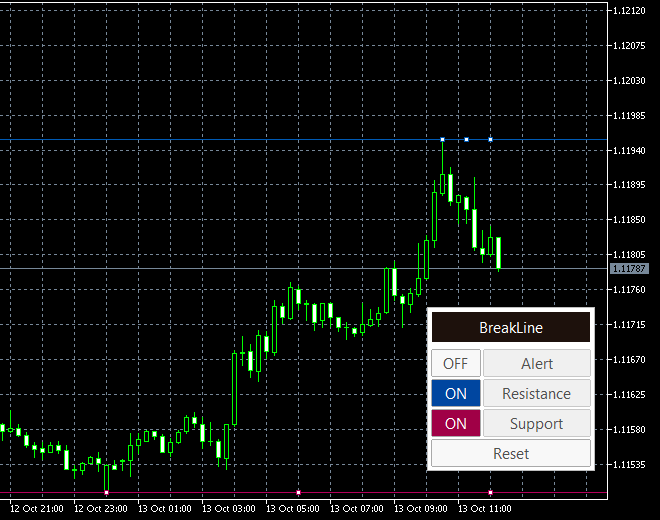
MT5’s own alerts in the Toolbox watch one fixed price, so they cannot follow a line that you tilt or wait for a candle to close. BreakLine can do both.
You choose between two alerts in BreakLine: Touch, which sounds as soon as the price reaches the line, and Candle close, which sounds only when a candle closes beyond it.
The choice matters. In one year of XM candles on EURUSD M15, the price reached the high or low of the last 100 candles 1,036 times. Only 503 of those candles closed beyond the level, so about half of the Touch alerts end with the price back inside.
The table below shows how often the price was still beyond the level four candles later.
| After 4 candles | Touch alert only | Candle close alert |
|---|---|---|
| EURUSD M15 | 32% | 62% |
| EURUSD H1 | 34% | 65% |
| GOLD M15 | 36% | 64% |
| GOLD H1 | 38% | 69% |
In other words, when a candle closed beyond the level, the price was still beyond it four candles later about 2 times in 3. When the price only touched the level, that happened about 1 time in 3.
However, neither alert tells you which way the price will go next. So choose by the way you trade. Choose Touch if you want to see the price at the line and decide yourself. Choose Candle close if you want fewer alerts, and you accept that the alert comes up to one candle later. You choose it in the setting called Alert when.
How Do You Install BreakLine in MT5?
Download the file for your platform, copy it into the Indicators folder of MT5 and drag it onto a chart. Install it on a computer, because the MT5 app on phones cannot run indicators that you download.
Download the file for your platform. BreakLine.ex5 is for MT5, and BreakLine.ex4 is for MT4.
In MT5, click File and then Open Data Folder. Open MQL5 and then Indicators, and copy BreakLine.ex5 into that folder. In MT4, the folder is MQL4 and then Indicators.
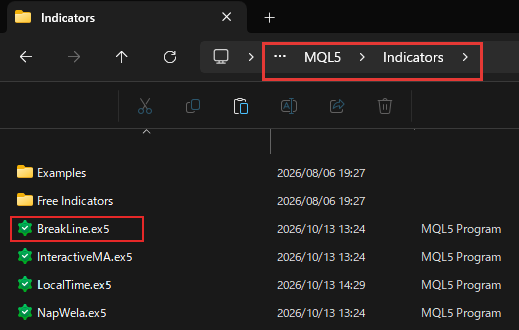
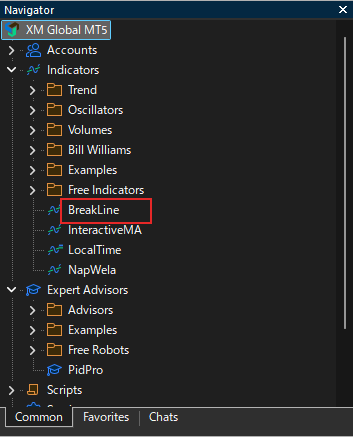
Restart MT5, or right-click Indicators in the Navigator and click Refresh. Then drag BreakLine from the Navigator onto your chart and click OK.
BreakLine is an indicator, not an Expert Advisor, so you do not need to turn on Algo Trading. It only draws lines and sounds alerts, and it never places a trade.
How Do You Use the BreakLine Panel and Lines?
The panel switches the alert and each line on and off, and you drag the lines to the levels you want. The panel sits in the bottom-right corner of the chart, and the alert starts switched off.
- Alert
Alert ON makes BreakLine watch both lines. The button stays on when you change the timeframe or restart MT5. - Resistance and Support
Each button shows or removes one line. When you switch a line on again, BreakLine draws it at the current high or low. - Reset
Reset draws both lines again on the highest high and lowest low of the recent candles. It leaves the alert as it is.
To move a line, click it once and drag one of its small squares slowly. The middle square moves the whole line up or down, and the two end squares change its slope, so a Trend line can follow a rising or falling market.
If you move the mouse fast, MT5 lets go of the line, so grab it again and move it more slowly. To move the panel, drag its title, BreakLine.
The lines stay where you put them when you change the timeframe, change a setting or restart MT5. So you can draw a level on H1 and watch it on M5. On a chart where you change the symbol, BreakLine draws new lines for the new symbol.
After a line gives you an alert, the line turns dotted and gives no more alerts, so you get one alert from each line. Click the dotted line, and it turns solid and alerts you again.
The alert names the symbol, the timeframe, the line and the price. On EURUSD M15, a Touch alert reads “BreakLine: EURUSD M15: the price reached the resistance line at 1.11748 (bid 1.11766).” The same sentence goes to your email and phone when you switch them on.
Which BreakLine Settings Should You Change?
The setting most traders change is Alert when, because it decides whether the alert comes on a touch or on a candle close. To open the settings, right-click the chart, choose Indicators List, select BreakLine and click Properties.
| Setting | What it changes |
|---|---|
| Line type | Trend line you can tilt, or Horizontal line |
| Alert when | The price touches the line, or a candle closes beyond it |
| Line style after an alert | How the line looks after its alert |
| Also send an email | An email for each alert |
| Also send a push notification | A push notification to the MT5 app on your phone |
| Panel corner | Where the panel sits on the chart |
An email or a push notification needs MT5 to know where to send it. For email, open Tools, then Options, and fill in the Email tab. For a push notification to your phone, copy the MetaQuotes ID from the MT5 app on your phone into the Notifications tab of the same window.
On a high-resolution screen, MT5 enlarges the panel for you. If the buttons still look small, raise Panel font size, which is 11 by default. The list of all 11 settings, with their default values, is further down this page.
What If BreakLine Does Not Alert You?
Most missed alerts have one of three causes: the Alert button is off, the line is dotted, or MT5 is not running. Check them in this order.
- Alert is OFF
The alert starts switched off on every new chart. Click OFF next to Alert, and it turns ON. - A dotted line
A dotted line has already alerted you once. Click the line to make it solid, and it alerts you again. - MT5 is not running
BreakLine runs inside MT5 on your computer. If you close MT5 or your computer sleeps, no alert, email or push notification is sent. - Email or push missing
The pop-up alert works, but the email or push needs two tabs in the MT5 options. Fill them in as the settings section shows. - An old version
Version 1.01 drew its lines off the screen after a timeframe change. Remove BreakLine from the chart and install version 1.11, which keeps the lines on the screen.
Questions People Ask About BreakLine
- Is BreakLine free?
-
Yes. BreakLine is free, with no registration and no time limit. You download the file and use it on as many charts as you like.
- Does BreakLine work on the MT5 app on my phone?
-
No. The MT5 app on phones cannot run downloaded indicators. Run BreakLine in MT5 on a computer, and turn on the push notification to receive its alerts on your phone.
- What is the difference between a Trend line and a Horizontal line?
-
A Trend line has two ends, so you can tilt it along a rising or falling market. A Horizontal line stays at one price. BreakLine draws both types flat at first, and the alert follows the line wherever you move it.
- Can I use BreakLine on several charts?
-
Yes. Each chart keeps its own lines, alert button and panel. For example, you can watch a gold level on one chart and a EURUSD level on another.
- Can I read or change the code of BreakLine?
-
Yes. The source code is free to download, so you can check what BreakLine does and change it for your own trading. The terms are at the top of each file. If you share the file, keep the author name Forex FanClub and the link to our site in it, and do not sell it.
- Does BreakLine place trades?
-
No. BreakLine only draws lines and sounds alerts. You decide whether to trade when an alert comes.
Which Tool Do You Need Next?
Once your alerts are set, the next question is usually how big a trade to open when a line breaks, so work out your lot size before the alert comes.
All BreakLine settings and how we checked them
All 11 settings, with the default value
- Line type
- Trend line (two points, you can tilt it) or Horizontal line. Default: Trend line.
- Resistance line color
- Colour of the resistance line. Default: Blue (0,90,180).
- Resistance line width
- Width of the resistance line. Default: 1.
- Support line color
- Colour of the support line. Default: Crimson (180,0,90).
- Support line width
- Width of the support line. Default: 1.
- Alert when
- Touch (the price reaches the line) or Candle close beyond the line. Default: Touch.
- Line style after an alert
- Dash, Dot, Dash dot or Dash dot dot. Default: Dot.
- Also send an email
- Sends each alert to the email address in the MT5 options. Default: Off.
- Also send a push notification
- Sends each alert to the MT5 app on your phone. Default: Off.
- Panel corner
- Top left, top right, bottom left or bottom right. Default: Bottom right.
- Panel font size
- Size of the text on the panel. Default: 11.
The names are the ones in the settings window of the indicator. MT4 shows the same settings with the same defaults.
How we checked
- Files
- BreakLine.ex5 (36,402 bytes) and BreakLine.ex4 (48,558 bytes), version 1.11, the files of the two download buttons, updated on 13 October 2026.
- Lines
- The source code counts the candles on the screen and takes a third of them, at least 5 and at most 100, without the candle that is still open. The resistance line goes on the highest high of those candles, and the support line on the lowest low.
- Alerts
- Touch compares the bid price with the line on every price change. Candle close compares the close of each finished candle with the line. We tested both in a test MT5 at XM on 13 October 2026.
- Touch and close count
- XM candles of EURUSD and GOLD on M15 and H1, from 14 October 2025 to 13 October 2026. A touch is the first candle whose high reaches the highest high of the 100 candles before it, or whose low reaches the lowest low. We then checked whether that candle closed beyond the level, and whether the close four candles later was still beyond it.
Checked on 13 October 2026.
Once your rebate account is open, link it to Forex FanClub. The member area lists every rebate payment day by day, across every broker you use. Registration is free and takes an email address.

Produced and operated by Forex FanClub
Person responsible: Hiroki Sakaida, founder of Forex FanClub
Hiroki Sakaida decides what our content and services cover and which features they offer. He also checks content and functionality and decides on revisions and publication. Our Content and Service Policy explains how we produce and check our content and services, including our use of AI.
Risk warning: Forex and CFD trading involve leverage, and you could lose all the money you invest. This article and tool provide information, not investment advice. The amounts shown are calculated from the collected data and do not guarantee the amounts that will apply to your own trades, or any future profit.
Affiliate disclosure: The broker pages linked from this page contain referral links. Forex FanClub receives referral commission based on registrations and trading through those links.