

Exness has two web terminals. Exness Terminal opens from your Personal Area, and MT5 WebTerminal asks for your trading password.
Checked on 7 November 2026
We logged in to one Exness demo trading account in both web terminals and compared them. This guide shows which terminal to use and how to open each one.
Both terminals need an Exness trading account, and if you are new to Exness, you can register on the Exness website.
Contents
- Which Exness Web Terminal Should You Use?
- How Do You Open Exness Terminal?
- How Do You Open MT5 WebTerminal?
- Why Does MT5 WebTerminal Say Invalid Account or Password?
- Can You Use the Exness Web Terminal on a Phone?
- How Do You Place a Trade in Exness Terminal?
- Do Both Terminals Show the Same Prices and Costs?
- Exness Web Terminal FAQ
- Which Page Do You Need Next?
Which Exness Web Terminal Should You Use?
Exness Terminal suits most traders with an MT5 trading account, because the terminal opens from the Personal Area without a trading password and has more chart tools. MT5 WebTerminal is the one to use with an MT4 trading account, or when you want a MetaTrader screen.
Both terminals run in your web browser, so you install no software. Exness built Exness Terminal, and MT5 WebTerminal is the MetaTrader platform in a browser. We logged in to one Exness demo trading account in both terminals, and this table shows the differences.
| Exness Terminal | MT5 WebTerminal | |
|---|---|---|
| Sign-in | Personal Area login | Trading password |
| Trading accounts | MT5 and Exness | MT5 and MT4 |
| Chart indicators | 100+ | 31 |
| Chart timeframes | 15 | 9 |
| Charts at one time | 8 charts at most | 1 chart |
| Orders at a chosen price | 4 types | 6 types on MT5 |
| Deposit and withdrawal | Yes | No |
| Layout on a phone | Made for phones | Same as a computer |
The chart tools are the biggest difference, but the number matters less than the table suggests. The 31 indicators in MT5 WebTerminal include Moving Average, RSI, Bollinger Bands, MACD, Stochastic and Ichimoku. So if your strategy uses those indicators, you have what you need on the chart.
MT5 WebTerminal has one kind of order more. Buy Stop Limit and Sell Stop Limit orders are only in MT5 WebTerminal, so choose that terminal if you use those two orders.
If you trade with an Expert Advisor (EA), you need MetaTrader on a computer instead. An EA runs only in MT4 or MT5 on a computer, so neither web terminal can run the EA.
Your type of trading account can also decide the terminal for you. An MT4 trading account does not open in Exness Terminal, and a trading account on the Exness platform does not open in MetaTrader.
In some regions, Exness also limits MT5 trading accounts to MetaTrader, so those trading accounts do not work in Exness Terminal. If that happens to you, log in with MT5 on your computer or phone.
How Do You Open Exness Terminal?
You open Exness Terminal from the Exness Personal Area, with the Trade button on a trading account. Your Exness Terminal login is your Personal Area login, so the terminal opens in a new browser tab, already signed in with that trading account.
Sign in to the Personal Area, open Accounts and tap Trade on the trading account.

Choose Exness terminal in the Trade window.
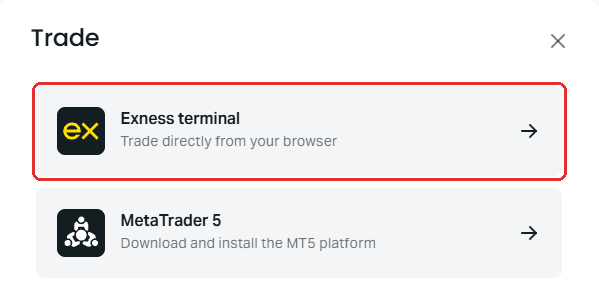
To skip the Trade window next time, tick Always use this terminal in that window. The Personal Area menu also has an Exness Terminal link under Trading, and the Exness Terminal sign-in page (opens in a new tab) takes you to the same terminal after you sign in.
If the sign-in fails, the Exness login guide shows which details you need.
How Do You Open MT5 WebTerminal?
The easiest way to open MT5 WebTerminal is from the Personal Area, because Exness fills in your trading account number and server, and you only type the trading password. The option sits under Other options in the Trade window, so it is easy to miss.
Tap Trade on the trading account, open Other options and tap MT5 WebTerminal.
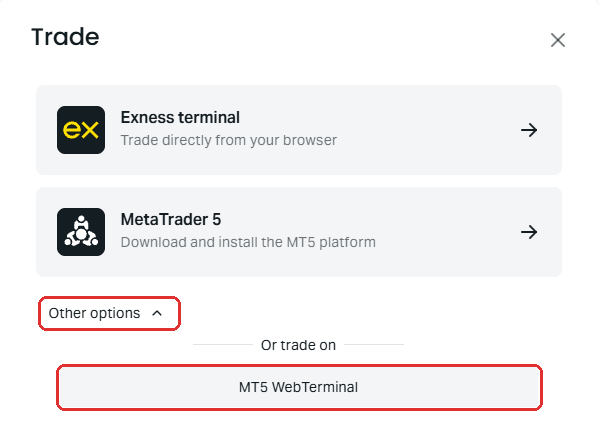
Tap the MT5 WebTerminal row at the top. The window also shows the server and the trading account number.
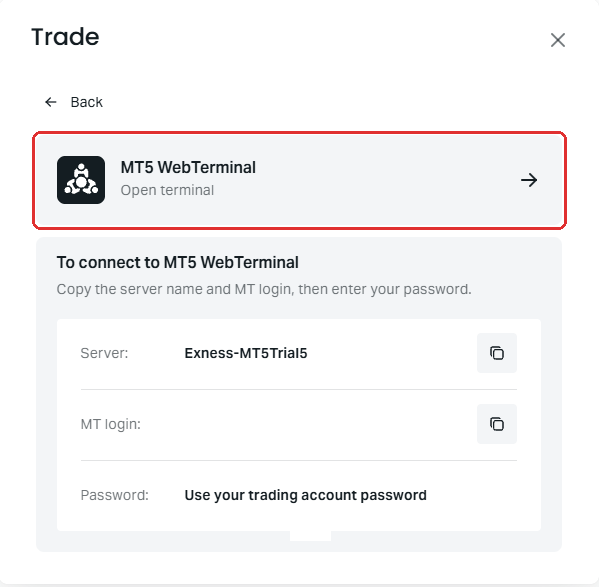
Type the trading password of that trading account and tap Connect to account.
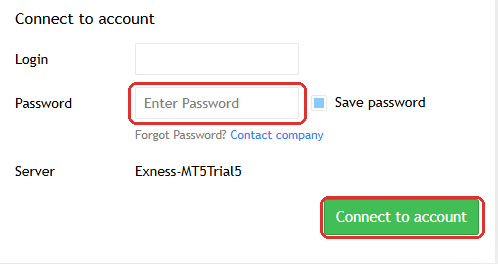
Keep Save password off on a computer that other people use, so that the browser does not store the password of your trading account.
You can also open the terminal without the Personal Area. On the Exness WebTerminal page (opens in a new tab), choose MetaTrader 4 or MetaTrader 5. For MT5, choose your server from the list, tap Continue to MT5 and type your trading account number and trading password.
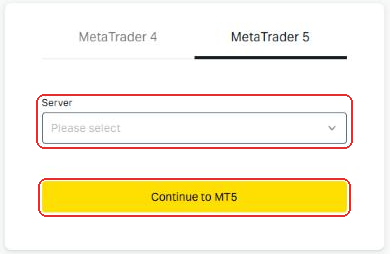
That list had 61 servers when we opened the page, so you need the exact server name. The Exness login guide shows where you find the server of your trading account.
Why Does MT5 WebTerminal Say Invalid Account or Password?
MT5 WebTerminal says “Invalid account or password” when the password does not belong to that trading account, or when the trading account is not on that server.
We saw this message ourselves when we typed the wrong password for one of our demo trading accounts.
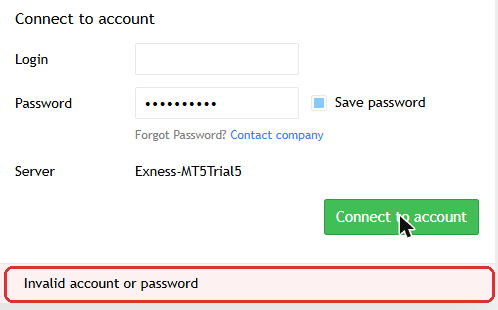
The usual cause is the password. Only the MT5 trading account that Exness created when you registered uses your Personal Area password. A trading account that you open later has a separate trading password.
So if you forget the trading password, you can still reach your trading account. Exness Terminal asks for no trading password, and we reached that same demo trading account there. The Exness login guide shows how to check each detail and set a new trading password.
Can You Use the Exness Web Terminal on a Phone?
Yes, you can open both Exness web terminals in a phone browser, but only Exness Terminal changes to a layout for a small screen.
In a narrow browser window, Exness Terminal showed one chart with large Sell and Buy buttons. MT5 WebTerminal kept its computer layout, so the symbol list covered most of the chart.
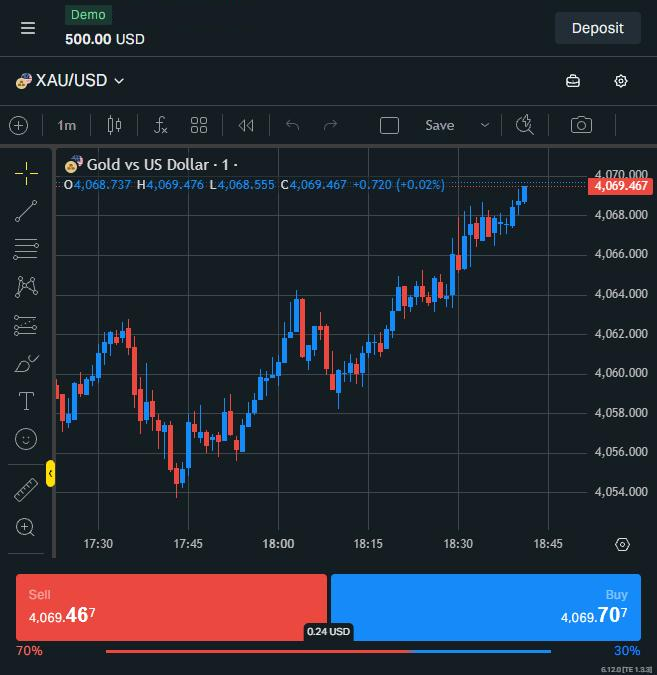
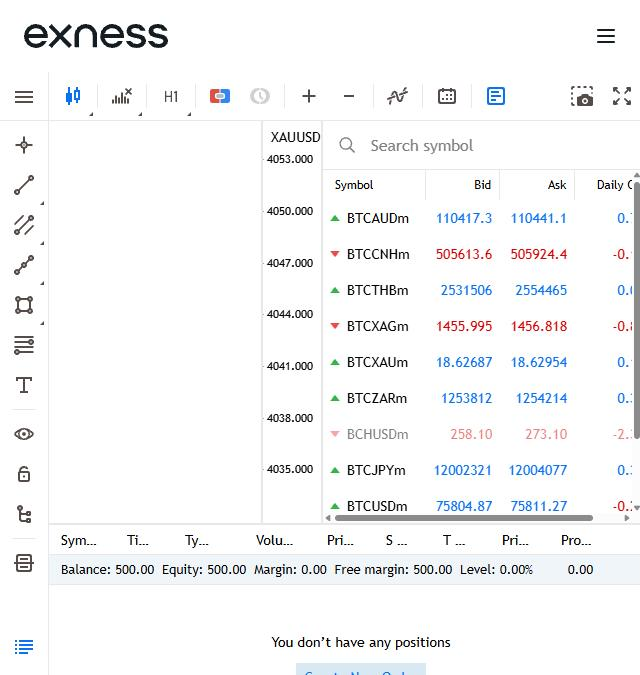
So on a phone, Exness Terminal is the easier of the two. A mobile app works better when you trade from your phone every day, and the Exness login guide shows how to log in to the Exness Trade app and the MT5 app. The Exness app guide shows where to download the app.
How Do You Place a Trade in Exness Terminal?
In Exness Terminal, you choose an instrument, set the volume, tap Sell or Buy, and then press the Confirm button to send the order.
That last step also shows the cost before you commit to the trade. For 0.01 lot of gold at 1:500, our form showed fees of about $0.24 and a margin of $8.13.
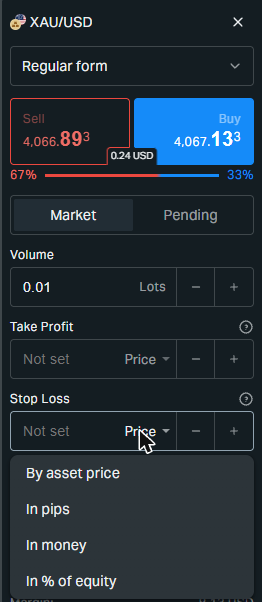
The stop loss is where Exness Terminal helps a new trader most. You can set the stop loss by price, in pips, in money or as a percentage of your equity. So you can decide to lose at most $20 on a trade, and you avoid calculating the price yourself.
To choose your lot size from the money you can lose, use the lot size calculator first. Exness Terminal also has a Risk calculator form that works out the lots from your risk and your stop loss. The form asks you to accept a notice the first time you choose the calculator.
The form has a third mode called One-click form. That mode sends the order without the Confirm step, so leave the mode off until you know the terminal well.
Do Both Terminals Show the Same Prices and Costs?
Yes, Exness Terminal and MT5 WebTerminal show the same balance, the same prices and the same spread, because the trading account remains the same.
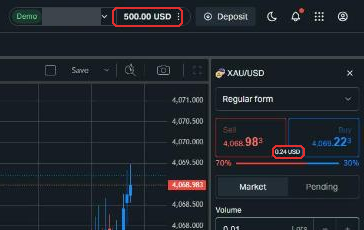
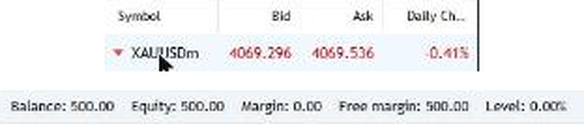
On our Exness Standard demo trading account, both terminals showed a balance of $500 and a gold spread of $0.24 an ounce. That spread costs $24 on 1 lot.
So the terminal does not change your trading cost, but your account type does. The Exness account types guide compares the cost of each account, and the Exness fees guide lists the other fees.
A rebate works the same way in both terminals. A rebate is the part of the Exness partner commission that ForexFanClub pays back to you, and the rebate follows your trading account. The Exness rebate guide shows the rebate amount on each account.
The name of gold is a small trap. Exness Terminal calls gold XAU/USD, and MT5 WebTerminal called gold XAUUSDm on our Standard demo trading account. So in MT5 WebTerminal, search for XAUUSD and choose XAUUSDm. The second result, XAUUSD247m, is a separate gold symbol.
Exness Web Terminal FAQ
- Can you download Exness Terminal?
-
No, Exness Terminal is a web page, so you have no software to download or update. To have a program on your computer, choose MetaTrader 5 in the Trade window and install the platform.
- Does Exness Terminal use TradingView?
-
Yes, the charts in Exness Terminal come from TradingView. However, you cannot log in to your Exness trading account on the TradingView website, so you use those chart tools inside Exness Terminal.
- Can you run an Expert Advisor (EA) in the Exness web terminals?
-
No, an Expert Advisor runs only in MT4 or MT5 on a computer. Exness Terminal and MT5 WebTerminal have no automated trading, so install MetaTrader on your computer to use an Expert Advisor.
- Do the Exness web terminals work with a demo account?
-
Yes, both Exness web terminals work with a demo trading account. The Exness demo account guide shows how to open a demo trading account.
- Why does Exness Terminal not load?
-
Exness Terminal usually fails to load because of the internet connection or the browser. First sign out of the terminal and sign in again, and then clear your browser cache and cookies. Your browser also needs to be recent, for example Chrome 92 or later.
Where the facts come from:
Sources and how we checked them
The two terminals
On 7 November 2026, we opened an Exness Standard demo trading account on MT5 in both terminals, in a computer browser and then in a narrow browser window. We counted the indicators and the timeframes on the screens, and we placed no order. Our connection to MT5 WebTerminal did not offer the New Order window, so the order types of MT5 WebTerminal come from the Exness page.
The Exness pages
The tools of Exness Terminal are on the Exness Terminal page (opens in a new tab), and the order types of MT5 WebTerminal are on the MetaTrader WebTerminal page (opens in a new tab). The limit on charts, the rule for some regions, the TradingView note, the browser versions and the password of the first MT5 trading account come from the Exness Help Centre, read in November 2026. The Exness pages give 10 timeframes for Exness Terminal and more than 40 indicators for MT5 WebTerminal, and the screens that we read showed 15 and 31.
Which Page Do You Need Next?
Once your terminal is open, the next step is usually your account type or a demo trading account to practise on. These pages cover each one.
Once the new Exness trading account is open, add it to Forex FanClub. The member area lists every rebate payment day by day, across every broker you use. Registration is free and takes an email address.

Produced and operated by Forex FanClub
Person responsible: Hiroki Sakaida, founder of Forex FanClub
Hiroki Sakaida decides what our content and services cover and which features they offer. He also checks content and functionality and decides on revisions and publication. Our Content and Service Policy explains how we produce and check our content and services, including our use of AI.
Risk warning: Forex and CFD trading involve leverage, and you could lose all the money you invest. This article and tool provide information, not investment advice. The amounts shown are calculated from the collected data and do not guarantee the amounts that will apply to your own trades, or any future profit.
Affiliate disclosure: This article contains Exness referral links. Forex FanClub receives referral commission based on registrations and trading through these links.
- Which Exness Web Terminal Should You Use?
- How Do You Open Exness Terminal?
- How Do You Open MT5 WebTerminal?
- Why Does MT5 WebTerminal Say Invalid Account or Password?
- Can You Use the Exness Web Terminal on a Phone?
- How Do You Place a Trade in Exness Terminal?
- Do Both Terminals Show the Same Prices and Costs?
- Exness Web Terminal FAQ
- Which Page Do You Need Next?