

Add a trading account to your XM profile in minutes with the + on the account card.
Checked on 4 October 2026
Adding a trading account at a glance
- How
- On Home, tap + on the account card. Then choose Real, the platform, the account type, leverage, currency and a name. You send no documents again.
- How many
- Up to 10 trading accounts and 1 Shares account under one XM profile. Demo accounts: up to 5 at a time.
- Rebate
- Type GJQYM into Partner Code (Optional) on the last screen. The new trading account then earns the Forex FanClub rebate.
New to XM? The XM account opening guide covers the first registration.
If you already have an XM login, you add the trading account in your XM Members Area.
Contents
Why Add Another XM Trading Account?
A new trading account gives you what your current trading account cannot change.
- Another account type
The type of a trading account stays fixed. To trade on Ultra Low or Micro, add a trading account of that type. - Another currency
You choose the base currency for each new trading account. For example, next to the USD account from your registration, you can add a trading account in your local currency. - A rebate
When you add a trading account with partner code GJQYM, every lot that you close on that trading account earns a rebate. - A deposit bonus
If your country gets a deposit bonus, a direct deposit into a new Standard account can get a bonus. - Separate balances
Each trading account has its own balance and margin. A loss on one trading account does not use the money in the other trading account.
The table below shows the rebate for 1 lot on the new trading account.
| Account type | EURUSD | Gold |
|---|---|---|
| Standard account | $8.10 | $18.00 |
| Ultra Low account | $3.15 | $9.00 |
If you opened your first trading account without a partner code, add a new trading account with GJQYM, and trade on the new trading account.
With 10 lots of EURUSD a month on a Standard account, the rebate comes to $81.00 a month.
The XM rebate guide shows how much comes back and when it is paid.
How Do You Add a Trading Account at XM?
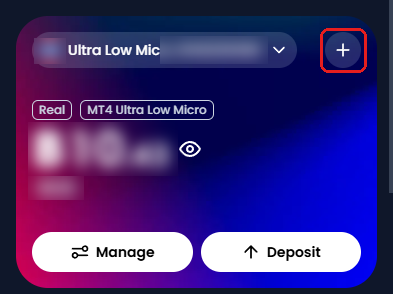
Log in to the XM Members Area (opens in a new tab) in the XM app or on the website. On Home, tap the + in the top right of the account card.
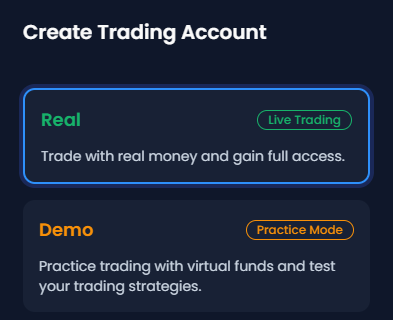
A panel headed Create Trading Account opens. Keep Real selected, and tap Continue. Demo opens a practice account with virtual money.
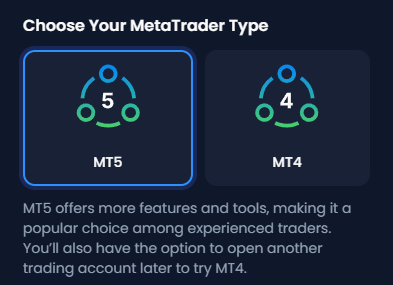
Choose the platform, MT5 or MT4. MT5 trades every XM market, including stock CFDs. MT4 has no stock CFDs.
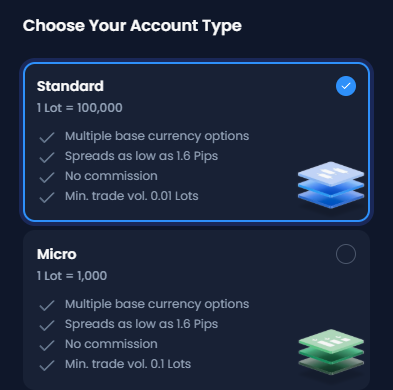
Choose the type of trading account. The screen lists the types for your country, with the lot size and the minimum trade of each.
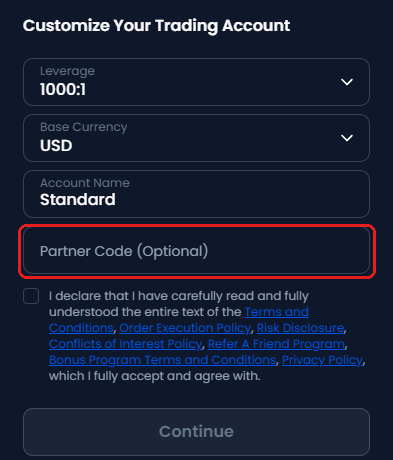
On the next screen, tap Have a Partner Code? Type GJQYM in the box that appears. Tick the declaration, and tap Continue.
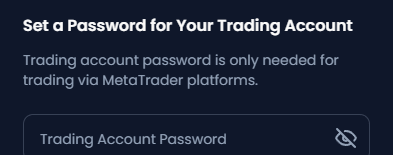
On the next screen, set the password for MetaTrader, and tap Complete. The XM login guide shows how to log in to MT5.
You send no documents again. XM has already verified your profile, so the new trading account is ready in a few minutes.
The new trading account appears in the Select Account list. Tap the account name at the top of Home to open the list. The server name is under Manage → Account Information.
How Many Trading Accounts Can You Have at XM?
Up to 10 trading accounts and 1 Shares account under one XM profile. The XM Help Centre (opens in a new tab) gives these figures. Demo accounts are separate, up to 5 at a time.
- More than 10
The limit can differ by country. Before you plan more trading accounts, ask XM on live chat. - Your choices each time
Platform, account type, base currency, leverage and a name. For example, you can hold a Standard account in USD on MT5 and a Micro account on MT4. - Fixed after opening
The account type and the base currency stay fixed. For a different type or currency, add another trading account. Leverage can change later under Manage → Change Leverage.
The XM account types guide compares the types. The XM margin guide shows the leverage for each market.
How Do You Get the Rebate on a New XM Trading Account?
Type GJQYM into Partner Code (Optional) when you add the trading account.
Partner code GJQYM when adding a trading account
- Where
- On the screen with the leverage and the base currency, tap Have a Partner Code? The box for the code appears.
- What it does
- XM records Forex FanClub as the partner of that trading account. The rebate is then paid on every lot that you close on it.
- Current trading account
- Your current trading account keeps its partner, its history and its open positions. The code applies only to the new trading account.
Opening the Members Area through a link on this site also passes the referral on. Typing the code works even when your browser blocks cookies.
The XM partner code guide has the details. Once the new trading account exists, add its number in the Forex FanClub member area (opens in a new tab). The rebate on it then shows in one place.
What Should You Know After Adding a Trading Account?
- Money in
Deposit straight into the new trading account, or move money from another of your trading accounts under Manage → Transfer. The XM internal transfer guide covers the fee and the bonus. - Hedging
XM allows hedging inside one trading account only. Keep opposite positions on the same instrument in the same trading account. - Dormancy
After more than 90 days with no activity, XM charges USD 10 a month. If the balance is under USD 10, the fee is the whole balance. One small trade before day 90 starts the 90 days again, as the XM inactivity fee guide shows. - Zero balance
A trading account at zero for more than 90 days is archived, and you cannot reopen it. Add a new trading account instead. - Bonus
The XM account types page (opens in a new tab) shows the account types that get a bonus in your country. Money sent from a Standard account to an Ultra Low account removes part of the bonus. - Closing
Close a trading account that you no longer use, so that it does not go dormant. The XM account closure guide lists the checks before closing.
Not with XM yet? Open your first trading account through the button below to receive a rebate on every lot you trade.
FAQ on Additional XM Trading Accounts
- How many trading accounts can I have at XM?
-
Up to 10 trading accounts and 1 Shares account. The limit can differ by country, so ask XM on live chat before you plan more. Demo accounts: up to 5 at a time.
- Do I need to send my documents again for an additional XM trading account?
-
No. XM has already verified your profile. The new trading account is ready in a few minutes when your personal details are the same.
- Do I get a bonus on a new XM trading account?
-
Yes, on a Standard account in a country that gets a deposit bonus. A direct deposit into the new trading account gets the bonus.
Money moved from another trading account gets no new bonus. The XM bonus guide shows the bonus for your country.
- Can I change the account type or base currency of an XM trading account later?
-
No. The account type and the base currency stay fixed. Open another trading account with the type or currency that you want, and move money with an internal transfer.
- Can I use MT4 and MT5 at the same time at XM?
-
Yes. Each trading account is on one platform. Add one trading account on MT5 and one on MT4, and log in to each with its own number.
- Can I hedge between two XM trading accounts?
-
No. XM allows hedging inside one trading account only. Open the opposite position on the same trading account instead.
- Can I add partner code GJQYM to a trading account I already have?
-
No. The Partner Code box is only on the screen for adding a trading account.
Add a new trading account with the code, and trade on that one. The existing trading account keeps its partner.
Which XM Guide Do You Need Next?
Sources: where each fact on this page comes from
- XM Help Centre (opens in a new tab)
- The limit of 10 trading accounts and 1 Shares account. No documents again when the personal details are the same. The fixed account type and base currency. Hedging inside one trading account only. Archiving after 90 days at zero. Read on 4 October 2026.
- XM Client Agreement (opens in a new tab)
- Clause 79: the fee of USD 10 a month after 90 days with no activity.
- XM Members Area
- The screens for adding a trading account, from the + on Home to the password, on 27 September 2026. The pictures show a real profile with the account name and number hidden.
- XM live chat
- On 1 October 2026, the chat confirmed that a later Standard account gets a bonus on a direct deposit, and that money moved from another trading account gets no new bonus.
- XM rebate guide
- The rebate per lot on Standard and Ultra Low accounts, on 27 September 2026.
Once your XM trading account is open, link it to Forex FanClub. The member area lists every rebate payment day by day, across every broker you use. Registration is free and takes an email address.

Produced and operated by Forex FanClub
Person responsible: Hiroki Sakaida, founder of Forex FanClub
Hiroki Sakaida decides what our content and services cover and which features they offer. He also checks content and functionality and decides on revisions and publication. Our Content and Service Policy explains how we produce and check our content and services, including our use of AI.
Risk warning: Forex and CFD trading involve leverage, and you could lose all the money you invest. This article and tool provide information, not investment advice. The amounts shown are calculated from the collected data and do not guarantee the amounts that will apply to your own trades, or any future profit.
Affiliate disclosure: This article contains XM referral links. Forex FanClub receives referral commission based on registrations and trading through these links.