NAVIGATION
  • HOME
  • NinjaBull
    • Macro Gravity
    • API for EA
  • Broker Rebates
    • XM Rebates
    • HFM Rebates
    • XS Rebates
    • Exness Rebates
    • Axi Rebates
  • Trading Tools
    • PidPro
    • BreakLine Indicator
    • NapWela Timer
    • LocalTime Indicator
    • Interactive MA
    • Currency Strength
    • Gold Analytica
    • MT4/MT5 Setup
  • Calculator
    • Rebate Calculator
    • Max Lot Calculator
    • Margin Calculator
  • About XM
    • Registration
      • Additional Account
      • Demo Account
      • Internal Transfer
      • Close Account
    • Bonus Promotions
      • Trading Bonus
      • Deposit Bonus
      • Traders Club
        • XMC Calculator
    • Account Types
      • Standard Account
      • Ultra Low Account
    • Trading Conditions
      • Spread Table
      • Swap Rates
      • Leverage & Margin
      • Trading Cost
    • Deposit Guide
    • Withdrawal Guide
    • Contact Support
  • Bounty Guild
  • Dashboard
Forex FanClub
  • HOME
  • NinjaBull
    • Macro Gravity
    • API for EA
  • Broker Rebates
    • XM Rebates
    • HFM Rebates
    • XS Rebates
    • Exness Rebates
    • Axi Rebates
  • Trading Tools
    • PidPro
    • BreakLine Indicator
    • NapWela Timer
    • LocalTime Indicator
    • Interactive MA
    • Currency Strength
    • Gold Analytica
    • MT4/MT5 Setup
  • Calculator
    • Rebate Calculator
    • Max Lot Calculator
    • Margin Calculator
  • About XM
    • Registration
      • Additional Account
      • Demo Account
      • Internal Transfer
      • Close Account
    • Bonus Promotions
      • Trading Bonus
      • Deposit Bonus
      • Traders Club
        • XMC Calculator
    • Account Types
      • Standard Account
      • Ultra Low Account
    • Trading Conditions
      • Spread Table
      • Swap Rates
      • Leverage & Margin
      • Trading Cost
    • Deposit Guide
    • Withdrawal Guide
    • Contact Support
  • Bounty Guild
  • Dashboard
Login
Forex FanClub
  • HOME
  • NinjaBull
    • Macro Gravity
    • API for EA
  • Broker Rebates
    • XM Rebates
    • HFM Rebates
    • XS Rebates
    • Exness Rebates
    • Axi Rebates
  • Trading Tools
    • PidPro
    • BreakLine Indicator
    • NapWela Timer
    • LocalTime Indicator
    • Interactive MA
    • Currency Strength
    • Gold Analytica
    • MT4/MT5 Setup
  • Calculator
    • Rebate Calculator
    • Max Lot Calculator
    • Margin Calculator
  • About XM
    • Registration
      • Additional Account
      • Demo Account
      • Internal Transfer
      • Close Account
    • Bonus Promotions
      • Trading Bonus
      • Deposit Bonus
      • Traders Club
        • XMC Calculator
    • Account Types
      • Standard Account
      • Ultra Low Account
    • Trading Conditions
      • Spread Table
      • Swap Rates
      • Leverage & Margin
      • Trading Cost
    • Deposit Guide
    • Withdrawal Guide
    • Contact Support
  • Bounty Guild
  • Dashboard
  1. Home
  2. What is XM Forex Broker? Features, Accounts & Conditions
  3. How to Register with XM: Complete Account Opening Guide
  4. XM Internal Transfer: Step-by-Step Guide & Bonus Rules

XM Internal Transfer: Step-by-Step Guide & Bonus Rules

XM Trading logo

How to Transfer Between Accounts (Internal Transfer)
A complete guide to internal transfers at XM — including step-by-step instructions, key precautions, and bonus loss conditions

XM offers an internal transfer feature that allows traders to efficiently manage multiple trading accounts. This function enables you to allocate funds across accounts with different account types and leverage settings, giving you greater flexibility in your trading strategy. However, there are several important rules to understand when making a transfer — including how bonuses (credits) are handled, minimum transfer amounts, and restrictions that apply when you have open positions.

This guide covers everything you need to know about internal transfers at XM — from the basics through to each specific step of the process. In particular, we highlight the risk of losing your bonus when transferring from a Standard account to an Ultra Low or Shares account, as well as the exchange fee that applies when transferring between accounts with different base currencies — so you can avoid any unintended losses.

Latest XM Promotions
Forex FanClub
XM Bonus Guide: $30 Free, Deposit Bonus & Traders Club | Forex FanClub Unlock XM’s full bonus suite: $30 no-deposit bonus, up to $10,500 deposit bonus, and XM Traders Club rewards. Maximise your trading capital today.

Contents

  1. How Bonuses Are Handled During an XM Internal Transfer
    1. Proportional Bonus Transfer System
    2. Risk of Losing Your Bonus When Transferring Between Accounts
  2. Important Precautions for XM Internal Transfers
    1. Minimum Transfer Amount
    2. Transfer Restrictions When You Have Open Positions
    3. Exchange Fee When Transferring Between Different Base Currencies
  3. How to Make an Internal Transfer at XM (Step-by-Step)
    1. Step 1Log In to the XM Members Area
    2. Step 2Click “Internal Transfer” in the XM Members Area
    3. Step 3Review the Transfer Precautions
    4. Step 4Select the Destination Account and Enter the Transfer Amount
    5. Step 5Receive the “Internal Transfer” Notification Email from XM
    6. Step 6How to Check Your Transfer History
  4. Frequently Asked Questions About XM Internal Transfers
Contents

How Bonuses Are Handled During an XM Internal Transfer

When transferring funds between XM trading accounts, it is essential to understand how your bonuses (credits) will be affected. This section explains the fundamental rules governing bonus transfers and what to expect when moving funds between accounts.

Proportional Bonus Transfer System

When you transfer funds between XM accounts, any bonus is automatically transferred in the same proportion as the principal amount. For example, if you transfer 50% of your account balance, 50% of the bonus will also be transferred at the same time.

Worked Example

If Account A holds a balance of $2,000 and a bonus of $1,000, and you transfer $500 (25% of the balance) to Account B, then $250 (25% of the bonus) will also be transferred automatically. The result would be as follows:

  • Account A: Balance $1,500, Bonus $750
  • Account B: Balance $500, Bonus $250

You cannot transfer your bonus independently. XM only permits the transfer of cash — any bonus is moved alongside your cash in proportion.

Risk of Losing Your Bonus When Transferring Between Accounts

When transferring funds from a Standard or Standard Micro account to an Ultra Low, Ultra Low Micro, or Shares account, any bonus held in the source account will be permanently forfeited. This is because Ultra Low, Ultra Low Micro, and Shares accounts are not included in XM’s deposit bonus programme. Once lost, bonuses cannot be recovered — so please consider carefully before proceeding with any transfer.

A number of traders have unintentionally lost their bonuses by transferring funds between accounts without being aware of this rule. Since forfeited bonuses cannot be reinstated, please exercise caution whenever you perform an internal transfer.

No Impact on XMC

XMC points earned through trading via the XM Trader’s Club are linked to your XM user account — not to any individual trading account — and are therefore unaffected by internal transfers. However, if you redeem XMC for a credit bonus, that bonus will be subject to the standard bonus forfeiture rules described above.

In general, once a bonus has been lost it cannot be recovered. If you have any questions or concerns about a transfer, we strongly recommend contacting XM’s customer support team in advance. You can reach XM’s support team using the button below.

XM Customer Support

Guide to contacting XM

Important Precautions for XM Internal Transfers

Internal transfers at XM are only permitted between trading accounts registered under the same name within a verified XM user account. You cannot transfer funds to an account held in another person’s name — even if that person is a family member. This section outlines the key precautions to be aware of when making an internal transfer.

Minimum Transfer Amount

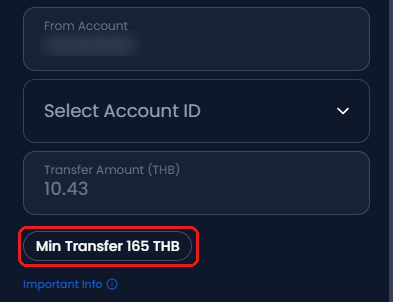
XM sets a minimum internal transfer amount of 5 USD. If your account uses a different base currency, the minimum will be the equivalent value in that currency. Below is an example of the minimum amount displayed when initiating an internal transfer within the XM Members Area.

XM example screen showing the minimum amount displayed when making an internal transfer

Transfer Restrictions When You Have Open Positions

XM does permit transfers from a trading account with open positions, but restrictions apply based on your margin maintenance level, as outlined below.

Summer Time

From the last Sunday of March to the last Sunday of October.

  • Weekdays — Monday 01:00 to Friday 23:50 (UTC+3): Transfers are not permitted if they would cause the margin maintenance level to fall below 150%.
  • Weekends — Friday 23:50 to Monday 01:00 (UTC+3): Transfers are not permitted if they would cause the margin maintenance level to fall below 400%.
Winter Time

From the last Sunday of October to the last Sunday of March the following year.

  • Weekdays — Monday 00:00 to Friday 22:50 (UTC+2): Transfers are not permitted if they would cause the margin maintenance level to fall below 150%.
  • Weekends — Friday 22:50 to Monday 00:00 (UTC+2): Transfers are not permitted if they would cause the margin maintenance level to fall below 400%.

Transferring funds from an account with open positions involves complex calculations and carries additional risk. We strongly recommend closing all positions before initiating any internal transfer.

▼ Margin maintenance levels and required margin for all instruments at XM

Forex FanClub
XM leverage and margin calculator: limits up to 1:1000 Calculate XM margin for your lot size. Leverage goes up to 1:1000, then steps down with your equity, the instrument and the size of the position.

Exchange Fee When Transferring Between Different Base Currencies

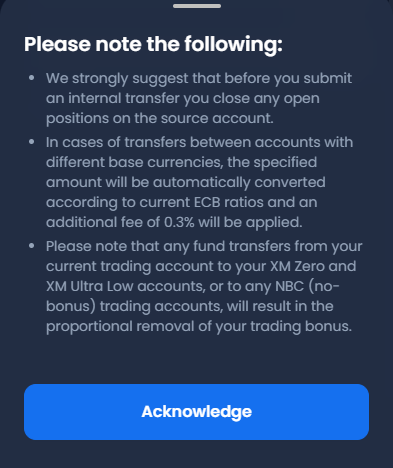
Transfers between accounts that share the same base currency are generally free of charge. However, if the source and destination accounts have different base currencies, an exchange fee of approximately 0.3% will apply, based on the European Central Bank (ECB) rate. Please be particularly mindful of this when planning to transfer large sums.

XM internal transfer warning screen showing exchange rate notice and bonus restrictions
Tip: Choosing a Base Currency

When opening multiple trading accounts, selecting the same base currency for all of them will help you avoid exchange fees on internal transfers. This is especially worthwhile if you plan to transfer funds frequently or in large amounts. Learn how to open an additional XM account

How to Make an Internal Transfer at XM (Step-by-Step)

This section walks you through the full process of making an internal transfer between accounts. While the process itself is straightforward and takes only a few minutes, there are some important details and precautions to keep in mind. We recommend following each step carefully to ensure a smooth and secure transfer — particularly when it comes to managing your bonus and avoiding unnecessary fees.

Step 1Log In to the XM Members Area

The internal transfer process can be completed in just a few minutes. To get started, access the XM Members Area login page using the button below.

Log In to the XM Members Area

Once the login page opens, enter the email address you registered with and your password, then click “Log In”.

XM Members Area login page with email and password fields

Step 2Click “Internal Transfer” in the XM Members Area

In the XM Members Area, click the balance figure at the top (1) to view your account details, then select the account you wish to transfer from and click the “Withdraw” button (2) to proceed to the next step.

XM Members Area showing balance at top and Withdraw button for selected account

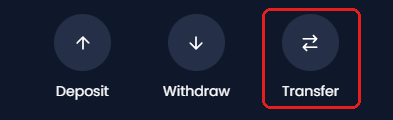
After selecting your account, a fund management menu will appear. Click “Internal Transfer” to proceed with the transfer between your XM accounts.

XM fund management menu screen showing the Internal Transfer option

Step 3Review the Transfer Precautions

After clicking “Internal Transfer”, a notice page will appear with important precautions regarding the transfer. Please read all the information carefully before proceeding, then click “Acknowledge” to continue to the next step.

You can find full details about these precautions in the Important Precautions for XM Internal Transfers section of this page. If you haven’t already read it, we recommend doing so before proceeding.

Screen displaying the precautions notice for XM internal transfers

Step 4Select the Destination Account and Enter the Transfer Amount

After reviewing the precautions, click the “▼” dropdown to select your destination trading account number, enter the amount you wish to transfer, and click “Transfer”.

The minimum transfer amount is the equivalent of 5 USD.

Guide showing how to complete an XM internal transfer request
Selecting the destination account and entering the transfer amount in XM Members Area on mobile

If all details have been entered correctly, the page will display the message: “Internal Transfer — Your request has been processed successfully.” Funds are typically credited to the specified account instantly.

XM internal transfer success confirmation screen
XM internal transfer success confirmation screen on mobile

Step 5Receive the “Internal Transfer” Notification Email from XM

Once the transfer is complete, a notification email with the subject line “Internal Transfer Notification” will be sent automatically to the email address registered with your XM account.

XM internal transfer notification email
XM internal transfer notification email on mobile

Step 6How to Check Your Transfer History

We recommend checking your internal transfer history regularly. You can view the amount transferred, the source and destination accounts, and the date of each transaction in the “Fund Management” section of the XM Members Area.

To view your transfer history, click the balance figure at the top (1) to open the “My Accounts” page, then click the “Manage” button (2).

XM Members Area showing Standard and Ultra Low trading accounts with Manage button
XM Members Area showing Standard and Ultra Low trading accounts with Manage button on mobile

Then select “Transaction History”. From here, you can review all past transactions at any time.

XM Members Area management menu showing the Transaction History option
XM Members Area management menu showing the Transaction History option on mobile

Your XM internal transfer is now complete. The most critical aspect of the process is understanding how bonuses are affected — please remember that any bonus will be permanently forfeited if you transfer from a Standard or Standard Micro account to an Ultra Low, Ultra Low Micro, or Shares account.

There are also several other conditions to keep in mind, including the minimum transfer amount, restrictions when you have open positions, and the exchange fee that applies when transferring between accounts with different base currencies. Understanding these rules will help you avoid unintentional bonus loss and unnecessary charges.

While the internal transfer process at XM is simple, keeping the key points above in mind will allow you to manage your capital more effectively. Make the most of multiple account types and strategic fund allocation to take your XM trading experience to the next level.

Frequently Asked Questions About XM Internal Transfers

In this final section, we have compiled the most common questions about XM internal transfers, along with clear and concise answers. Use this as a reference to resolve any doubts or issues you may encounter in practice.

Where can I make an internal transfer in my XM account?

After logging in to the XM Members Area, select the trading account you wish to transfer funds from, click the blue circle, and choose “Internal Transfer”.

Will my bonus (credit) be lost when I transfer funds between XM accounts?

In most cases, your bonus will not be lost — it will be transferred proportionally alongside your funds. However, if you transfer from a Standard or Standard Micro account to an Ultra Low, Ultra Low Micro, or Shares account, your bonus will be permanently forfeited.

What happens to my bonus when I transfer to an XM Ultra Low account?

When you transfer funds from a Standard or Standard Micro account to an Ultra Low, Ultra Low Micro, or Shares account, any bonus held in the source account will be permanently lost. This is because Ultra Low, Ultra Low Micro, and Shares accounts are not part of XM’s deposit bonus programme.

Why am I unable to make an internal transfer between my XM accounts?

You may be unable to transfer if you have open positions and your margin maintenance level is too low (below 150% on weekdays or below 400% at weekends), if the amount you wish to transfer is below the minimum threshold (5 USD), or if you are attempting to transfer to an account held in another person’s name.

Internal transfers are an essential tool for managing multiple XM trading accounts efficiently — but using them without a proper understanding of the rules can lead to unexpected losses. In particular, transferring from a Standard or Standard Micro account to an Ultra Low, Ultra Low Micro, or Shares account carries the risk of losing your entire bonus. Additionally, transfers between accounts with different base currencies incur an exchange fee of approximately 0.3%, and transfers made while positions are open are subject to margin maintenance restrictions. Careful planning and thorough checks are therefore essential. Please ensure you fully understand the steps and precautions outlined in this guide, and always proceed with care — especially when it comes to bonus management and avoiding unnecessary fees.

XM Official Website

View the Complete XM Forex Broker Guide Here

Regulatory & Legal Information

XM is operated by XM Global Limited, registered with the Financial Services Commission (FSC) of Belize under the Securities Industry Act 2021 (Licence No. 000261/27).

Risk Warning

Trading Forex and CFDs carries a high level of risk and may not be suitable for all investors. Please read and ensure you fully understand XM’s Risk Disclosure before trading.

Legal Documents — XM Global Limited

Terms and Conditions

Anti-Money Laundering Policy

Order Execution Policy

Risk Disclosure for Financial Instruments

Conflicts of Interest Policy

Complaint Handling Procedures

VPS Service Terms and Conditions

This website is operated by CHIHEWANLE Ltd. under a partnership agreement with XM (XM Global Limited) at the domain https://www.fxfan.club/. All personal data collected is held by XM (XM Global Limited).

XM Logo - Forex Broker

Company Name: XM Global Limited
Address: XM Global Limited, 63 Eve St, Belize City, Belize
Financial Instrument Trading Licence: Belize Financial Services Commission (FSC) Licence No. 000261/27

Information Provider: CHIHEWANLE Ltd.
Registration No.: 24917404
Address: No.50 12F-3, Chenggong Rd, North District, Tainan City, Taiwan

Contents
×
  • How Bonuses Are Handled During an XM Internal Transfer
  • Proportional Bonus Transfer System
  • Risk of Losing Your Bonus When Transferring Between Accounts
  • Important Precautions for XM Internal Transfers
  • Minimum Transfer Amount
  • Transfer Restrictions When You Have Open Positions
  • Exchange Fee When Transferring Between Different Base Currencies
  • How to Make an Internal Transfer at XM (Step-by-Step)
  • Step 1Log In to the XM Members Area
  • Step 2Click “Internal Transfer” in the XM Members Area
  • Step 3Review the Transfer Precautions
  • Step 4Select the Destination Account and Enter the Transfer Amount
  • Step 5Receive the “Internal Transfer” Notification Email from XM
  • Step 6How to Check Your Transfer History
  • Frequently Asked Questions About XM Internal Transfers
Contents