

Which documents pass the first time, the steps, and how long XM takes.
All details checked on 1 October 2026
XM checks two documents within 24 hours. After that, you can trade and withdraw. If you have not registered yet, start with the XM registration guide.
Contents
How Do You Pass XM Verification the First Time?
Check these four points before you upload. If XM rejects a document, you upload a new one and wait again.
- Passport: more than 6 months left
Use a passport that is valid for more than 6 more months. If your passport expires sooner, use a national ID card or a driving licence instead. - ID photo: four corners, no glare
Show all four corners, and make every letter readable. Light on a plastic card can hide letters. Turn off the flash, move the card away from the lamp, and check the photo before you upload. - Address proof: your profile address
Use a bank statement from the last 6 months or a recent bill. It must show the same address that you typed in your XM profile. - Name: as on your ID
Type your name and date of birth exactly as they appear on your ID. If your ID shows them in two languages, use the English side.
For the proof of residence, we recommend a bank statement as a PDF from your banking app. It shows the date and your address, so it meets the 6-month rule easily.
XM accepts PDF files up to 5 MB, so you can upload the statement as it is. However, some bank statements do not show your address. Check the address line before you upload.
What Documents Does XM Accept?
XM needs one proof of identity and one proof of residence.
- Proof of identity
A colour copy of a valid passport, national ID card or driving licence. It must show your full name, the issue or expiry date, your date and place of birth (or your tax number), and your signature. - Proof of residence
A bank statement from the last 6 months, or a recent bill for electricity, gas, water, phone, internet or cable TV. It must show the address that you registered.
XM also accepts these documents as proof of residence:
- A tax letter from the government, issued within the last year
- An international driving licence
- A pension document
- A certified rent agreement
A national ID card is a proof of identity. XM’s list for proof of residence does not include ID cards, so have a bank statement or a bill ready too. The Upload Documents screen shows which documents XM still needs from you.
XM accepts GIF, JPG, PNG and PDF files up to 5 MB.
How Do You Verify Your XM Account?
Have your ID, your proof of residence and your phone with you before you start.
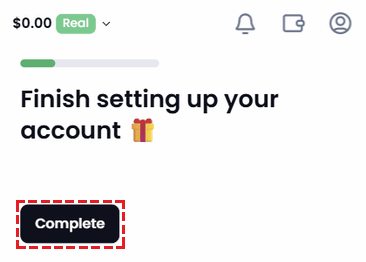
Log in to the XM Members Area (opens in a new tab). Then tap Complete under Finish setting up your account.
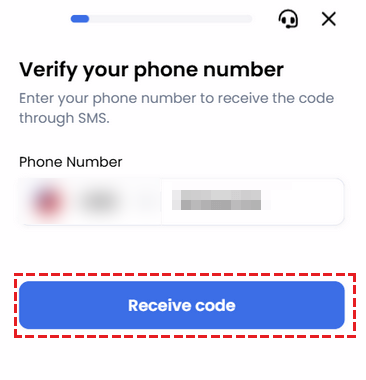
Type your phone number and tap Receive code. XM sends a 6-digit verification code by SMS.
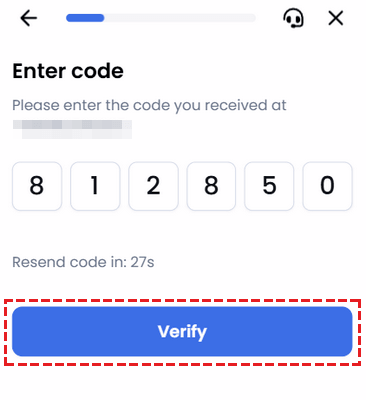
Type the 6-digit code from the SMS and tap Verify. If no SMS arrives, wait until the timer ends and request a new code.
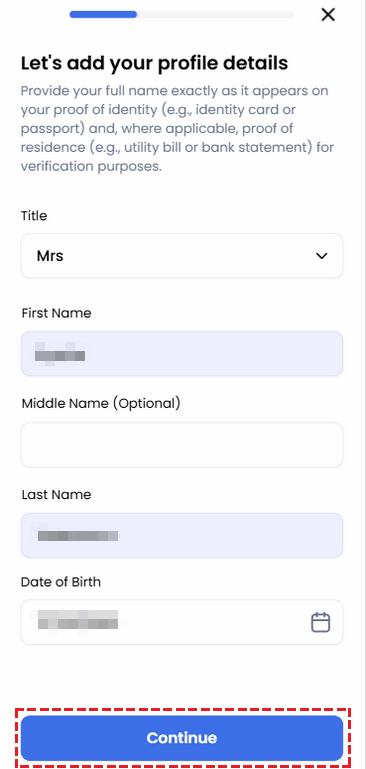
Type your name and date of birth exactly as on your ID. If your ID has an English side, copy them from it. Tap Continue, and type your address on the next screen.
Answer the question about your trading experience and tap Continue.
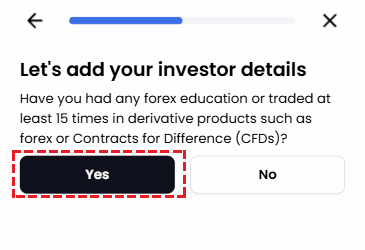
XM asks for photos of your ID, your proof of residence and your face. Tap Continue.
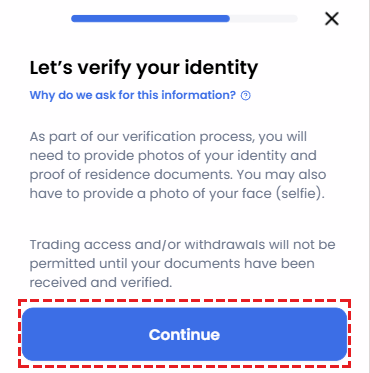
Choose how to take the photos. Use mobile phone gives the clearest pictures. On a computer, you can also upload a file.
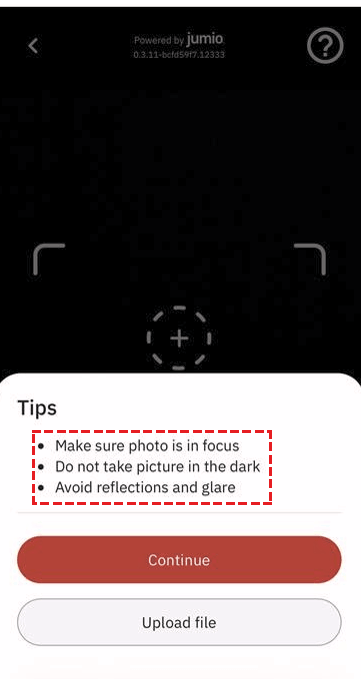
Take a photo of your ID. If light reflects on the card and hides any letters, turn off the flash or move away from the lamp. Then take the photo again.
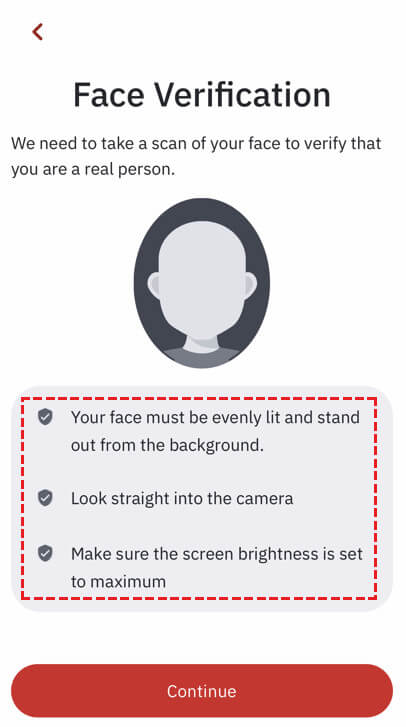
Take a selfie. Look straight into the camera, with your face in even light.
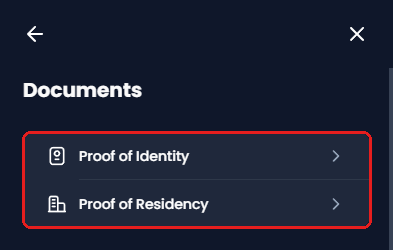
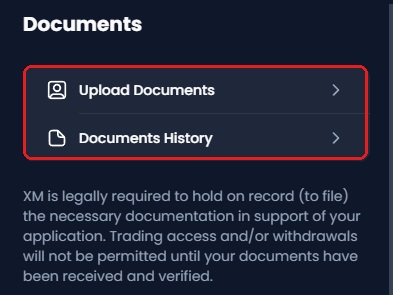
If XM still needs a document, open your profile, then Settings, Documents and Upload Documents. Upload it under Proof of Identity or Proof of Residency.
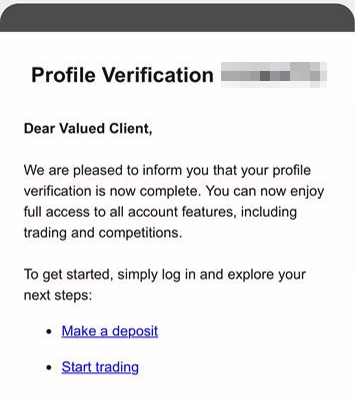
When the check is done, your profile is verified and XM sends you an email.
How Long Does XM Verification Take?
Up to 24 hours after you upload all your documents, weekends included. XM checks documents in the order it receives them, and sends you an email when the check is done.
You can see the progress in two places in the Members Area.
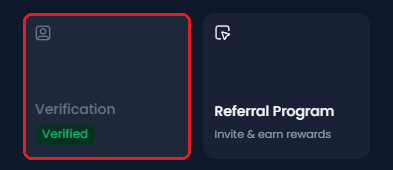
- Profile: Verified
Open your profile from the person icon. Verified under Verification means that the check is done. - Each document: Received or Verified
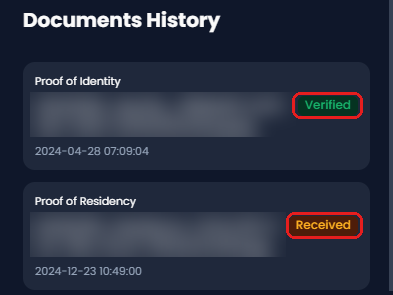
Open Settings, Documents and Documents History. Received means that XM has the file. Verified means that XM has accepted it. - After 24 hours: contact XM
If nothing has changed 24 hours after your last upload, ask XM support. The XM contact guide lists the ways to reach XM.
What If XM Does Not Accept Your Documents?
Upload a new document that fixes the problem.
- Check: Documents History
Find the document that is not marked Verified. - Fix: the four points
Compare the document with the four points at the top of this page. For example, check the expiry date, the four corners and the address. - Upload again: Upload Documents
Open Settings, Documents and Upload Documents. Then upload the new file. - Still stuck: contact XM
Ask XM support which document it still needs.
What Should You Do After Verification?
Your XM profile is now verified. These guides cover the next steps.
Questions People Ask About XM Verification
- What is the XM verification code?
-
It is the 6-digit code that XM sends by SMS when you confirm your phone number. Type it on the Enter code screen.
XM also sends a 6-digit code by email each time you log in to the Members Area. That code is a security check for the login, and it is not part of verification.
If the login email does not arrive, the XM login guide shows what to do.
- Does XM check documents at weekends?
-
Yes. XM checks documents within 24 hours after you upload all of them, at weekends too.
- Can I deposit before verification?
-
XM asks you to verify first and then deposit. You can trade and withdraw only after XM has checked your documents. The XM deposit guide shows the methods for your country.
- Do I need to verify again for a new trading account?
-
No. A new trading account in the same XM profile is verified automatically if your personal details are the same. This also applies after your old trading accounts were archived.
- How do I change my name or my phone number?
-
For a new name, upload a new proof of identity. For a new phone number, contact XM support. The XM contact guide lists the ways to reach XM.
- Why does XM need my documents?
-
XM’s regulator requires it. The Financial Services Commission (FSC) requires XM to check the identity of every client. This check is called KYC (know your customer).
Sources: where each fact on this page comes from
XM’s pages and screens
- XM Members Area
- We read the documents that XM accepts, the file types, the note about trading and withdrawals, and the document status on 1 October 2026. The pictures of the verification steps are from March 2026.
- XM Help Centre (opens in a new tab)
- The order of the steps, the passport rule, new trading accounts without new documents, changes of name and phone number, the email code at login, and the reason for the checks.
- XM live chat
- Documents are checked within 24 hours after you upload all of them, in the order XM receives them. XM also checks documents at weekends. Both answers were given on 1 October 2026.
Once your XM trading account is open, link it to Forex FanClub. The member area lists every rebate payment day by day, across every broker you use. Registration is free and takes an email address.

Produced and operated by Forex FanClub
Person responsible: Hiroki Sakaida, founder of Forex FanClub
Hiroki Sakaida decides what our content and services cover and which features they offer. He also checks content and functionality and decides on revisions and publication. Our Content and Service Policy explains how we produce and check our content and services, including our use of AI.
Risk warning: Forex and CFD trading involve leverage, and you could lose all the money you invest. This article and tool provide information, not investment advice. The amounts shown are calculated from the collected data and do not guarantee the amounts that will apply to your own trades, or any future profit.
Affiliate disclosure: This article contains XM referral links. Forex FanClub receives referral commission based on registrations and trading through these links.