

Which password to use, where to find your MT ID, and what to do if you cannot log in.
Checked on 2 October 2026
You log in to the XM Members Area with your email and your profile password. You log in to MT5 with the MT ID, the password and the server of each trading account.
Contents
Which Password Do You Need?
XM uses two different logins: one for the Members Area and one for each trading account in MT5.
- Members Area
You log in with your email and your profile password. The XM app uses the same details. If you registered with Google, tap Google. - MT5
You log in with the MT ID, the password and the server of each trading account. This password is separate from your profile password. - Your first trading account
XM opens it, together with a demo account, when you register. Both start with your profile password as the MT5 password. A trading account that you add later uses the password that you chose for it.
The table below shows what to type in each place.
| Details | Members Area | MT5 |
|---|---|---|
| Login | Your email | MT ID (9 digits) |
| Password | Profile password | Trading account password |
| Server | Not needed | The server of that trading account |
| If you forget the password | Forgot your password? | Change MetaTrader Password |
Protect your email and your profile password most. If you forget an MT5 password, you can set a new one in the Members Area in a minute, without the old password.
If you lose both your email and your profile password, XM Support must check your identity before you can log in again.
So use a profile password that you use on no other website, and keep the 6-digit login code turned on. We also recommend a different password for MT5. Then your MT5 password does not also open your Members Area.
Where Is Your MT ID and Server?
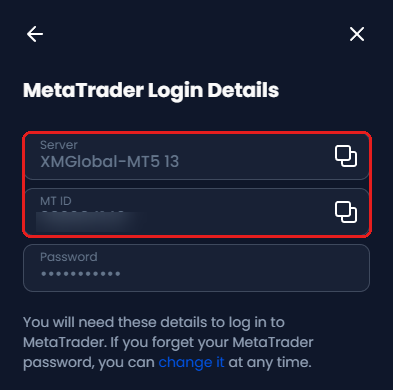
Both are in the Members Area, under Manage on each trading account card. The MT ID is the same number as the account number on the card.
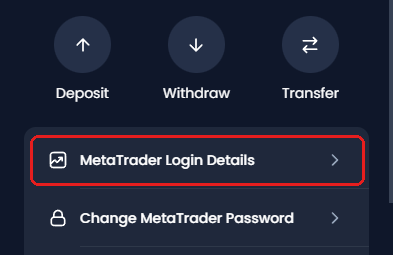
Log in to the XM Members Area (opens in a new tab). On Home, choose the trading account at the top of the account card, if you have several. Then tap Manage, and tap MetaTrader Login Details.
The screen shows the Server and the MT ID, with buttons to copy them. XM does not show the password here.
In the MT5 app, choose XM Global Limited. Type the MT ID in Login, type the password, and choose the same server.
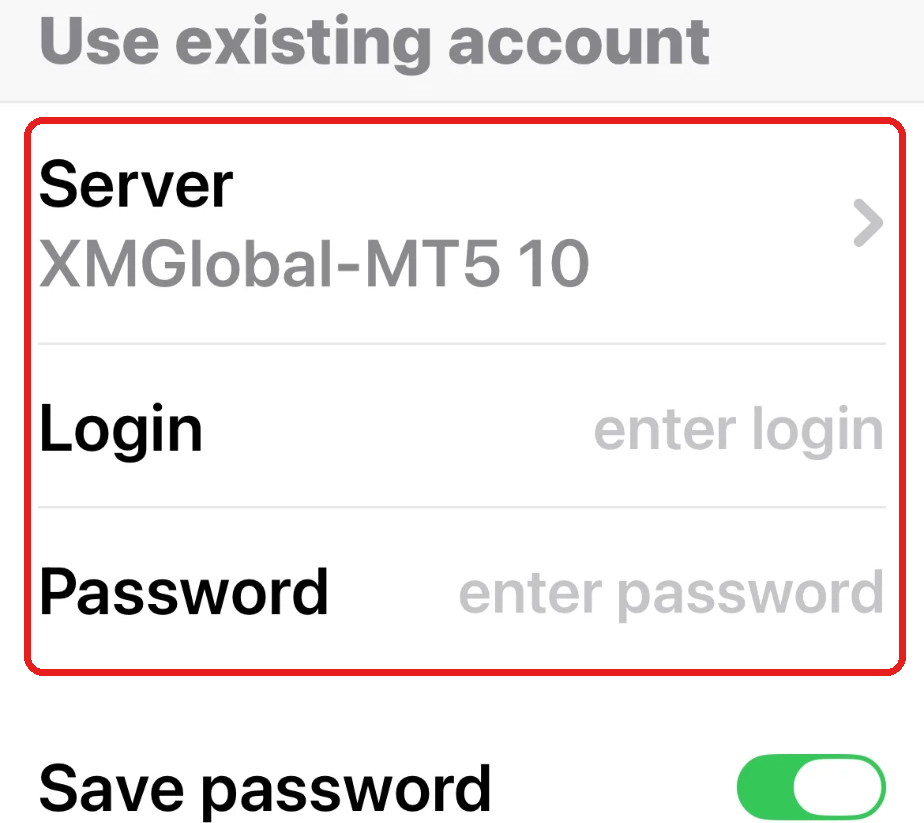
Two trading accounts can be on different servers. In the pictures above, one trading account is on XMGlobal-MT5 13, and the other is on XMGlobal-MT5 10. So check the server of every trading account that you add. The XM MT4 and MT5 setup guide shows how to install MT5 on a computer.
Why Can’t You Log In to XM?
Check these points in this order. The first ones take only a few seconds.
- Using the wrong password
In the Members Area, use your profile password. In MT5, use the password of that trading account. - Choosing the wrong server
In MT5, you also need the right server for that trading account. Check the server under MetaTrader Login Details. - Using an MT4 MT ID in MT5
You cannot log in to MT5 with the MT ID of an MT4 trading account. To use MT5, open an MT5 trading account in the Members Area. - An archived trading account
After more than 90 days at a balance of 0, XM archives a trading account. An archived trading account cannot open again, so open a new one. The XM additional account guide shows how. - Weekend maintenance
Every Saturday and Sunday morning, XM stops the Members Area and the XM app for about 30 minutes. If you cannot log in at that time, try again 30 minutes later.
If none of these points is the reason, set a new password as shown below. If you still cannot log in, contact XM Support. The XM contact guide lists the ways to reach XM.
Forgot Your XM Password?
You can reset both passwords yourself. You reset the Members Area password from the login page, and the MT5 password inside the Members Area.
- Members Area password
On the login page, tap Forgot your password? XM then sends a reset link to your email. - MT5 password
In the Members Area, tap Change MetaTrader Password. You do not need the old password. - No access to your email
XM Support checks your identity and then changes your email address.
To reset the Members Area password, follow these steps.
On the XM login page, tap Forgot your password?
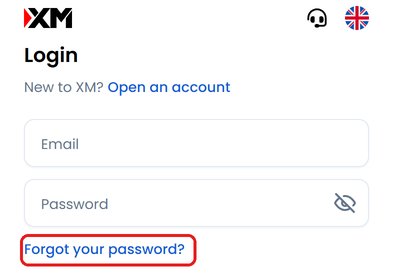
Type your email address, and tap Reset at the bottom of the screen.
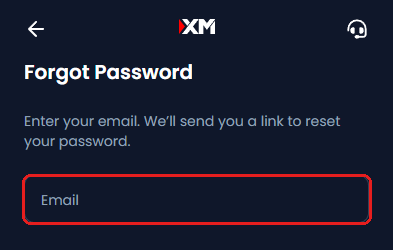
Open the email from XM, tap the link, and choose a new password.
The profile password needs 10 to 15 characters, with at least one number, one lower-case letter, one upper-case letter and one symbol, such as # or @.
To set a new MT5 password, follow these steps.
On Home in the Members Area, choose the trading account on the account card. Then tap Manage, and tap Change MetaTrader Password.
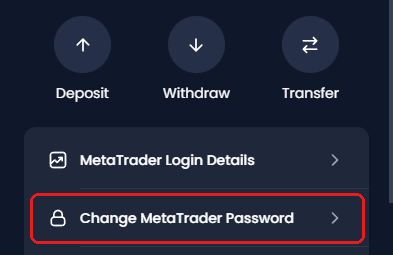
Type the new password, and tap Change Password. Use the new password the next time you log in to MT5.
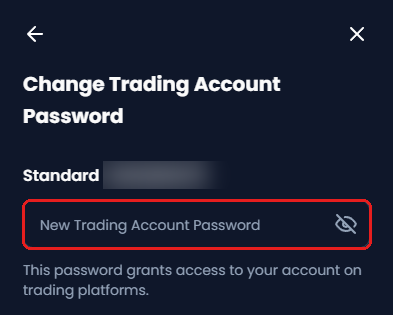
If MT5 does not accept your profile password on your first trading account, set a new MT5 password in the same way.
Do you think someone else knows your password? Change the password at once, and tell XM Support about any trade or withdrawal request that you did not make. If someone also controls your email, write to XM Support from a different email address.
Login Code Not Arriving?
Check your spam folder, wait for the timer, and then ask XM to send the code again.
With Multi-Factor Authentication (MFA) turned on, XM asks for a 6-digit code after your password. XM also calls it a verification code. If you chose the email method, the code comes to your registered email.
Check your spam folder, and check that your mailbox is not full.
Wait until the timer next to Resend code in reaches 0. Then ask XM to send the code again. You can also tap Didn’t receive email?
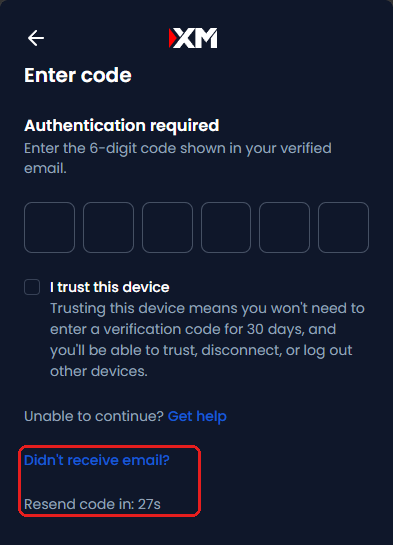
If no code arrives, contact XM Support.
On your own phone or computer, tick I trust this device. XM then does not ask for a code on that device for 30 days. Leave the box empty on a shared computer.
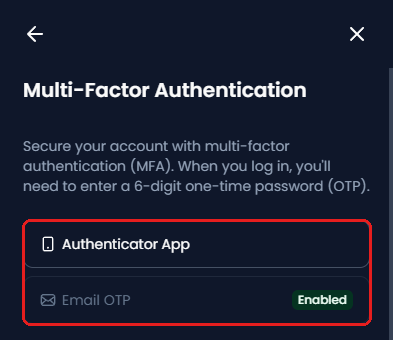
You choose how the code arrives in Settings > Security > Multi-Factor Authentication. XM uses one method at a time.
- Email OTP
The code comes by email. You need no extra app, and the code still reaches you after you change phones. - Authenticator App
An app on your phone shows the code, so you do not wait for an email. For example, you can use Google Authenticator (opens in a new tab) or Microsoft Authenticator (opens in a new tab).
The 6-digit SMS code that checks your phone number is a different code. The XM verification guide covers that code.
XM Login FAQ
- Can I log in to the Members Area with my MT5 number?
-
No. The Members Area login asks for your email. The MT ID is for MT5 only.
- How do I log in to my XM demo account?
-
In the same way as a real trading account: with its MT ID, password and server. The XM demo account guide shows the steps in MT5.
- Can one login hold all my trading accounts?
-
Yes. One Members Area login holds up to 10 trading accounts. In MT5, you log in to each trading account separately.
- Is the login code the same as the SMS verification code?
-
No. The SMS code checks your phone number once, during verification. The login code comes each time you log in, if MFA is on.
- Can I use the same details in the XM app?
-
Yes. The XM app uses your email and profile password. You can also log in to the app with an existing MT5 trading account.
- What is a read-only MetaTrader password?
-
It lets another person see a trading account, but not trade on it. Set it under Manage > Set Read-Only MetaTrader Password, and give it to the person who needs to see the trading account.
- Is the XM partner login the same?
-
No. The partner login is for introducing brokers (IBs), and it uses an Affiliate ID. As a trader, use the XM Members Area login (opens in a new tab).
Sources: where each fact on this page comes from
XM’s help pages and screens
- XM Help Centre (opens in a new tab)
- The two passwords and where to reset them, the password of the trading accounts that XM opens at registration, the MT ID and server, MT4 numbers in MT5, archived trading accounts after 90 days at a zero balance, the login code (MFA), and a lost email address.
- Weekly maintenance
- XM Help Centre: the Members Area and the XM app stop on Saturday 10:05 to 10:35 and Sunday 06:20 to 06:45, in XM’s time zone (GMT+2, with daylight saving time).
- XM login page and registration page
- The Email and Password boxes, Forgot your password?, and the password requirements, on 2 October 2026.
- XM Members Area
- Manage, MetaTrader Login Details, Change MetaTrader Password, the login code screen and Multi-Factor Authentication, on 2 October 2026. The pictures show a real trading account with its numbers hidden.
Once your XM trading account is open, link it to Forex FanClub. The member area lists every rebate payment day by day, across every broker you use. Registration is free and takes an email address.

Produced and operated by Forex FanClub
Person responsible: Hiroki Sakaida, founder of Forex FanClub
Hiroki Sakaida decides what our content and services cover and which features they offer. He also checks content and functionality and decides on revisions and publication. Our Content and Service Policy explains how we produce and check our content and services, including our use of AI.
Risk warning: Forex and CFD trading involve leverage, and you could lose all the money you invest. This article and tool provide information, not investment advice. The amounts shown are calculated from the collected data and do not guarantee the amounts that will apply to your own trades, or any future profit.
Affiliate disclosure: This article contains XM referral links. Forex FanClub receives referral commission based on registrations and trading through these links.