

The XM app is XM App in most countries and XM 360 on Google Play in India and Pakistan. Install the one your store shows.
Checked on 10 November 2026
We used the XM app on a real Android phone, followed each step on a demo trading account up to the last tap before an order, and looked up the XM apps in the stores of 17 countries.
Every XM app opens with your XM Members Area login, and if you are new to XM, you can register on the XM website.
Contents
- Which XM App Should You Download?
- What Are XM On and XM Connect?
- How Do You Download the XM App?
- How Do You Log In to the XM App?
- How Do You Place a Trade in the XM App?
- How Do You Open a Demo Account in the XM App?
- Can You Deposit and Withdraw in the XM App?
- Should You Use the XM App or MT5?
- Does the XM App Change Your Trading Cost?
- XM App FAQ
- Which XM Guide Do You Need Next?
Which XM App Should You Download?
You download the XM app that your app store shows from Trading Point Group, the company behind XM, because each country’s store lists only one XM app. On Google Play, the app is called XM 360 in India and Pakistan, XM Traders in Indonesia and XM App in the other countries we checked.
| Where you live | Google Play | App Store |
|---|---|---|
| India, Pakistan | XM 360 | XM App |
| Indonesia | XM Traders | Not listed |
| Most other countries | XM App | XM App |
The names differ, but the apps come from one publisher. The Google Play pages of XM App and XM 360 have the same publisher, the same support email address and almost the same description, and both apps got their last update on the same day.
So you do not need to choose between XM App and XM 360, because your store already chose the app for you.
If you live in India, read what the RBI says about XM in our review before you install any trading app. The Reserve Bank of India lists XM on its Alert List (opens in a new tab), and the rules of your country apply to you, whichever name the app has.
What Are XM On and XM Connect?
XM On and XM Connect are two more apps from Trading Point Group on Google Play, but Google Play did not show either app in the search of any of the 17 countries we checked. A third app, XM GO, was also missing from the search. Your search for “XM app” on Google Play gives you XM App, XM 360 or XM Traders instead.
Google’s web search can still send you to the store page of XM On or XM Connect. Our phone opened both pages and then said that the app is not available in our country, so an open store page does not prove that you can install the app.
So if a link sends you to XM On or XM Connect and the Install button is missing, go back to the store and search for XM. The app that your store’s search shows is the one to install.
How Do You Download the XM App?
You download the XM app free from Google Play on Android and from the App Store on iPhone, and the publisher on the store page is Trading Point Group. Check the publisher before you tap Install, because the publisher name is the quickest way to tell the real app from a copy.
| Where to get it | What you need | |
|---|---|---|
| Android | Google Play | Android 8.0 or newer |
| iPhone | App Store | iOS 15.4 or newer |
| Computer | No app | A web browser or MT5 |
You can open XM App on Google Play (opens in a new tab), XM 360 on Google Play (opens in a new tab) or XM App on the App Store (opens in a new tab) from these links. The store in your country decides whether the Install button appears.
APK sites in your search results are not XM pages, and an app from those sites can be an old version or a modified copy. You type your XM password into the app and you move money with the app, so install the XM app only from your store.
There is no XM app for a computer. On a PC, you log in to the XM Members Area in a web browser, or you download MT5, as the XM MT5 and MT4 guide shows.
How Do You Log In to the XM App?
You log in to the XM app with the email address and the password of your XM Members Area, and the app then asks you to choose a 6-digit passcode. The passcode opens the app on your phone from then on, so you do not type your password every time.
The MT5 app asks for different details, which are the MT ID, the password and the server of one trading account. You find those three details in the XM app, under Manage and MetaTrader Login Details.
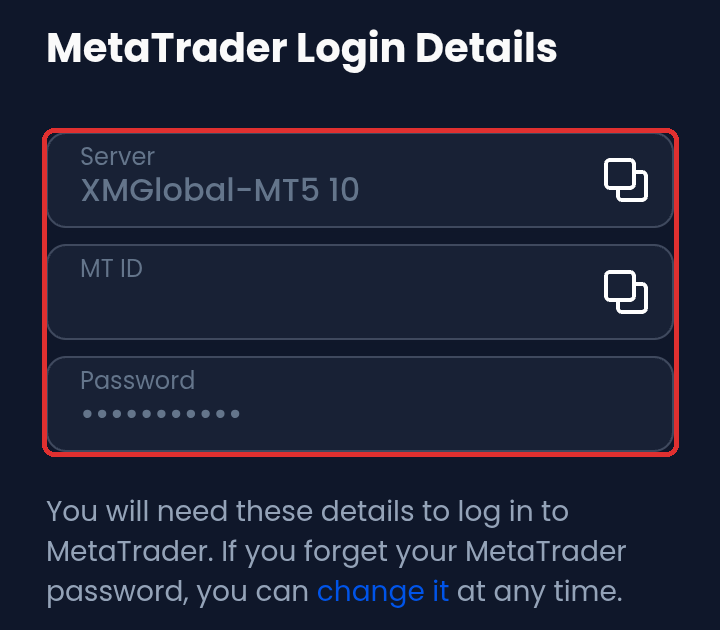
If the app does not accept your password, the XM login guide shows which password belongs to each login and how to reset the password.
How Do You Place a Trade in the XM App?
In the XM app, you open an instrument in the Markets tab, tap Buy or Sell and tap Place Order on the order screen. We followed the steps on a demo trading account and stopped before Place Order.
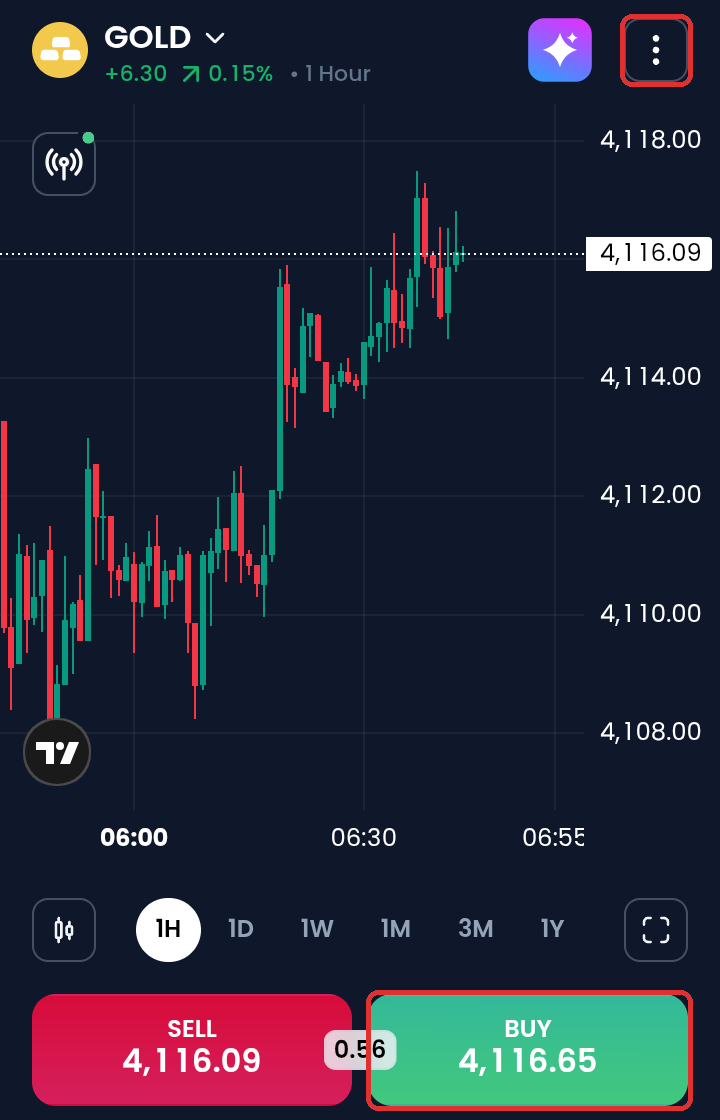
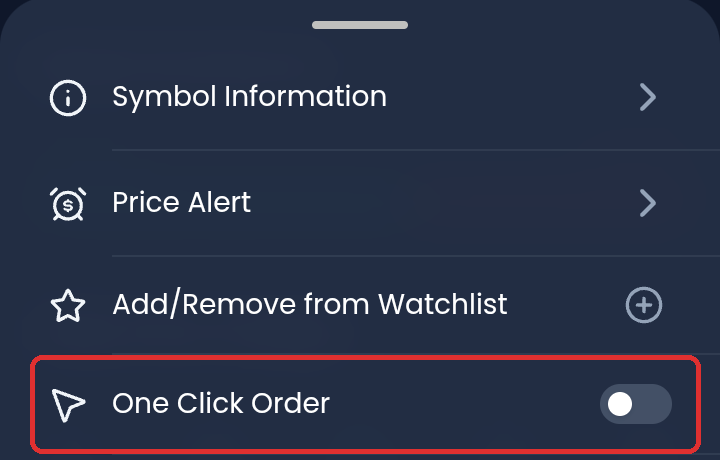
The first tap on Buy only opened the order screen for us, because One Click Order was off. You find the One Click Order switch in the menu with the three dots next to the name of the instrument, at the top of the screen. Leave the switch off until you know the app, so that every trade passes through the order screen.
Open the Markets tab and tap an instrument, such as GOLD.
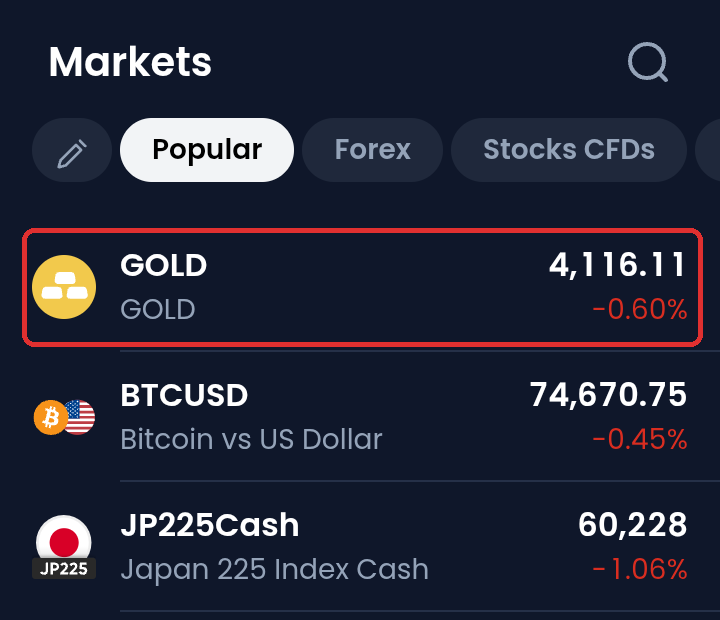
Tap the three dots next to GOLD at the top of the screen to see the One Click Order switch.
Leave One Click Order off, so that Buy and Sell open the order screen first. Close the menu and tap Buy or Sell.
Set the size, turn on TP/SL for your stop loss and tap Place Order to send the order.
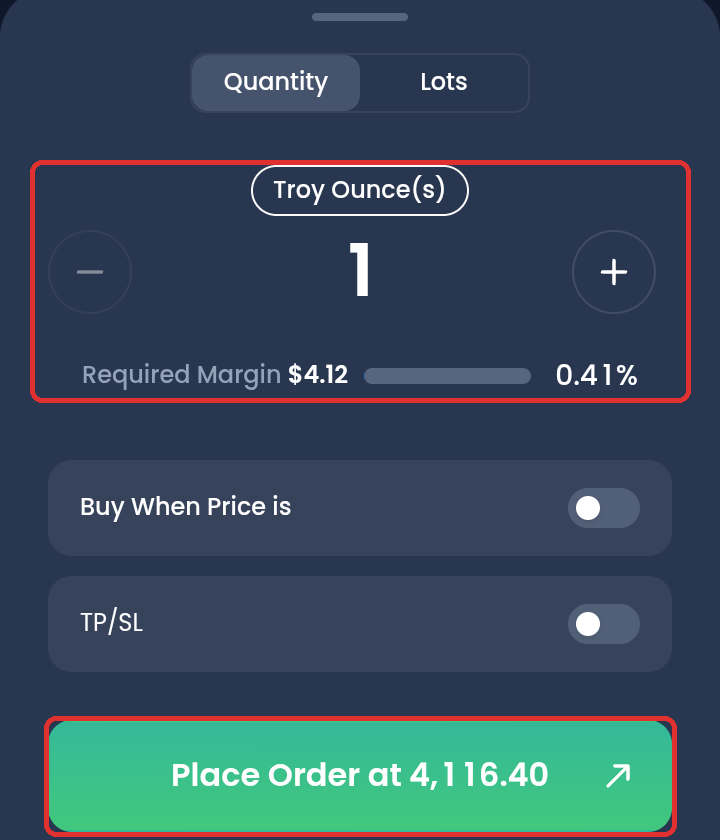
The order screen opened at 1 ounce of gold, which is 0.01 lot, and showed a required margin of $4.12 at 1:1000 leverage. Tap Lots if you think in lots, and calculate your own size first with the lot size calculator.
The number between Sell and Buy is the spread in dollars for one ounce. Our gold screen showed $0.55, so 1 lot of 100 ounces cost $55.00 in spread at that moment, and a trade of 0.01 lot cost $0.55.
How Do You Open a Demo Account in the XM App?
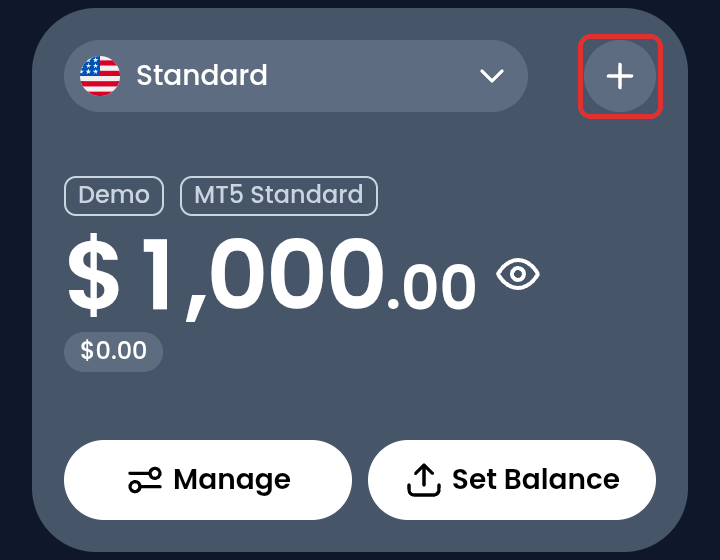
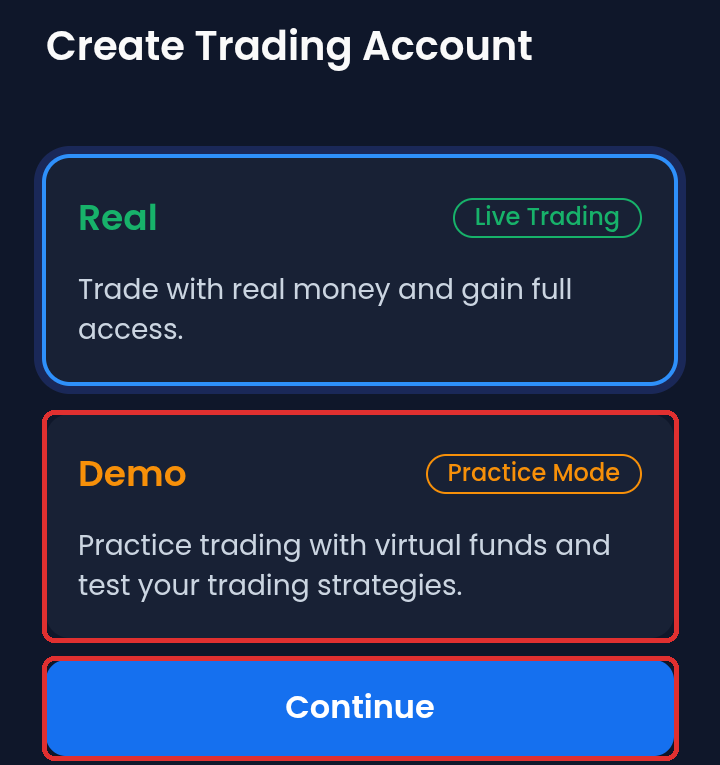
You open an XM demo trading account in the app with the plus button next to the trading account name on the Home tab, and you then choose Demo. Your demo trading accounts then sit in the same list as your real trading accounts, with an orange Demo label.
On the Home tab, tap the plus button next to the trading account name.
Choose Demo and tap Continue. Then follow the screens to choose the trading account.
The XM demo account guide shows how a demo trading account compares with a real trading account and how long the demo trading account lasts.
Can You Deposit and Withdraw in the XM App?
Yes, you deposit, withdraw and move money between your XM trading accounts in the app, with the wallet button at the top of the screen. The MT5 app has no menu for your money, so the XM app is the one you need for payments.
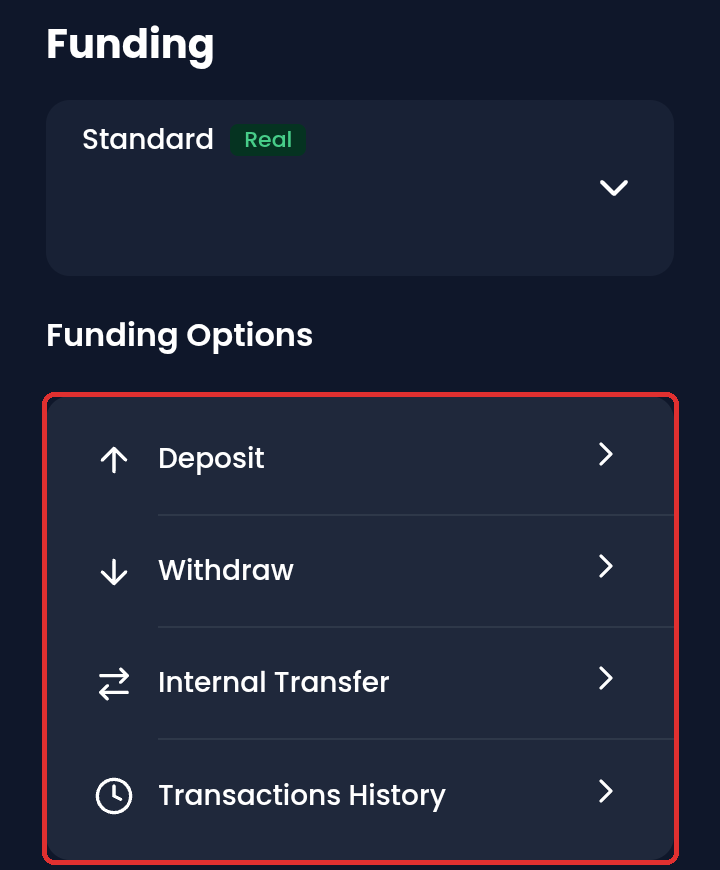
The list of payment methods depends on your country. The XM deposit guide shows the minimum amounts, and the XM withdrawal guide shows when your money arrives.
Should You Use the XM App or MT5?
The XM app is the better first app, because the XM app handles your payments, your demo trading accounts and your trades in one place. The MT5 app is the app to add if you need more order types.
| XM app | MT5 app | |
|---|---|---|
| Deposits and withdrawals | Yes | No |
| Live chat with XM support | Yes | No |
| Copy trading and competitions | Yes | No |
| Limit and stop orders | One switch | 6 order types |
| Charts | TradingView | MetaTrader |
Both apps trade on the same trading account, so you do not open a second trading account for MT5. You copy the MT ID and the server from MetaTrader Login Details in the XM app, and the XM MT5 and MT4 guide shows how to connect MT5 and where to download MT5.
A trade that you open in one app shows in the other app too, because the trade belongs to the trading account and not to the app.
Does the XM App Change Your Trading Cost?
No, the XM app does not change your trading cost, because your cost depends on your XM account type.
A rebate is the part of XM’s partner commission that ForexFanClub pays back to you on every lot. After that rebate, 1 lot of gold costs about $21.80 on the Ultra Low account and about $37.60 on the Standard account, whichever app you use.
That difference of $15.80 a lot stays with you on every trade, so the account type is the choice that saves you money. The XM account types guide compares every account, and the XM rebate guide shows the rebate on each instrument.
To compare the cost of gold across brokers, our forex trading app comparison shows which broker’s app costs the least.
The rebate follows the partner of your XM profile, and the app you trade in makes no difference to the rebate.
The app has its own registration button, so to have ForexFanClub as your partner from the start, register through the button below and then log in to the app with the same login details.
XM App FAQ
- Is the XM app free?
-
Yes, XM App and XM 360 are free to install. You pay the spread and any commission of your trading account when you trade.
- Is XM 360 the same as the XM app?
-
XM 360 is the name of the XM app on Google Play in India and Pakistan, from the same publisher, Trading Point Group.
We could not install XM 360 in our country, so we compared the two store pages, which have the same publisher, the same support email address and almost the same description.
- Can you use MT4 trading accounts in the XM app?
-
Yes, the XM app lists MT4 trading accounts next to MT5 trading accounts. Our list showed an MT4 demo trading account and several MT5 trading accounts.
For MT4 on a computer, use the MT4 download in the XM MT5 and MT4 guide.
Where the facts come from:
Sources and how we checked them
The app
We read the screens of XM App, version 4.60.0, on an Android phone on 10 November 2026. We opened the order screen on a demo Standard MT5 trading account, stopped before Place Order, and placed no order. The iPhone version may look slightly different.
The stores
We searched Google Play for XM in 17 countries and read the store pages of XM App (opens in a new tab), XM 360 (opens in a new tab), XM Traders, XM On, XM Connect and XM GO on 10 November 2026. We looked up XM App on the App Store (opens in a new tab) in 19 countries. A store can change its list at any time.
The cost of gold
The spreads are the 24-hour averages of our XM spread tool up to 2026-11-10 04:34 UTC, and the rebates are the rates in our XM rebate guide. 1 pip of gold is $10 on 1 lot.
Which XM Guide Do You Need Next?
Once the XM app is on your phone, the next step is usually your login, your account type and MT5. These guides cover each one.
Once your XM trading account is open, link it to Forex FanClub. The member area lists every rebate payment day by day, across every broker you use. Registration is free and takes an email address.

Produced and operated by Forex FanClub
Person responsible: Hiroki Sakaida, founder of Forex FanClub
Hiroki Sakaida decides what our content and services cover and which features they offer. He also checks content and functionality and decides on revisions and publication. Our Content and Service Policy explains how we produce and check our content and services, including our use of AI.
Risk warning: Forex and CFD trading involve leverage, and you could lose all the money you invest. This article and tool provide information, not investment advice. The amounts shown are calculated from the collected data and do not guarantee the amounts that will apply to your own trades, or any future profit.
Affiliate disclosure: This article contains XM referral links. Forex FanClub receives referral commission based on registrations and trading through these links.
- Which XM App Should You Download?
- What Are XM On and XM Connect?
- How Do You Download the XM App?
- How Do You Log In to the XM App?
- How Do You Place a Trade in the XM App?
- How Do You Open a Demo Account in the XM App?
- Can You Deposit and Withdraw in the XM App?
- Should You Use the XM App or MT5?
- Does the XM App Change Your Trading Cost?
- XM App FAQ
- Which XM Guide Do You Need Next?